
Report Workflow settings on an inspection template, together with report style settings, control when signatures are required and where disclaimer text appears on Happy Property inspections and reports.
Use them to make staff or residents sign before an inspection is submitted, to show a disclaimer before signing on mobile, or to print the same legal or policy text at the end of every report.
 In this article
- Before you start
- Set up Report Workflow on an inspection template (web)
- Related option: Preview Report Before Completion (Mobile Only)
- Standard signing flow in the Happy Property app (signatures optional)
- Strict signing flow in the Happy Property app (signatures required)
- Signing disclaimer on mobile
- Required signature on mobile
- Other mobile cases
- What residents and guests see
- Add a footer disclaimer to a report style (web)
- What appears on the finished inspection report
- Frequently asked questions
Before you start
Check each of these first:
- Mobile app version 2.7.14 or higher
- Enable Automated Workflow set to "Only generate reports for completed inspections"
- Automatically Generate Report turned on
- Some toggles only appear when HappyCo has enabled them for your business
 Don't see the signature or disclaimer options?
The signature and Show Disclaimer toggles in Report Workflow only appear when the template generates reports after completion. Set Enable Automated Workflow to "Only generate reports for completed inspections" and turn on Automatically Generate Report. Both must be on.
If both are on and an option is still missing, it may need to be enabled for your business. See If an option is missing below.
| Feature | When your organization would use it | Where administrators configure it | What end users see | Good to know |
|---|---|---|---|---|
| Footer report disclaimer | Use this when you want the same legal or policy text at the end of every report for a specific report style. | Settings → Business Settings → Setup → Report Styles → open a style → Footer report disclaimer | Anyone who opens the final report will see this text under Important Information Regarding This Report. | This is separate from template signing settings. Be sure to use the Report style on the template's Report Workflow so inspections use that style. |
| Require Signature (Guest Inspection Only) | Residents or guests must sign to submit their inspection. | Templates → Report Workflow | Residents or guests completing inspections must add a signature before submitting. | This option is only visible if your account includes resident/guest inspections. It doesn't affect the staff mobile "must sign every time" flow. Helper text: "Recipient must add a signature to submit inspection." |
| Require Signatures (All Inspections), mobile only (inspections can still be completed on web without signature) | Staff must collect signatures on inspections within the Happy Property app (for example, move-in or move-out inspections). | Templates → Report Workflow | Staff and residents on mobile will see prompts to provide signatures (for example, a signature from an associate for move-out, or from a resident for move-in). | This option is only visible when enabled for your account. It requires Automatically Generate Report. Helper text: "Must add signature(s) to submit inspection. Inspections can't be completed until all required fields are filled and the required signature is captured. The options "Sign later" and "No signature" are removed when signature is mandatory." |
| Show Disclaimer | Use this if you want custom text on the template for residents to read before signing on mobile. | Templates → Report Workflow (after turning on Show Disclaimer) | Enables the Disclaimer Content field; it doesn't create a separate screen. | This only appears when the setting is enabled. It's not added to the PDF footer: for footer text on reports, use Footer report disclaimer. On mobile, the disclaimer shows only if this field has content and required mobile signatures are enabled. If the content is empty, no disclaimer appears on mobile, even if Show Disclaimer is on. |
Set up Report Workflow on an inspection template (web)
 Go to Settings → Business Settings
Open Settings, then Business Settings.
 Open Templates
Under Setup, open Templates.
 Open the inspection template
Open the template, or choose Edit Report Workflow from the template list.
 Open the Report Workflow section
Open the Report Workflow section of the template.
 Turn on the two prerequisite toggles
Turn on Enable Automated Workflow and select "Only generate reports for completed inspections". Then turn on Automatically Generate Report.
 Tip
Tip
The signature and Show Disclaimer toggles stay hidden until both of these are on.
 Enable the signature options you need
Turn on the options from the table above that fit your process.
 Add a signing disclaimer, if you use one
If you use a signing disclaimer, turn on Show Disclaimer and enter your Disclaimer Content.
Tip
On mobile the disclaimer only shows if Disclaimer Content has text.
 Select a report style, if needed
Select the Report style for the layout and footer disclaimer set in Report Styles.
Tip
If you use a Footer report disclaimer, pick the style that holds it so generated reports use it.
 Save your changes
Save the Report Workflow.
Tip
A confirmation reading Report Workflow saved appears.
Related option: Preview Report Before Completion (Mobile Only)
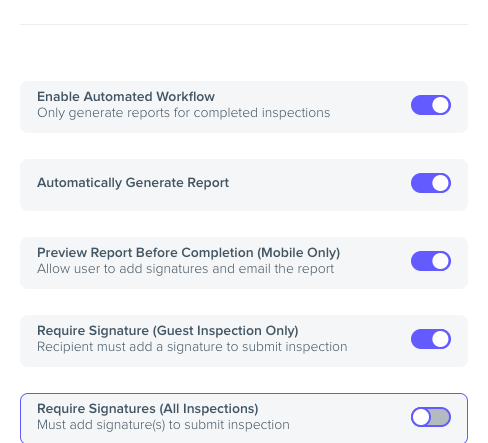
Preview Report Before Completion (Mobile Only) is on the same screen. It lets users add signatures and email the report before completing the inspection. It requires Automatically Generate Report to be enabled.
 Reports and completed inspections
Reports should only be generated for completed inspections. Completed inspections should create a report.
Standard signing flow in the Happy Property app (signatures optional)
Applies when Require Signatures (All Inspections) is off, or it is on but Enable Signature Disclaimer and Enforce Resident Signature on Mobile is not enabled for your business.
- After tapping Complete, staff usually see Inspection complete with Preview Report and Finalize Without Signing.
- On the Inspection Report, Finalize opens a sheet with Sign Now, No Signature and Sign Later.
- Sign Later creates a blank signature field.
- Staff can complete without signing or add signatures at their discretion.
Strict signing flow in the Happy Property app (signatures required)
Applies when Require Signatures (All Inspections) is on and Enable Signature Disclaimer and Enforce Resident Signature on Mobile is enabled for your business.
- After tapping Complete, staff go straight to the Inspection Report.
- The Inspection complete screen and Finalize Without Signing are not shown.
- Finalize goes straight to the Who's Signing? screen; Sign Now, No Signature and Sign Later are not shown.
- Staff enter their full name, tap Next, then sign on the Sign Report screen.
- Share becomes available once at least one signature is added.
- Tapping Done completes the inspection and generates the report.
Signing disclaimer on mobile
If Disclaimer Content has text and the strict mobile flow applies, staff see a Disclaimer warning on the Who's Signing? screen before entering their name. The app checks for content; it does not rely on the Show Disclaimer toggle alone for mobile.
Required signature on mobile
In the mobile app:
- Signature is required before submitting.
- Disclaimer appears below the signature field with the custom text.
Other mobile cases
- Cost capture: if the template includes cost capture and the inspection has costs, staff may review costs before the signature step.
- Require Signature (Guest Inspection Only) does not affect staff mobile behavior; it applies to residents or guests submitting their own inspections.
What residents and guests see
When Require Signature (Guest Inspection Only) is enabled on a template and your business uses Resident Inspections, residents or guests must add a signature to submit. This is enforced in the resident inspection experience and does not affect staff mobile flows.
Add a footer disclaimer to a report style (web)
-
Go to Report Styles
Go to Settings → Business Settings → Setup → Report Styles. -
Open the report style
Open the report style you want to edit. -
Enter the Footer report disclaimer
Enter your text in Footer report disclaimer (helper text: "Add any conditions or disclaimers for this report"). TipThis text appears on every report that uses this style, not on the mobile signing screen.
-
Save the report style
Save the report style. -
Assign the style to templates
On each template that should use this style, set the Report style in the Report Workflow.
Header disclaimer field
The report style screen also has a Header report disclaimer field, alongside Footer report disclaimer.
What appears on the finished inspection report
- Signatures appear in the report's signature section, with name, date and drawn signature when provided.
- Footer report disclaimer appears at the end under Important Information Regarding This Report.
- Disclaimer Content appears only on the mobile Who's Signing? screen, not in the report body or footer.
| You need | What you may enable |
|---|---|
| Require Signature (Guest Inspection Only) | Resident Inspections (business capability) |
| Require Signatures (All Inspections) | Enable resident signature in report workflow |
| Show Disclaimer and Disclaimer Content | Enable signature disclaimer and toggle in report workflow |
| Strict mobile signing (no Finalize Without Signing, required path to Who's Signing?) | Enable Signature Disclaimer and Enforce Resident Signature on Mobile (along with Require Signatures (All Inspections) on the template) |
| Context | Names in the product |
|---|---|
| Admin: template | Report Workflow, Edit Report Workflow, Report Workflow saved |
| Admin: report style | Footer report disclaimer, Report Styles |
Frequently asked questions
Why don't I see Require Signature or Require Signatures in Report Workflow?
Confirm Enable Automated Workflow is set to "Only generate reports for completed inspections" and Automatically Generate Report is turned on. Both must be on before the signature and Show Disclaimer toggles appear. If they still don't appear, the option needs to be enabled for your business: contact your HappyCo account team or support.
Require Signatures (All Inspections) is on, so why can staff still tap Finalize Without Signing?
Strict mobile enforcement has likely not been enabled for your account yet. Ask your HappyCo account team or support for Enable Signature Disclaimer and Enforce Resident Signature on Mobile.
Show Disclaimer is on, so why is no disclaimer showing on mobile?
On mobile the disclaimer shows only if Disclaimer Content has text and required mobile signatures are enabled. An empty field shows no disclaimer, even with Show Disclaimer on.
Does Disclaimer Content print on the PDF report?
No. It appears only on the mobile Who's Signing? screen. For text on the report, use Footer report disclaimer in Report Styles.
Does Require Signature (Guest Inspection Only) change what staff see?
No. It applies only to residents or guests submitting their own inspections.