
The on-call schedule sets which maintenance tech receives calls each day, including on-call backups, split shifts and exceptions. Use it to build 24-hour coverage and to copy schedules to future days or weeks.
🎬 Watch it in action: Watch: Manage Deactivated Team Members in Call Schedules
🎬 Watch it in action: Watch: How to Post Property Notices in Call Management
 In this article
- Troubleshooting: I don't see Call Complete, only Call Management
- Before you start in Call Complete
- Opening the on-call schedule in Call Complete
- Creating an on-call schedule and setting a backup in Call Complete
- Adding an exception for a tech who is temporarily unavailable
- Copying an on-call schedule to future days or weeks in Call Complete
 Call Complete or Call Management: which do you have?
- You sign in to Call Complete directly at the Call Complete portal: Call Complete is still in use for you.
- You use Call Complete inside Manage: your account is being moved to Call Management.
For the current experience, see Call Management: Setup and Training Guide.
Troubleshooting: I don't see Call Complete, only Call Management
Your account has been moved to Call Management, the newer version of Call Complete. HappyCo is rolling out Call Management to accounts in stages.
For the current experience, see Call Management: Setup and Training Guide.
Before you start in Call Complete
- Property Manager or Assistant Property Manager role, to edit the schedule
- Schedule covers 100% of each day (24 hours)
- Techs added to your onsite team, so they appear on the schedule
Opening the on-call schedule in Call Complete
 Log into HappyCo Manage and select your property
.
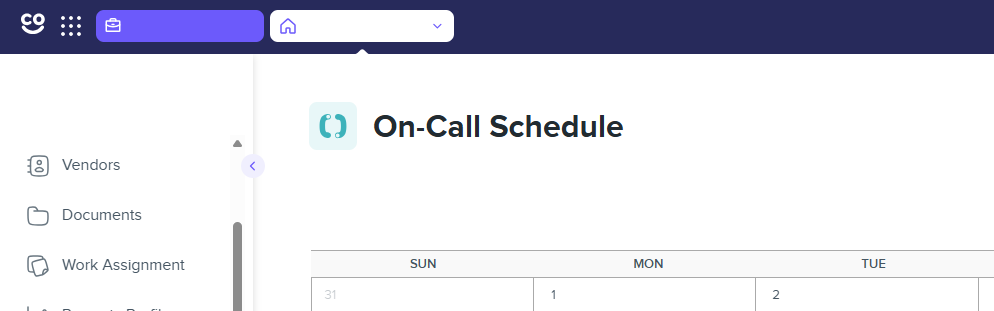
 Open the Call Complete tab
Go to the Call Complete tab and find the on-call schedule.
 Go to the week you need
Scroll to the week, or use the arrows in the upper right corner of the calendar to move between months.
Creating an on-call schedule and setting a backup in Call Complete
Open the day's menu
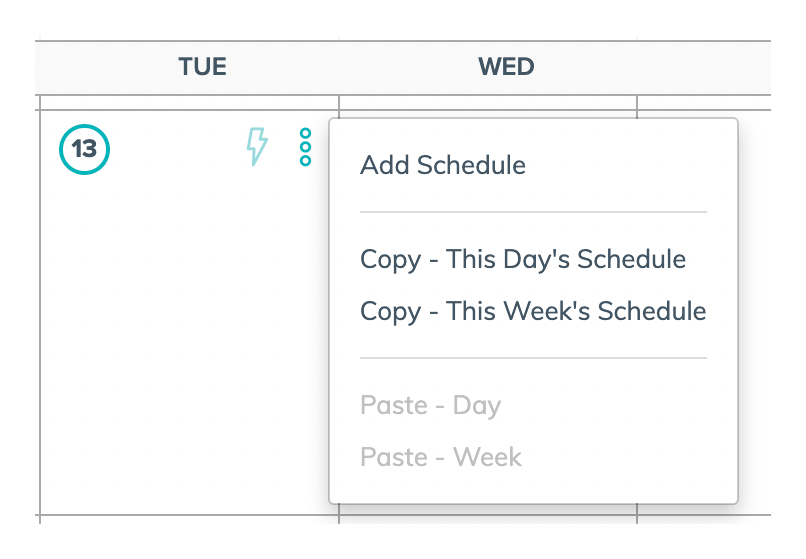
Hover over the day until the 3 vertical dot icon appears in the upper right corner of its square.
Select Add Schedule
Click the 3 vertical dot icon and select Add Schedule.
Enter the shift in Set Time
Enter the time shift in the Set Time section.
 Tip
To cover the full day, select 11:59 pm at the bottom of the end time list.
 Choose the primary tech under First, call
Select the primary maintenance tech from the First, call drop-down menu.
 Optional: add a backup
Click Add Backup and set the reroute time.
Tip
If the primary on-call person is unavailable, calls route to the backup after the reroute time.
 Save the schedule
Click Save in the lower right corner.
Tip
Review every time slot and tech assignment, and check the schedule reflects 100% coverage.
Adding an exception for a tech who is temporarily unavailable
Use an exception when the primary tech is temporarily unavailable (for example, a doctor's appointment or a meeting) but stays in their current schedule lineup.
Copying an on-call schedule to future days or weeks in Call Complete
Open the menu on the day to copy
Click the 3 vertical dot icon on the day.
Tip
To copy a full week, use the first day of that week.
Choose what to copy
Select Copy - This Day's Schedule or Copy - This Week's Schedule from the drop-down menu.
Open the menu on the target day or week
Go to the future day or week and click the 3 vertical dot icon.
Paste
Select Paste - (Date Range) from the drop-down menu.