
 happy-property
The HappyCo Connector brings your HappyCo data directly into Claude, letting you ask plain-English questions about your maintenance operations and get instant answers. No reports to run, no dashboards to dig through.
How to enable the Claude MCP connector
The HappyCo Connector is available in the Claude Connectors Directory. To add it:
- In Claude, click the "+" button in the lower left of your chat, or type "/" to open the menu.
- Hover over Connectors and select Manage connectors.
- Click the "+" button next to Connectors to browse the directory.
- Search for HappyCo and click on it.
- Click Connect and follow the prompts to authenticate with your HappyCo account.
Once connected, toggle HappyCo on from the Connectors menu in any conversation and start asking questions.
For Team or Enterprise Claude accounts: Your organization's Claude admin will need to enable the HappyCo Connector at the org level before individual users can connect. Once enabled, each user authenticates with their own HappyCo credentials. For detailed instructions, see Use Connectors to Extend Claude's Capabilities.
What you can explore today
Work Orders
- Property - how each community is performing, how many open work orders they have, and how quickly they're completing maintenance requests
- Work category - which types of maintenance (HVAC, plumbing, appliances, etc.) are taking the longest or generating the most volume
- Technician - how completion times compare across your maintenance team members
- Time - how work order volume and completion rates are trending week over week
- Single work order - the full history of one job, including activity notes, photos and attachments, and whether it synced to your PMS
Inspections
- Property and template - how many inspections are scheduled, incomplete, complete, or expired, and how that varies across your communities
- Inspector - how long inspections take to complete across your team
- Time - how inspection volume and completion are trending week over week
- Single inspection - every section and item, with ratings, inspector notes, photos, attachments, and any resident charges recorded against it
Projects
- Property and board - how many projects are open, on hold, completed, or cancelled across your portfolio
- Turn time - how long your make ready projects take from scheduled start to completion, so you can compare make-ready speed across communities
- Assignee and priority - where project work is concentrated and what's flagged as urgent
Example questions you can ask
- "What work order category is taking my technicians the longest to complete at each property?"
- "Which of my properties has the most open work orders right now?"
- "Show me how work order volume has trended over the last 12 weeks across my portfolio."
- "Which properties are falling behind on completing maintenance requests?"
- "Which properties have the most inspections still sitting incomplete?"
- "Show me the move-out inspection for unit 17-102."
- "What resident charges came out of inspections at Riverside last month?"
- "How long are turn inspections taking compared to preventative maintenance inspections?"
- "What's our average turn time time by property?"
- "Which boards have the most projects still open?"
With the connector's two write tools, Create Work Order and Update Work Order, Claude can now create and update work orders on your behalf. Claude acts as you, within the access your organization gives you, and asks for your approval before it uses either tool — so you can review the list before anything is created. This article shows how to create new work orders and how to update and assign existing ones.
 Create work orders with Claude
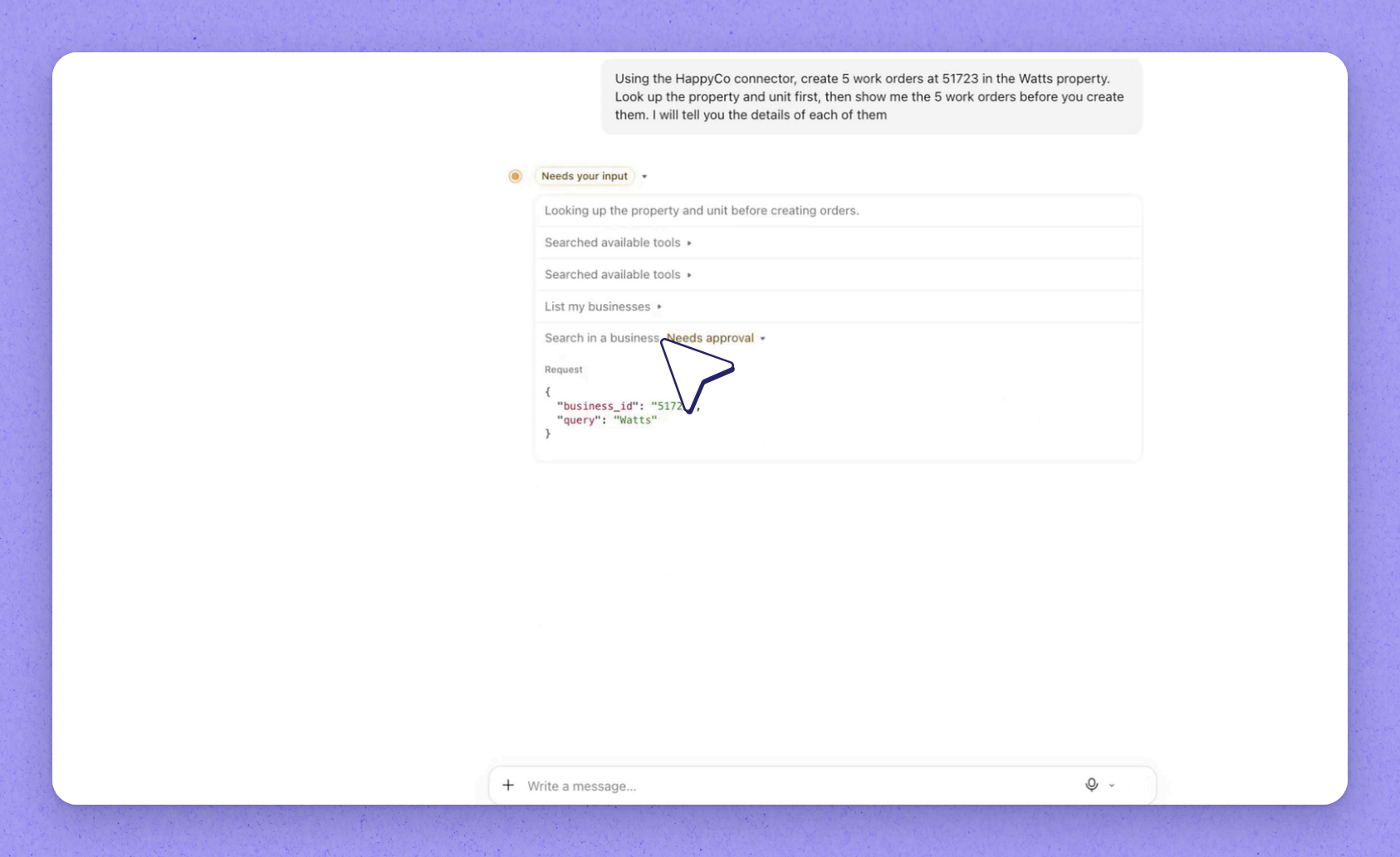
Ask Claude as you would a teammate: name the property and say what you want to create. Claude finds the property and asks additional questions. Give it the unit, then describe each problem in plain words.
Claude reads the list back with a category for each one, points out the categories it assumed, and waits. Nothing is created yet.
Say yes, and Claude asks your approval before it uses Create Work Order. In happy-property, the new work orders appear on the unit, open and unassigned, with you listed as the reporter.
 Tip
Tip
Claude asks before it uses each happy-property tool, so review the categories it assumed and ask for changes before you confirm.
 Update and assign work orders
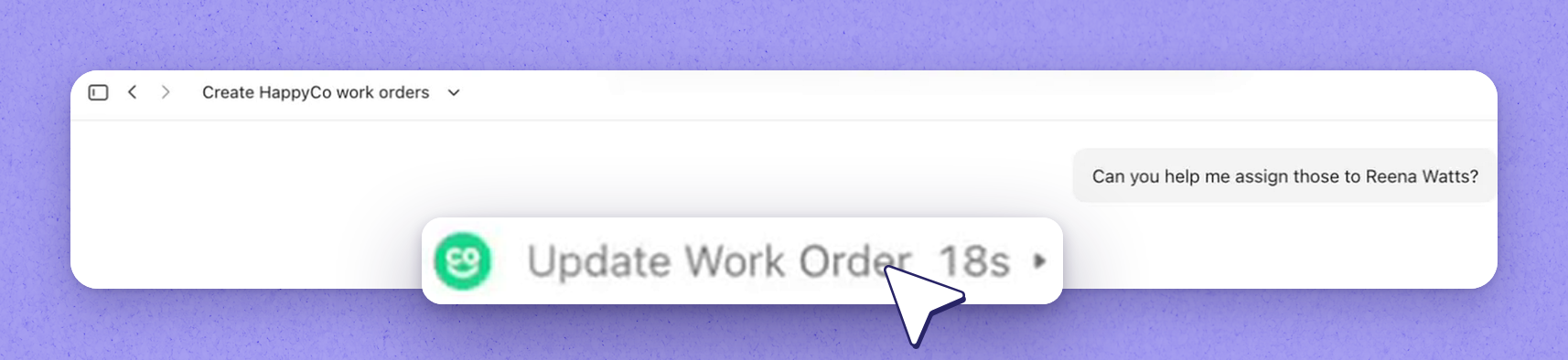
Updating works the same way. Ask Claude to assign the tasks to someone, and it uses Update Work Order. In happy-property, the tasks then show that person as the assignee.
| Tool | What it does |
|---|---|
| Create Work Order | Creates new work orders on a property's unit, open and unassigned, with you as the reporter. |
| Update Work Order | Changes existing work orders, such as assigning them to a person. |
Frequently asked questions
Does Claude create work orders without my approval?
No. Claude asks for your approval before it uses the Create Work Order or Update Work Order tool, and it reads the list back to you first so nothing is created until you confirm.
Who is listed as the reporter on work orders Claude creates?
You are. Claude creates and updates work orders as you, within the access your organization gives you, and each new work order lists you as the reporter.
Can Claude still just answer questions about work orders?
Yes. Claude could already answer questions about your happy-property work orders; the two write tools add the ability to create and update them as well.