
Standard Operating Procedures (SOPs) are property-specific call-handling instructions, managed in Manage, that tell Happy Force technicians and JoyAI how to respond when residents report specific maintenance issues after hours. Use them to set how each issue is handled, from emergency escalations to routine calls.
 In this article
 SOPs are managed on the web in Manage
You create, edit, duplicate and delete SOPs in Manage under Settings > SOPs. The mobile app has no SOP screen today. Happy Force technicians see SOPs in Hub, and JoyAI reads them automatically.
Before you start
- SOPs are turned on by your Customer Success Manager (CSM) during launch or onboarding.
- You review and confirm your instructions with your CSM before activation.
- Contact your CSM to schedule this session if you haven't already.
- Creating, editing, duplicating or deleting SOPs requires the Create and Edit SOPs permission on your role.
Where to find SOPs in Manage
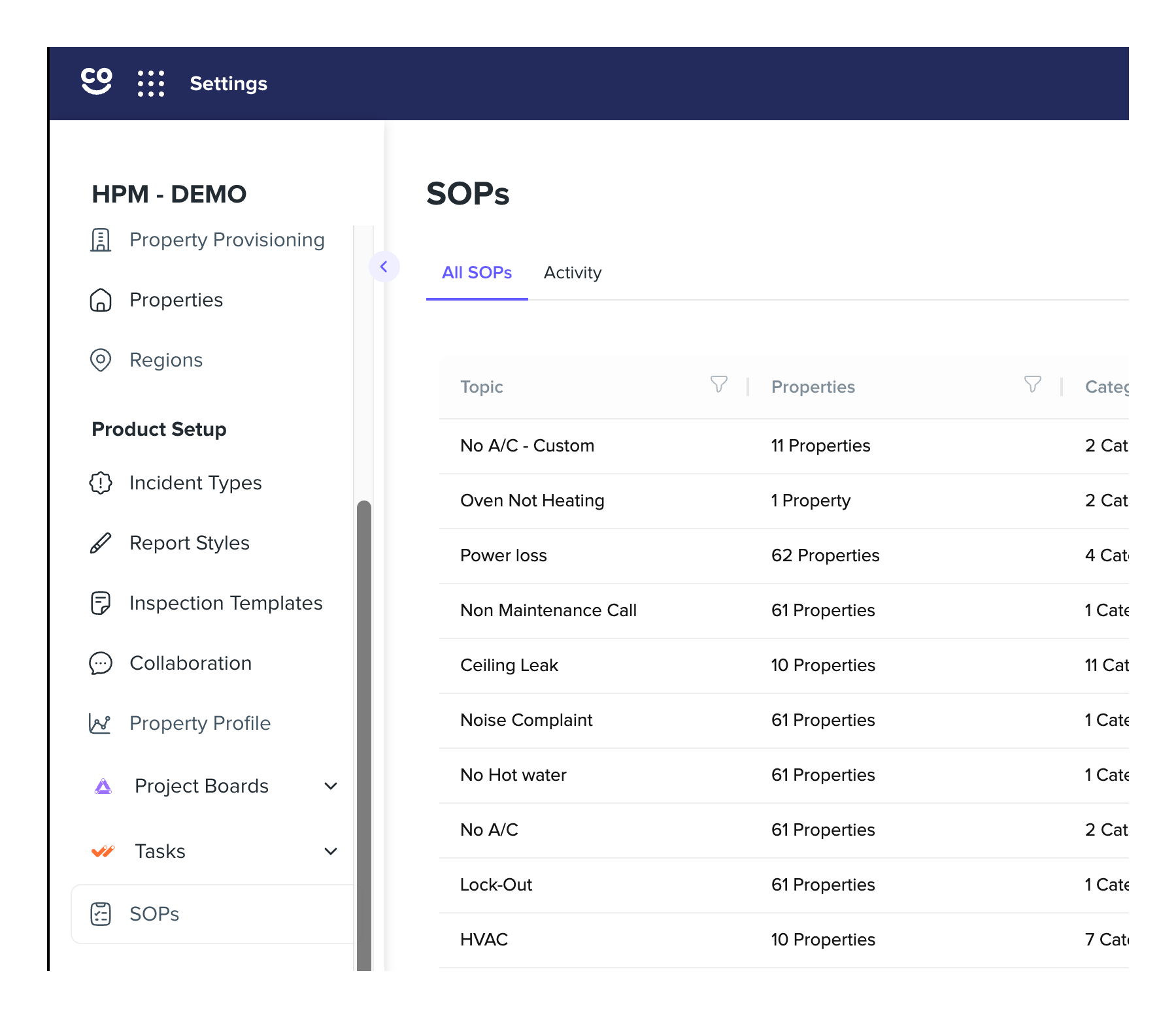
In Manage, go to Settings > SOPs. Each instruction is tied to a specific issue type and can be assigned to one or more properties.
Filter SOPs by category in Manage
 Go to Settings > SOPs in Manage
In Manage, open Settings > SOPs.
 Find the Categories column
In the SOPs table, find the Categories column. It sits between Properties and Status.
 Tip
Each row in the column shows a count, for example 2 Categories.
 Open the Categories filter
Open the filter in the Categories column header.
 Pick categories and apply
Search for or select one or more categories, then select Apply.
Tip
Select Reset to clear the filter.
How the category filter matches SOPs
- The table shows any SOP tagged with at least one of the categories you picked.
- Picking a top-level category also shows SOPs tagged with any of its subcategories.
How escalation rules apply
Each instruction has two escalation settings. They apply to both Happy Force technicians handling the call and JoyAI's automated responses. For instance, notify the on-call team when the temperature drops below the set value on a no-heat call.
| Standard SOPs | Custom SOPs | |
|---|---|---|
| Who creates them | Maintained by HappyCo | You, including by duplicating a standard SOP |
| Starting status | Inactive; your CSM helps you activate and customize them during onboarding | Duplicates start as Inactive |
| Edit instructions | Yes | Yes |
| Edit name | No | Yes |
| Duplicate | Yes | Yes |
| Delete | No | Yes |
Frequently asked questions
Can I see or use SOPs in the mobile app?
Only in Manage on the web. The mobile app has no SOP screen today. Happy Force technicians see SOPs in Hub, and JoyAI reads them automatically.
Which SOPs show up when I filter by more than one category?
The table shows any SOP tagged with at least one of the categories you picked. If you pick a top-level category, SOPs tagged with any of its subcategories show up too.
How do I clear the category filter?
Select Reset to clear the filter.
Watch: Happy Force After Hours Integration Walkthrough →Watch: SOPs with AI Voice →