
When vendors respond to a sourcing event, Joy, the AI assistant in Happy Sourcing, helps you review, score and award each bid. Use it to compare responses against your criteria and award the winning bid.
🎬 Watch it in action: Watch: Sourcing with Joy — clear brief to confident decision (remix)
 In this article
Before you start
- You have already run a sourcing event.
- You have invited vendors to it.
 Permission needed to see vendor responses
Your role needs the View vendor responses permission. Without it, you see a no-access message.
Open a vendor's bid response in Manage
-
Open the sourcing event in Manage
In Manage, open the sourcing event and go to its Vendors tab. -
Open the vendor's response
In Invited vendors, click the vendor's row, or open the row's ⋮ menu and choose Vendor response. -
Return to the vendor list
Select Back to Vendors to go back to the event's vendors.
| Tab | What it shows |
|---|---|
| Overview | An Attachments card and a Compliance card, above the Bid Summary card. The Compliance card shows how many of the 5 compliance documents are on file, for example 3 of 5. |
| Attachments | Every file the vendor attached to the bid, with its size, who uploaded it, the upload date and a download link. |
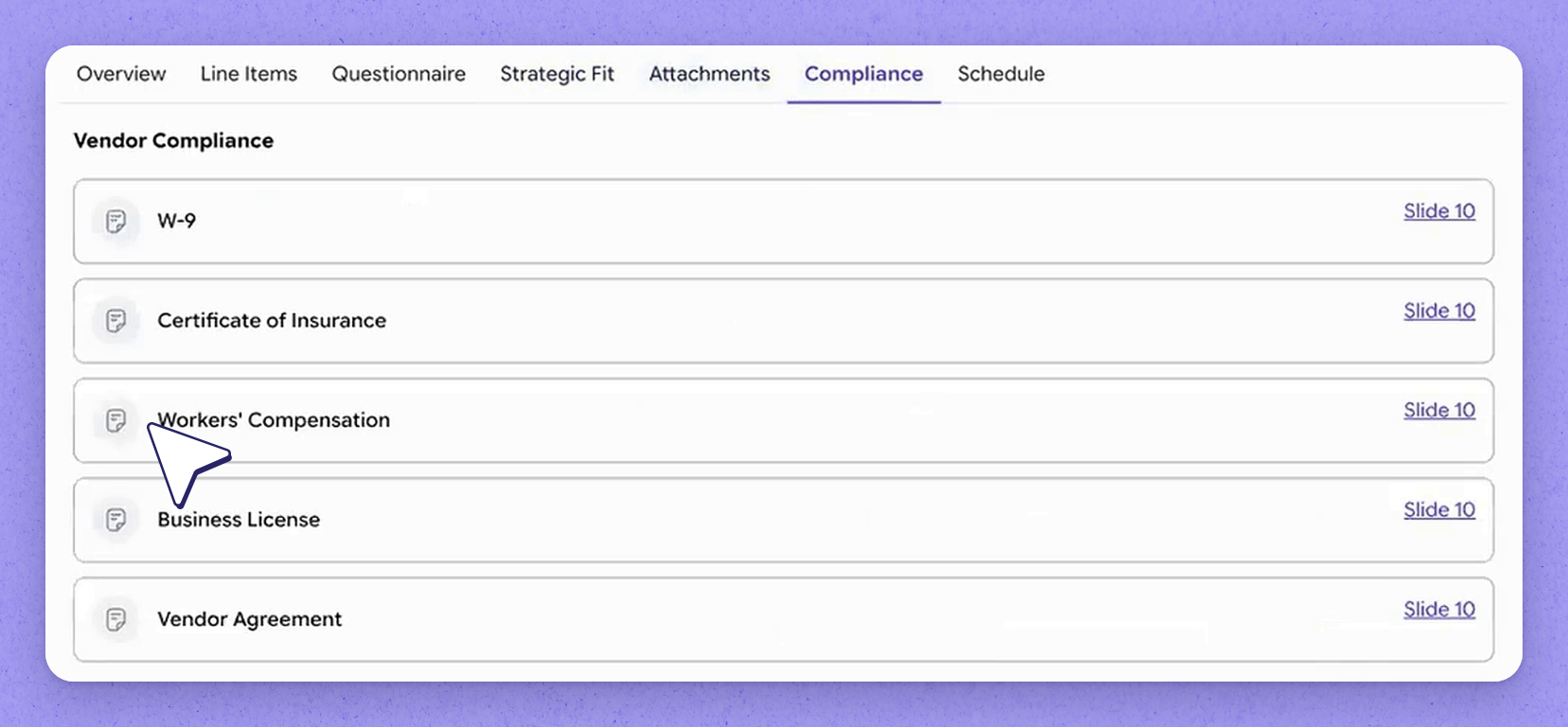
| Compliance | Compliance Details from the vendor's profile: insurance coverage, bonding capacity, diversity classification, warranty length, years in business and green certifications. Below that, a Compliance Documents list with one row each for W-9, Certificate of Insurance, Workers' Compensation, Business License and Vendor Agreement. Each row shows the newest file, or Missing. |
Compliance card status
- Verified: every document your event requires is on file.
- Verification pending: a required document is missing.
- If your event requires no documents, the card says Documents on file.
If the vendor hasn't submitted a bid
The screen shows the vendor's status instead of the tabs. For instance, No response yet with the bidding due date, or declined to bid with their reason.
Review, score and award a vendor bid with Joy
 See how vendor responses show up
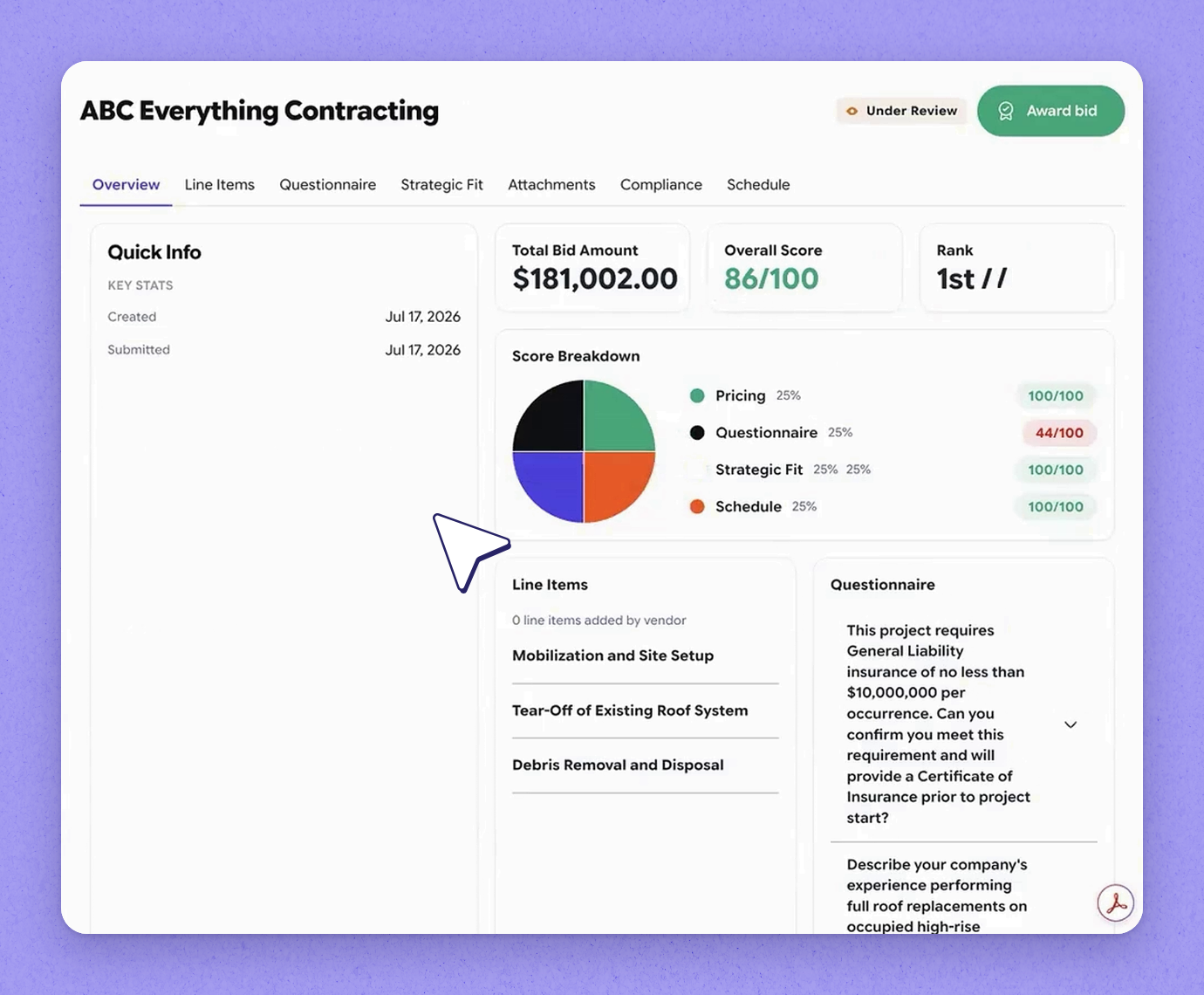
Each sourcing event shows how many vendors you invited and how many have responded. Click into a response to see the full picture, including an overview summary alongside the scoring.
 Review the score Joy calculates
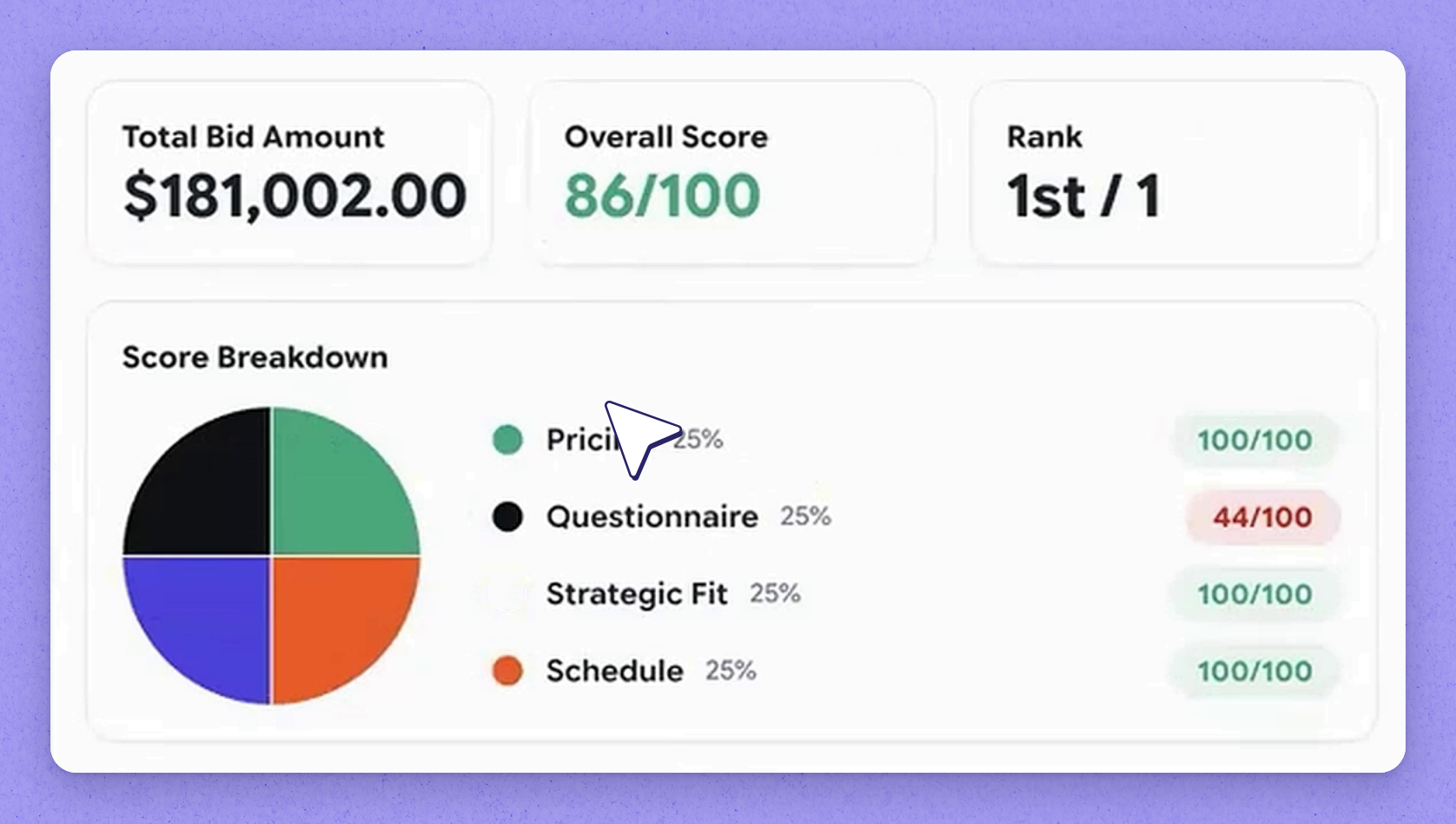
Joy calculates a score across every criterion you defined for the event. From the response, view the line-item pricing the vendor provided and how they answered every question.
 Rate strategic fit against corporate DNA
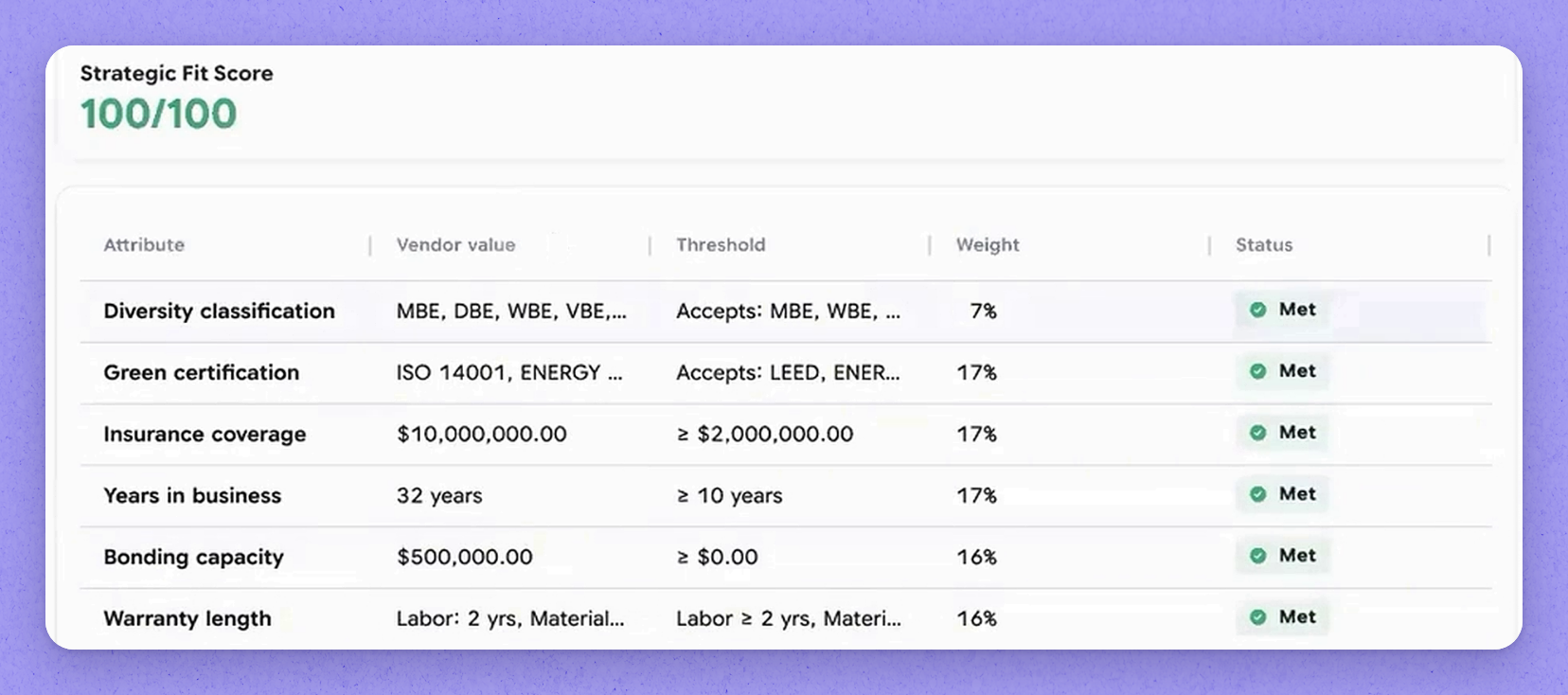
Strategic fit is a criteria set you define: your corporate DNA, the standards every vendor is measured against. Rate vendors on how well their profile matches what matters to you.
 Tip
Using the same criteria set keeps evaluation consistent with your priorities.
 Check attachments and compliance details
Review any additional attachments the vendor added to their response, and the compliance information pulled from the vendor profile, to confirm they meet your requirements.
 View the submitted schedule
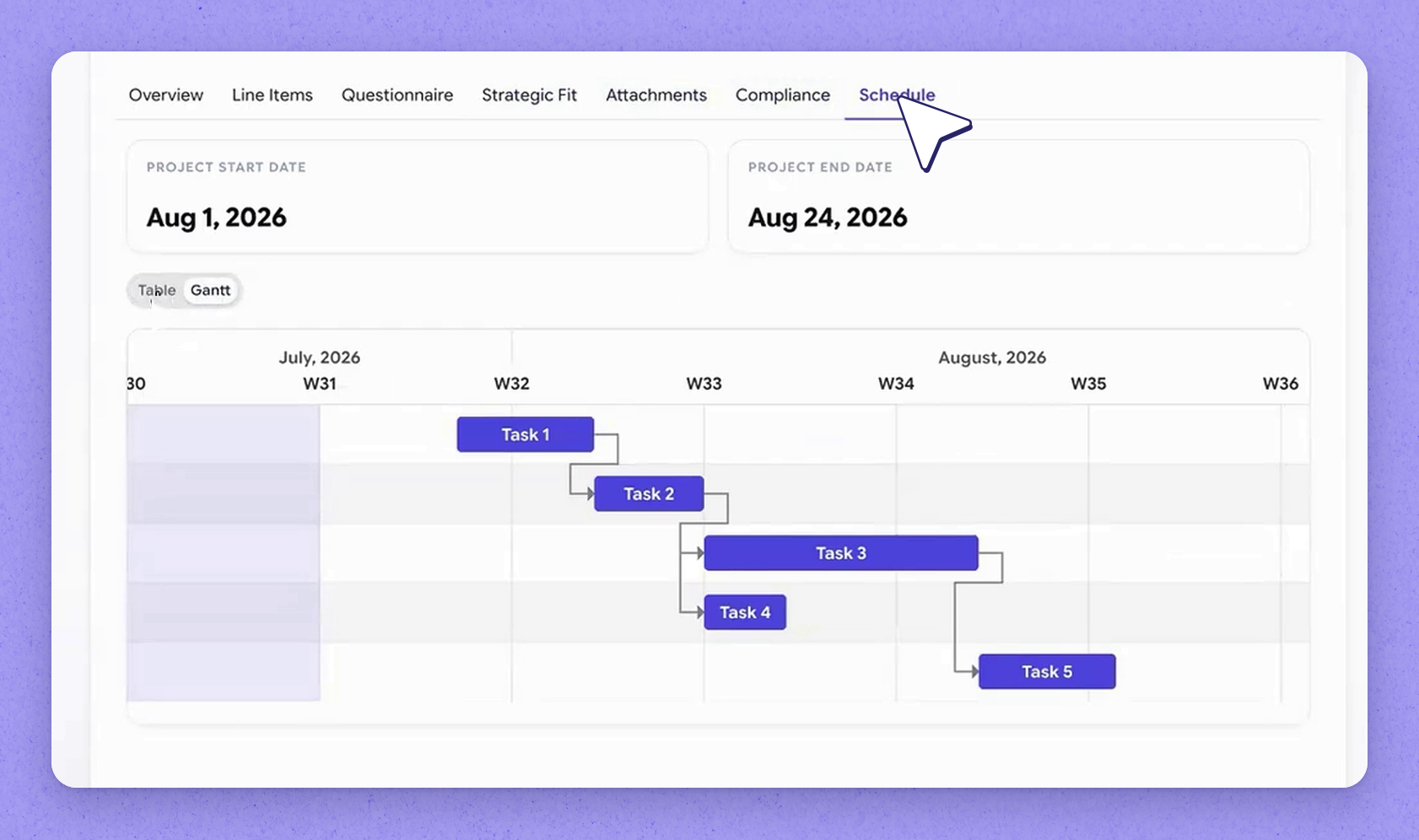
Vendors can submit a schedule with their response. View it as a Gantt chart or a Table view to see how tasks relate to each other and the overall timeline.
 Compare Joy's recommendation across vendors
Joy weighs every criterion and makes a recommendation based on the responses. Make your decision from there.
Tip
When only one vendor has responded, there is nothing to compare it against yet. The scoring shifts as other vendors respond and get scored.
 Award the bid into Happy Asset
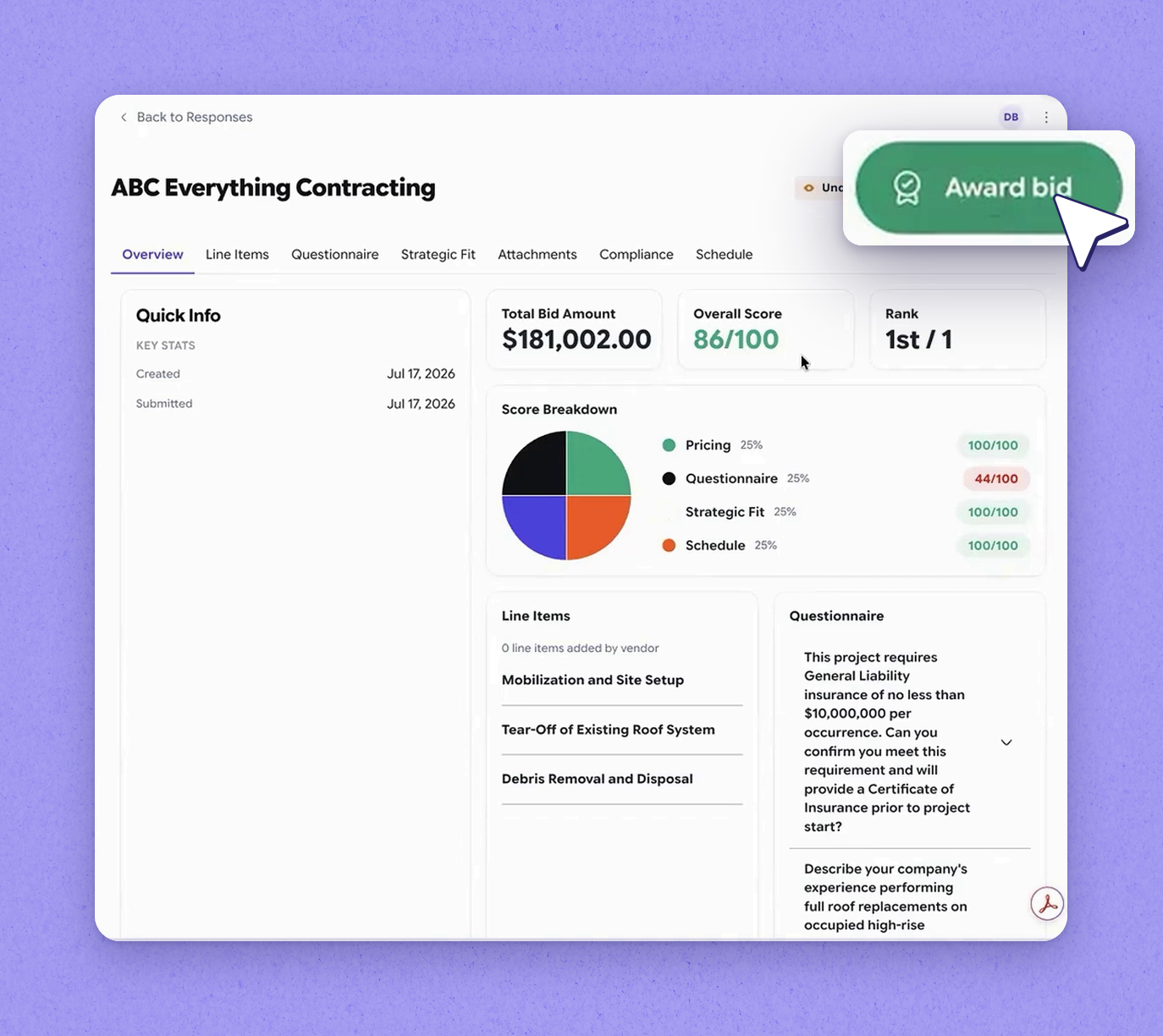
When you're ready, award the bid to your chosen vendor. If the integration is turned on and you use Happy Asset, the awarded bid becomes a project in Happy Asset.
Awarding into Happy Asset
Awarding into Happy Asset requires the integration to be enabled and Happy Asset in use.
Frequently asked questions
How does Joy score a vendor's response?
Joy calculates a score across every criterion you defined for the event, including strategic fit against your corporate DNA. The scoring shifts as other vendors submit responses and get scored too.
Why isn't there a comparison for my event?
Comparison depends on more than one vendor responding. When only one vendor has submitted, there's nothing to compare it against yet.
What happens when I award a bid?
The bid becomes a project in Happy Asset, provided that integration is turned on and you use Happy Asset.
How can I view a vendor's submitted schedule?
View the schedule as a Gantt chart or a table, which shows how the different tasks relate to each other and the overall timeline.
Why do I see a no-access message when I open a vendor response?
Your role needs the View vendor responses permission to see vendor responses.
Why don't I see the Overview, Attachments and Compliance tabs?
These tabs appear only when the vendor has submitted a bid. Otherwise the screen shows the vendor's status, such as No response yet with the bidding due date, or declined to bid with their reason.