
 Happy Property: Document Vault Early Access from November 10, 2026
Administrator role only during Early Access. Multifamily accounts only.
Document Vault, part of HappyCo's compliance offering, keeps every compliance obligation, such as pool certificates and fire tests, in one place across the properties you manage. Use it to see where attention is needed and to clear obligations from either desktop or mobile.
 In this article
- Before you start
- Understanding the compliance dashboard
- Viewing a property's compliance obligations
- Add a feature to create obligations (web)
- Upload and confirm a compliance document (web)
- Capture compliance evidence in the Happy Property Maintenance App (mobile)
- Remove a confirmed compliance document (web)
- Set up obligation reminders and escalations (web)
- Frequently asked questions
 Turning on Document Vault
To enable the Document Vault, contact Customer Experience.
Before you start
Check these first:
- Administrator role (required during Early Access)
- An account admin turns on Document Vault in Settings › Release Updates
- For mobile capture, also turn on Early Access: Enable compliance work orders in HPMA
- On the web, open Compliance › Document Vault (Dashboard and Properties tabs)
Understanding the compliance dashboard
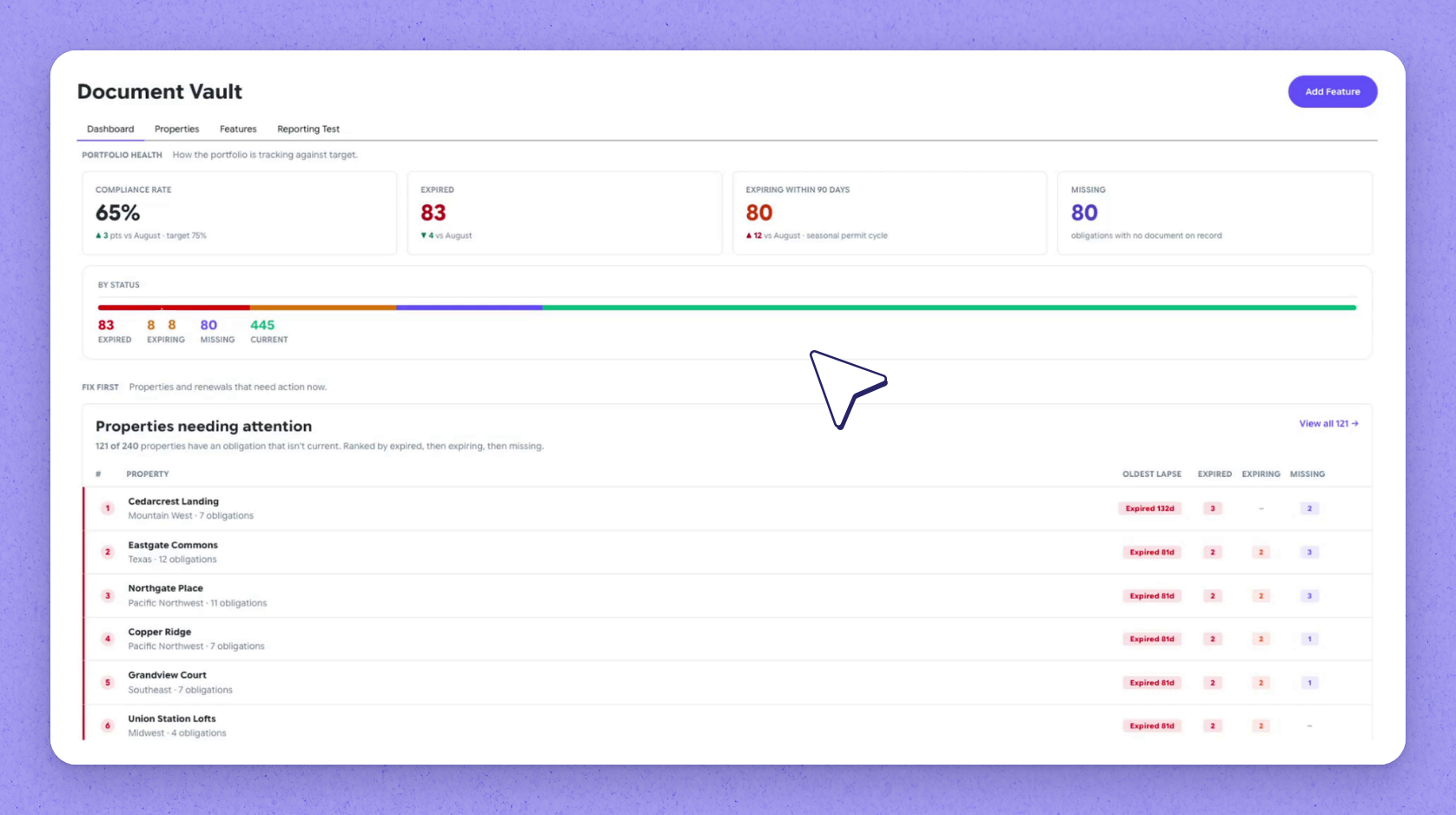
The Document Vault dashboard brings every property's compliance obligations into one view. It shows your Compliance rate and what's Expired, Expiring or Missing, counting only the properties you have access to. Properties that need attention are ranked worst first.
Viewing a property's compliance obligations
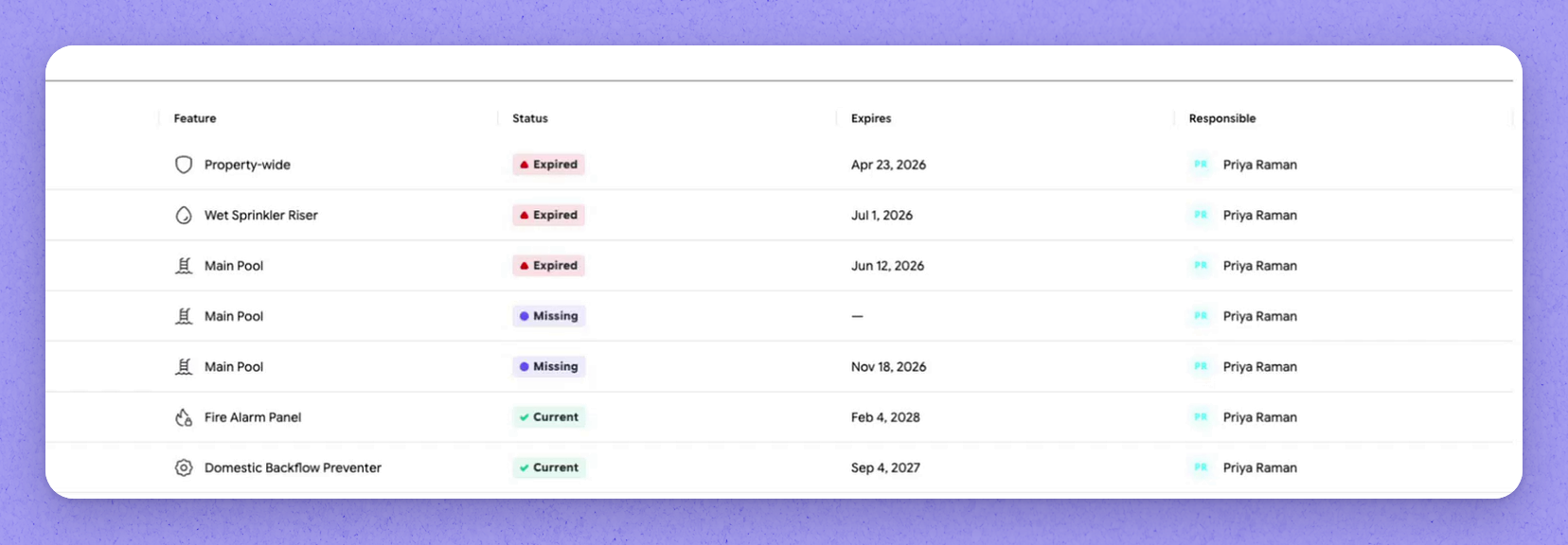
Open a property to see each of its obligations, most urgent first. Each one shows what's required, how often, when it expires and who's responsible.
Add a feature to create obligations (web)
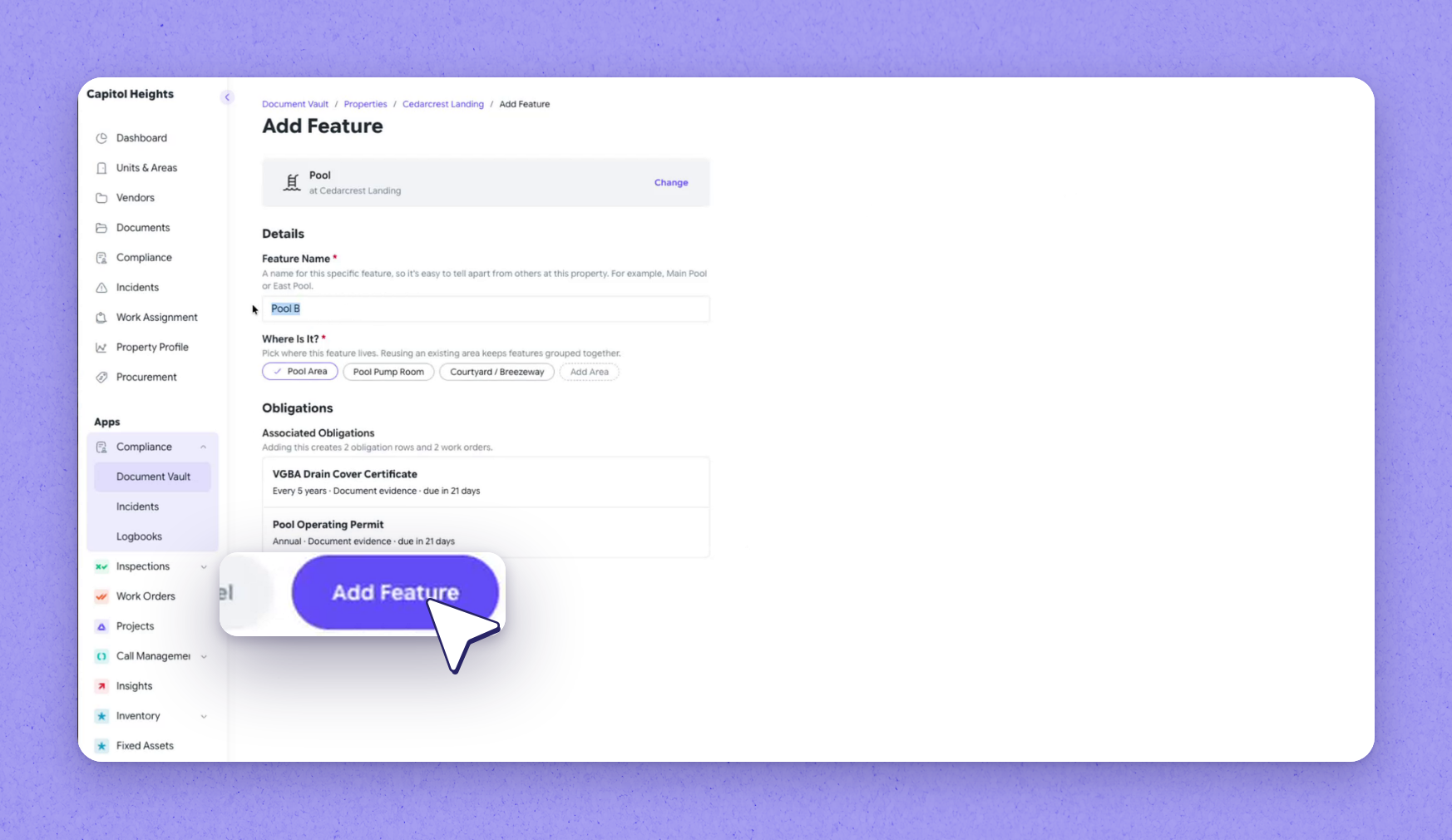
 Open the property and select Add Feature
. Obligations come from what's on the property, so add the feature the obligation relates to.
 Tip
For instance, adding a pool brings a drain cover certificate, an operating permit and matching work orders.
 Name the feature and confirm where it is
Enter a name for the feature and confirm its location.
 Add the feature
 to the property.
Tip
Its obligations appear on the property straight away, marked missing.
| Item | What it is |
|---|---|
| Drain cover certificate | A compliance obligation created for the pool |
| Operating permit | A compliance obligation created for the pool |
| Work orders | Matching work orders for the pool's obligations |
Upload and confirm a compliance document (web)
Open the missing obligation
Open the obligation marked Missing.
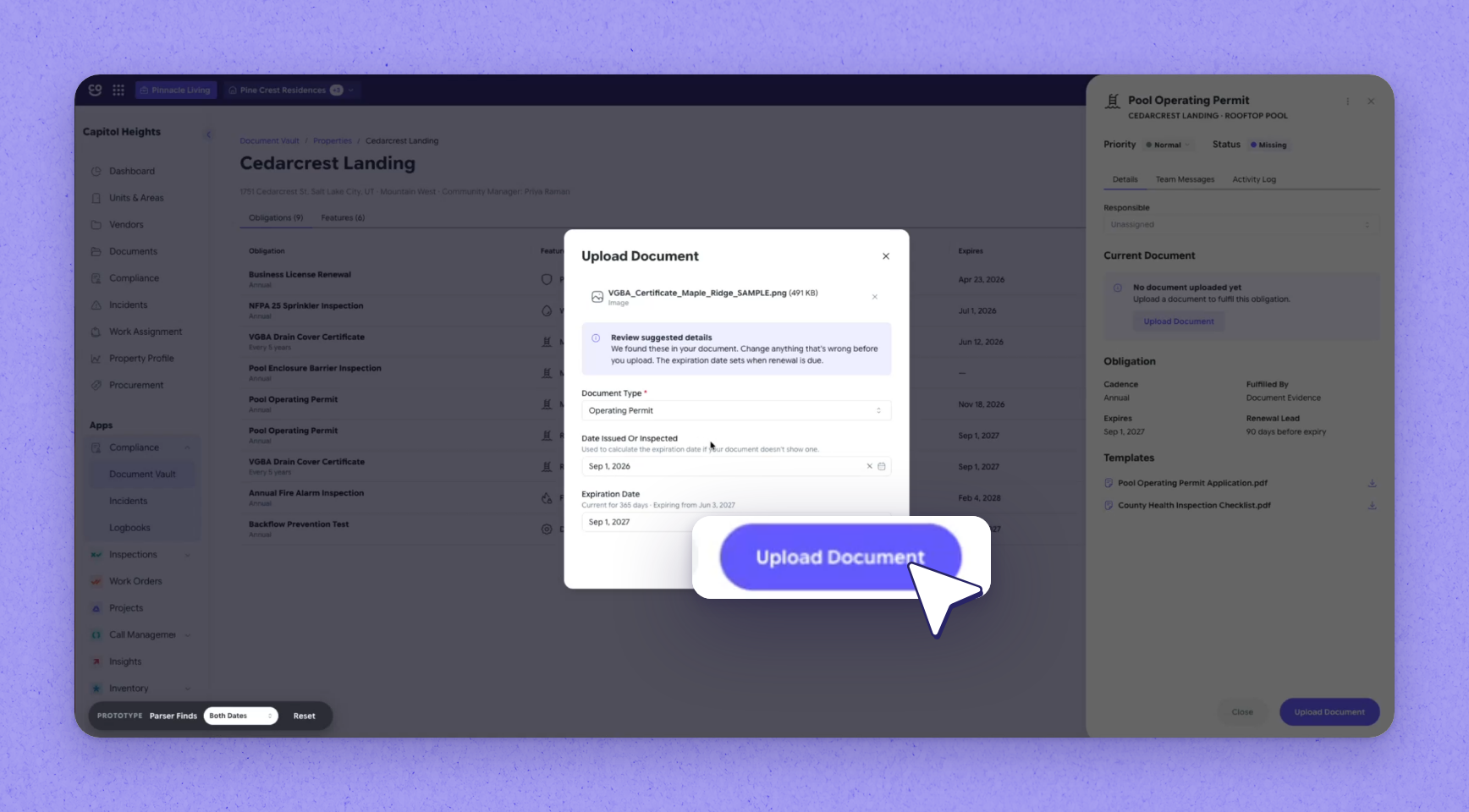
Choose Upload Document and select the file
Choose Upload Document, then select the file.
Tip
Document Vault reads the file and suggests the document type, issue date and expiry.
Confirm the suggested details
Check the suggested document type, issue date and expiry, then confirm them.
Tip
Once confirmed, the obligation shows as current with its valid-until date.
Renewing early
You can upload a new version any time, even before the current one expires.
Upload fields, file types and renewals
- File types: PDF, JPG or PNG, up to 25 MB.
- Upload fields: Document Type, Date Issued Or Inspected and Expiration Date.
- Each confirmed document becomes a version, and older versions are kept.
- A renewal must expire after the document it replaces, or it won't save.
- A document whose expiry date has already passed stays Expired after upload.
Capture compliance evidence in the Happy Property Maintenance App (mobile)
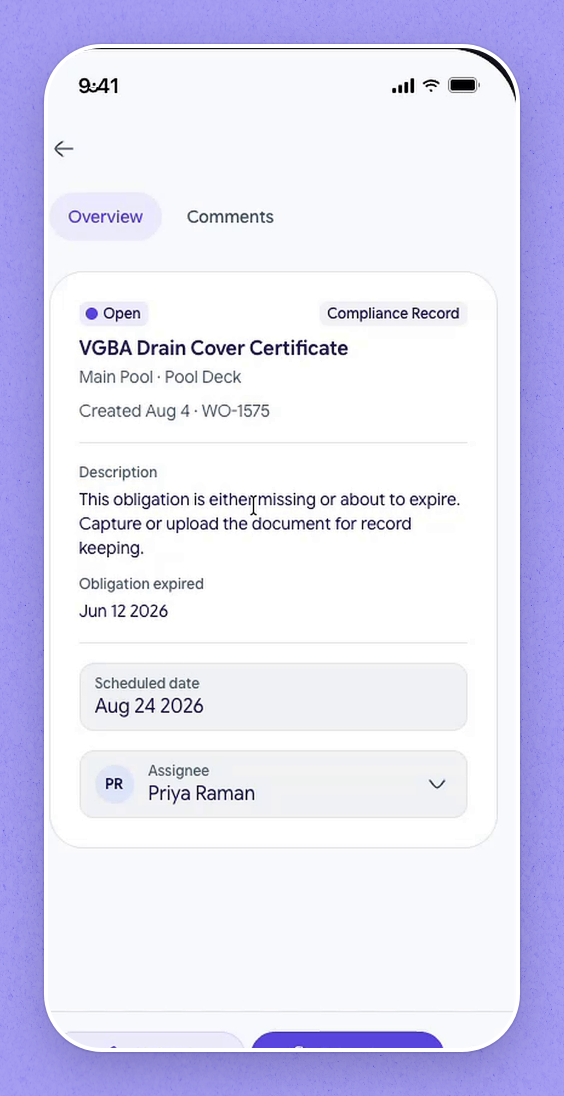
Open a Compliance Record work order
In the Happy Property Maintenance App, open a Compliance Record work order from your work list.
Tip
The work order shows what it covers, when it was due and who it's assigned to.
Upload a copy or take a photo of the document
Upload a copy of the document, or take a photo of it.
Tip
The photo is saved as submitted evidence.
Mark the work order complete
Mark the work order complete.
Tip
The work order shows complete.
Where on-site evidence appears
Everything captured on site shows up as submitted evidence in the desktop view.
Technicians can't see Compliance Record work orders
- Turn on the HPMA release update.
- Assign the work order: new compliance work orders start unassigned.
Deleting a document from a compliance work order (mobile)
In the Happy Property Maintenance App, you can delete a document from the compliance work order only if you uploaded it and it hasn't been confirmed yet. An administrator removes confirmed documents on the web.
Who can remove a confirmed document
Removing a confirmed compliance document requires the Manage Obligations permission for that property. By default this is an administrator permission.
Remove a confirmed compliance document (web)
-
Open the obligation's version history
On the web, open the obligation's version history. -
Choose to delete the document
Choose Delete on the document. -
Enter a reason
Enter a reason for removing the document. TipYou can't delete without a reason.
-
Confirm
Confirm the removal. TipIf you remove the current confirmed document, the obligation goes back to its previous valid document, or shows as Missing if there isn't one.
Removed documents are kept
A removed document isn't erased. HappyCo keeps it and records who removed it and why.
Set up obligation reminders and escalations (web)
-
Go to Settings > Property Features
Go to Settings > Property Features. -
Open the feature type
Open the feature type the obligation belongs to. -
Select the Compliance Obligations tab
Select the Compliance Obligations tab. -
Add or edit an obligation
Select Add Obligation, or open an existing obligation to edit it. TipAdding an obligation raises a work order at every property with that feature the same day.
-
Turn on the reminder workflow
In the Reminder Workflow section, turn the workflow on. TipWith the reminder workflow off, Expiring never shows: documents go from Current straight to Expired.
-
Add reminder and escalation steps
Add reminder steps (days before expiry) and escalation steps (days after expiry). -
Choose roles for each step
Choose one or more roles for each step. -
Save
Save the obligation.
 Coverage is fixed after publishing
Coverage is fixed once an obligation is published, and published obligations can't be archived from the app.
Frequently asked questions
Can I clear an obligation from my phone?
Yes. Compliance work arrives in the mobile work list as Compliance Record work orders. Open the work order, upload a copy or take a photo of the document, and mark it complete.
Where does a photo taken on site appear?
A photo taken on mobile is saved as submitted evidence, and everything captured on site shows up as submitted evidence in the desktop view.
Why does a new property show obligations as missing?
Obligations come from the features on a property. When you add a feature such as a pool, Document Vault creates its obligations immediately and marks them missing until you upload the required documents.
Do I have to wait until a document expires to replace it?
No. You can upload a new version of a document at any time, even before the current one expires.
Does Document Vault make my properties compliant?
No. It tracks the documents you upload and their expiry dates, so you can show what's in place. It doesn't check them against any law or regulation.
Why can't my community managers see Document Vault?
During Early Access, Document Vault is available to the Administrator role only.
Can I turn it on for some properties only?
No. It's on for the whole account. To limit an obligation to certain properties, choose Selected Properties when you add it.
Why was a work order raised at every property straight away?
Each property with the feature gets a work order to upload its first document.
Can I export a compliance report?
No. Export and reports aren't available yet.