
 This article covers Call Complete
🎬 Watch it in action: Watch: Manage Deactivated Team Members in Call Schedules
For the current experience, see our Call Management articles.
Add or remove a user on the Call Complete Onsite Team from the Profiles tab in Manage, either from your existing HappyCo users or as a team member without a HappyCo profile.
Use it to keep the property's Onsite Team current when staff join or leave.
 In this article
Before you start
- Existing HappyCo users must first have access to the property in HappyCo. An account administrator grants this in Settings in Manage.
- Only the user marked as the Property Manager can add a user without a HappyCo profile.
- Removing a user from the Onsite Team does not remove them from the property in HappyCo. An account administrator does that separately in Manage Settings.
Who sees Manage+
Manage+ follows your role on the property's Onsite Team in Call Complete, not your HappyCo admin role. Only users whose Call Complete role is Property Manager or Assistant Property Manager see Manage+ for that property.
Add or remove an existing HappyCo user (Manage)
 Log into HappyCo Manage
.
 Select your property
 in the Select Property drop-down menu in the upper left corner.
 Open Call Complete
Click the Call Complete icon on the left side under Apps.
 Tip
If the Call Complete icon is missing, see the note below this procedure.
 Open the Profiles tab
Select the Profiles tab to view the Onsite Team.
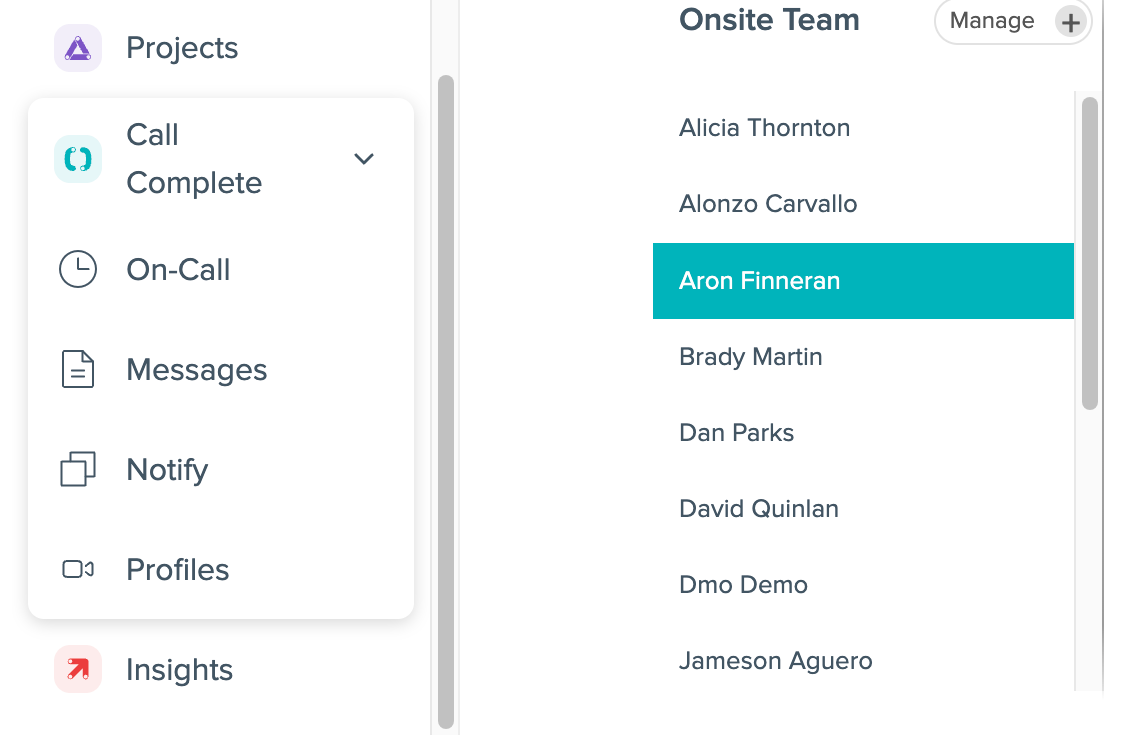
 Open Manage+
Click Manage+ to the right of the Onsite Team title. A list of all HappyCo users with access to this property opens.
 Add or remove the user
Toggle the check mark circle on the right side to add or remove the user.
 Close the list
Click the X on the upper right side to exit this screen.
 Enter a mobile number for a new user
If you added a user, enter their phone number in the Mobile Number field.
 Save
Click the blue Save button in the lower right corner.
If the Call Complete icon is missing under Apps
- The property has moved to Call Management: look for the Call Management tab instead and use the Call Management articles.
- You don't have access to the property, or weren't set up as its Property Manager: ask your account admin to check your property access. Admins always see Call Complete on properties they can access.
- Call Complete didn't finish setting up for the property: contact HappyCo Support, who can finish the setup.
Add a user without a HappyCo profile (Manage)
Open the Profiles tab
In the Call Complete tab in Manage, select the Profiles tab to view the Onsite Team.
Tip
This does not create a HappyCo profile. The user exists only on the Onsite Team.
Open Manage+
Click Manage+ to the right of the Onsite Team title.
Add a team member
At the bottom, click + Add Team Member.
Enter the user's information
Enter the user's information in the window that opens.
Add the user
Select Add.
Open the user's profile
Click their name in the Onsite Team list. Their Call Complete profile opens on the right.
Tip
A user added this way still needs a Role.
Assign a role
Select the drop-down next to Role and choose the appropriate option.
Save
Click the blue Save button in the lower right corner.
| Role | What it does |
|---|---|
| Property Manager | Sets up and manages Call Complete for the property (onsite team, office hours, call-handling settings, and on-call setup). Typically has the highest level of access for configuration. |
| Leasing | Handles leasing-related calls and messages. Focused on leasing workflows and typically not intended for after-hours maintenance on-call coverage. |
| Maintenance Supervisor / Maintenance Lead | Oversees maintenance workflows and can help manage on-call coverage and escalation. Often acts as a backup when maintenance coverage needs oversight. |
| Maintenance Technician | Receives and responds to maintenance requests, including after-hours emergency notifications when scheduled on-call. Can review details, contact the resident, and take action on the request. |
| Courtesy Officer | Receives courtesy-related calls and notifications (when enabled for the property), similar to maintenance-style routing but for courtesy workflows. |
Frequently asked questions
I can't see the Manage+ icon even though I'm an admin. Why?
Manage+ follows your role on the property's Onsite Team in Call Complete, not your HappyCo admin role. An admin with a different Call Complete role, or none, won't see it.
To fix it, ask your property's Property Manager, or HappyCo Support, to set your Call Complete role for that property.
What should I include when I contact HappyCo Support about a missing Manage+ icon?
- Property name
- Your name and email
- Your role in HappyCo and your role on the property's Onsite Team in Call Complete (if you can see it)
- Whether Manage+ is missing on one property or several
Will removing a user from the Onsite Team remove their overall property access?
No. Removing a user from the Onsite Team only removes them from Call Complete. Complete removal must be done separately in Manage Settings by an account administrator.
Can I add a user to the Onsite Team if they don't have a HappyCo profile?
Yes. The user marked as the Property Manager can add a team member directly to the Onsite Team. This does not create a HappyCo profile; the user exists only on the Onsite Team.
Why isn't a user appearing in the list to be added to the Onsite Team?
An existing user must first have access to the property in HappyCo. An account administrator grants this access in Manage Settings before the user appears in the Onsite Team management list.