
 This article covers Call Complete
For the current experience, see our Call Management articles.
Call forwarding for Call Complete sends unanswered calls to your office line on to your answering service: you find your forwarding number in HappyCo Manage, then have your phone provider forward to it. Set it up so unanswered calls are properly routed to your answering service.
 In this article
- Before you start
- Key concept: No Answer Forwarding
- Part 1: Find your call forwarding number in Manage
- Part 2: Set up forwarding with your phone provider
- Finding your community's toll-free SMS number
- Special cases: new main number, multiple properties, wrong forwarding
- Troubleshooting: can't access the dashboard
- Frequently asked questions
 Make the change during off-hours
Live changes to call forwarding affect inbound calls. Complete this during off-hours or low-volume periods to avoid missed calls while the carrier activates the change.
Before you start
- Access to the property as part of the on-site team.
- No specific role is required to access the Call Forwarding tab.
- Your phone provider account number.
Key concept: No Answer Forwarding
No Answer Forwarding is a phone provider setting. A call rings briefly in the office (typically 3-4 rings), then forwards to your answering service if no one picks up.
Part 1: Find your call forwarding number in Manage
 Log into HappyCo Manage
.
 Choose your property
Click the Select Property drop-down menu in the upper left corner and choose your property.
 Open Call Complete
Under Apps on the left side, click the Call Complete icon.
 Select the Profiles tab
.
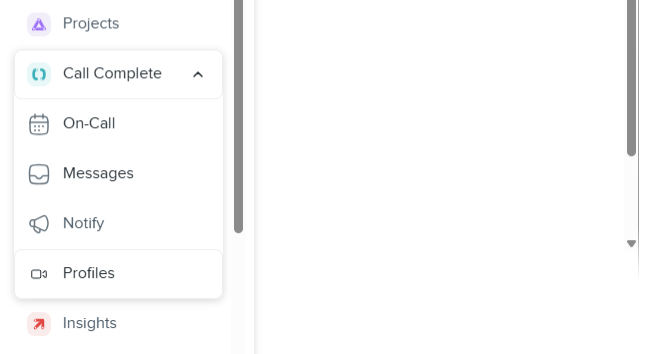
 Open Call Forwarding
Click the purple drop-down box to the right of the Profiles title and select Call Forwarding.
 Note the forwarding number
The call forwarding number is displayed on the left side of the screen.
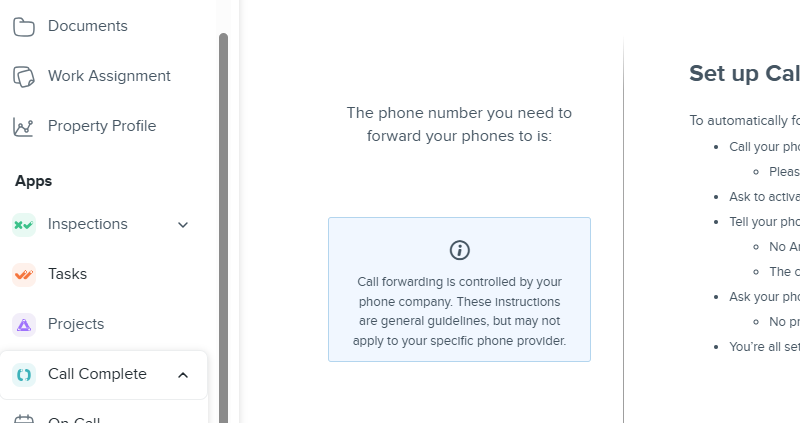
 Tip
Note the number exactly as displayed, including the area code.
Part 2: Set up forwarding with your phone provider
-
Call your phone provider
Call your phone provider (for instance AT&T or Vonage). TipHave your account number ready.
-
Request No Answer Forwarding
Ask to activate No Answer Forwarding to the forwarding number you found in Part 1. TipSome carriers use other names. Common ones include conditional call forwarding, forward on no answer, or unanswered call divert.
-
Set the number of rings
Specify the number of rings before the call forwards. Tip3-4 rings are recommended.
-
Place a test call
Call the main office number and let it ring through. TipIf forwarding works, you hear the answering service offering different prompts to select.
Finding your community's toll-free SMS number

To see which number SMS messages are sent from for your community, open a team member profile. The number is visible under Opt In For Text Communication.
Special cases: new main number, multiple properties, wrong forwarding
- Changing the main phone number: if your property ownership provides a new main phone number, your HappyCo call forwarding number stays the same. Forward unanswered calls from the new main number to your existing HappyCo call forwarding number.
- Managing multiple properties: if you manage two properties as one and need shared on-call functionality, have the carrier set the second property's No Answer Forwarding to the main on-call number. Callers can then choose between the two properties, and all calls route to the appropriate support.
- Resetting accidental forwarding: if you forwarded one property to another property within HappyCo, contact your phone provider. Have them remove the No Answer Forwarding for each property, then set up the correct forwarding number for each property using the steps above.
Troubleshooting: can't access the dashboard
Problem: You can't access the dashboard provided in the self-guided information.
Cause: This is related to your user's access. Your profile has to be added to the on-site team members on the Call Complete Profiles tab.
- Property Manager: ask your HappyCo Administrator to review your permissions.
- On-site team (leasing or maintenance): ask your Property Manager or Administrator to review your permissions.
- Administrator with issues on a property: reach out to Support for review.
Frequently asked questions
How can I change the greeting message for our phone line?
Reach out to our Support Team and include the wording (text only) and the property name.