
This guide helps Administrators manage user credentials, profile details, roles, and property access in Happy Manage. If you are locked out of your own account, start with the Can't log in section that follows.
 In this article
- Resetting your own password in the mobile app
- Resetting your own password in Happy Manage on the web
- Key concepts: folders and default property access
- Before you start
- Adding new users in Happy Manage
- Editing team member details in Happy Manage
- Updating a team member's password in Happy Manage
- Changing team member roles and app permissions in Happy Manage
- Managing access to properties in Happy Manage
- Changing property names in Happy Manage
- Frequently asked questions
 Password reset email not arriving
- Reset emails usually arrive within a few minutes, from support@happyco.com.
- Check your junk or spam folder.
- Request a new reset from the login screen, the same way as the first time.
- Each new request cancels earlier reset emails. Use the most recent one.
- Don't request more than 3 in an hour.
- Still can't get in? Your Account Administrator can set a temporary password or resend your invitation.
| What you see | What to do |
|---|---|
| Wrong email or password | Check for typos, then reset your password. Repeated wrong attempts can lock you out for a while. |
| Reset or invitation link says it's expired | Request a new reset, or ask your Administrator to resend your invitation. |
| Reset link takes you back to the login page | Open the link in a private or incognito window, or a browser where no one else is logged in to HappyCo. |
| You're sent to your company's sign-in page | Your company uses SSO. Sign in there. If that page shows the error, contact your IT team. |
| You sign in through your company, then land back on the HappyCo login page | Contact HappyCo Support with your email address and a screenshot. |
| "username does not match name in SAML assertion" | Ask your IT team to check the SSO setup, then contact Support if it persists. |
Resetting your own password in the mobile app
-
Enter your email
Open the mobile app and enter your email address on the login screen. -
Continue
Tap Continue. -
Tap Forgot Password
Tap Forgot Password. -
Find the reset email
Check your email inbox for a message from support@happyco.com. Tip
Check your junk and spam folders too.
-
Complete the reset
Follow the instructions in the email to complete the reset.
Resetting your own password in Happy Manage on the web
-
Go to happy.co
Go to happy.co. -
Sign in
Click Sign In in the upper-right corner. -
Open your profile
Once logged into Happy Manage, click your profile initial in the upper-right corner. -
Select Edit Profile
Select Edit Profile. -
Update your password
Find the password field in your profile details and enter your new password. -
Save
Click Save.
Key concepts: folders and default property access
- Folders: a structure for managing units and properties in Inspections.
- Multifamily: a folder usually represents one community, with its units listed underneath.
- Single-Family: a folder represents a portfolio of properties under management, organized by region or assigned Property Manager.
- Default property access: everyone in your company has access to all properties. Access limits can be set in Happy Manage.
Folders control working areas
Administrators can customize team access to specific working areas by managing the folders they work out of.
Before you start
- Each team member completing inspections needs their own unique login, for accurate tracking and accountability.
- Questions about overall user access and permissions go to your company's Account Administrator.
- On an older Inspections plan type, adding new users may affect your pricing. Submit a support request if you are unsure whether this applies to your account.
Adding new users in Happy Manage
-
Open Settings
Log into Happy Manage and click the Settings (gear) icon in the upper-right corner.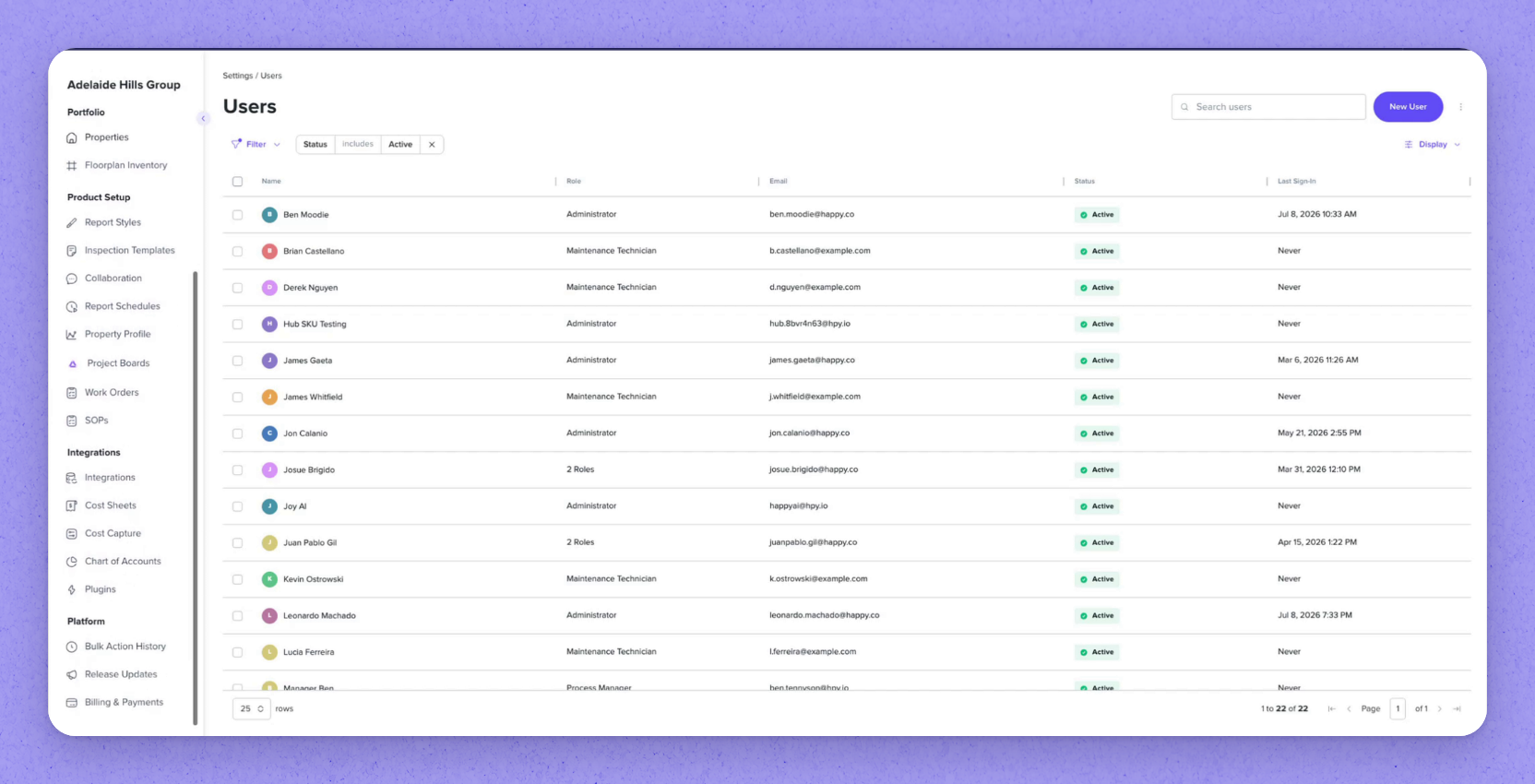
-
Start a new user
On the Users page, click New User in the top-right corner. -
Enter user details
Complete the required user details. -
Create the user
Click Create User. TipAn automated email is sent to the new user right away to help them get set up.
Editing team member details in Happy Manage
 Open Settings
Click the Settings icon in the upper-right corner.
 Go to Users
Make sure you are on the Users page. If not, select Users under Admin in the left-hand menu.
 Select the team member
 whose details you need to change.
 Edit their details
On the User Details tab, edit Full Name, Short Name, or Phone.
Updating a team member's password in Happy Manage
-
Open Settings
Click the Settings icon in the upper-right corner. -
Select the user
On the Users page, click the name of the user whose password needs updating. -
Set a temporary password
On the User Details tab, click Set Password to set a temporary password. TipThis sends the user an automated email asking them to choose their own secure password.
Helping a user who can't log in
- The temporary password from Set Password lasts about 48 hours.
- If the user never finished setting up their account, resend the welcome email instead.
- The original invitation link expires.
Changing team member roles and app permissions in Happy Manage
-
Log in
Log into Happy Manage at happy.co. -
Open Settings
Click the Settings tab. -
Select the user
Click the user whose role you want to change. -
Open Role Management
Select the Role Management tab. -
Pick the role
Click the selection circle next to the role you want to assign. -
Save
Click Save before leaving the screen.
Managing access to properties in Happy Manage
-
Log in
Log into Happy Manage. -
Open Settings
Click the Settings tab. -
Open Properties
Select Properties under Portfolio in the left-hand menu. -
Open Property Access
Select the property, then select Property Access. -
Choose who has access
Choose All Users, or choose Selected Users and click the checkmark circle next to each user who needs access to this property. -
Save
Click Save before leaving the screen.
 Removing access during an in-progress inspection
If you revoke a team member's access to a property while an inspection on their mobile device is still uploading, they may get warning alerts in the app. Restore their access until all their device data has finished uploading, then remove it.
Changing property names in Happy Manage
-
Log in
Log into Happy Manage at happy.co. -
Open Settings
Click the Settings tab. -
Open Properties
Select Properties under Portfolio in the left-hand menu. -
Select the property
Click the property you want to rename. -
Edit the name
On the Details tab, click inside the Name field and edit the text. -
Save
Click Save before leaving the view.
Frequently asked questions
I need access to a property. Who do I ask?
Your company's Account Administrator. Administrators manage property access in Happy Manage.
Can I create my own Happy Manage account?
No. An Account Administrator has to add you. If your company uses SSO, your account may be created automatically the first time you sign in through your company. Check with your IT team.
Can a password reset email be resent?
Yes. Request a new reset from the login screen the same way you did the first time. Each new request cancels earlier reset emails, so use the most recent one. You can request up to 3 reset emails an hour.