
The Property Dashboard in Manage lets you download individual data tables or a full property export as CSV files. Use it for detailed inspection and item-level data that PDF reports don't capture.
 In this article
- Open the Property Dashboard in Manage
- Check which property a Service Request belongs to (in Manage)
- Download a full property data export
- What the full property export includes
- Download an individual table from the Property Dashboard
- Available Property Dashboard tables
- Frequently asked questions
- Need help from the Due Diligence team?
Open the Property Dashboard in Manage
-
Log in to Manage
Log in to Manage at https://manage.happyco.com/. -
Go to the property folder
Navigate to your desired property folder.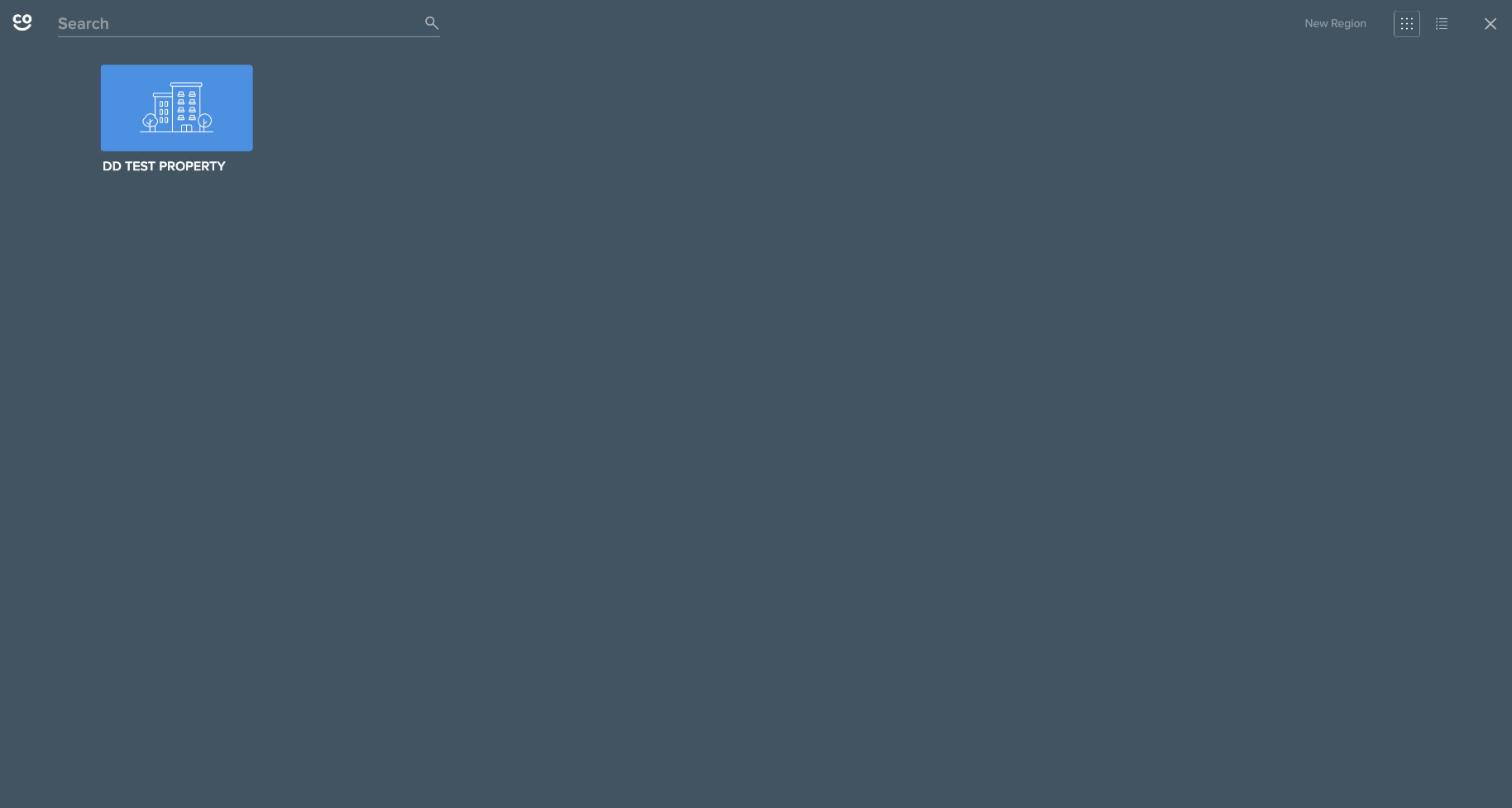
-
Open the Property Dashboard tab
Click the Property Dashboard tab. Tip
You'll see several data tables and visual summaries related to your inspections.
Finding the right property when you have several
For step 2: after you log in to Manage, click Select Property in the top-left corner, search for the property you want, and select it to open it.
To find a specific order, open the DD Orders tab and select the order from the list.
 Which property, project or ticket is an export for?
Use the property name. Exports are pulled from that property's folder in Manage, and the same property appears on your order under the DD Orders tab.
Check which property a Service Request belongs to (in Manage)
-
Open the DD Orders tab in Manage
In Manage, open the DD Orders tab. TipCheck in Manage instead of your email.
-
Open the order
Open the order the request was made from. TipEach order is for one property.
-
Review the requests on the order
Your requests and the team's replies are listed on that order.
Download a full property data export
-
Open the Actions menu
From the Property Dashboard page, click the Actions menu in the upper-right corner. -
Select Export Property Data
Select Export Property Data. TipThis generates a CSV file with a wide range of inspection and unit data for the entire property.
What the full property export includes
The CSV file contains inspection and unit data such as:
- Unit numbers, building identifiers, and inspection status
- Item-level condition ratings
- Notes and comments
- Cost estimates (if applicable)
- Associated photo data and repair/replacement designations
Download an individual table from the Property Dashboard
 Hover over a table
Hover your mouse over any table (for example, Unit Inspection Overview or Top 20 Repair Items).
 Open the table menu
Click the hamburger menu that appears on the right-hand side of the table.
 Select Download Data
.
Available Property Dashboard tables
Each table provides targeted insights into a specific area of your inspection data. For example, the Unit Walk Inspection Matrix is often used to quickly confirm inspection coverage and identify skipped units.
- Unsynced Photos
- Unit Inspection Overview
- Top 20 Repair Items
- Repair/Replace/Missing Items Export
- Top 20 Replace Items
- Unit Inspections – Item Condition Summary
- All Item/Rating Summary
- Unit Walk Photo List
- Unit Walk Inspection Matrix
- Unit Walk Notes Summary
- Unit Walk Inspection Data Export
 Dashboard updates are not real-time
Data may take up to 1–2 hours to refresh after new inspection activity. There is no manual refresh option: to view the most recent data, refresh your browser periodically.
File format
All table exports download as .csv files, which can be opened in Excel, Google Sheets, or any other spreadsheet software.
Data missing from your PDF reports?
If you're looking for inspection data that doesn't appear in your PDF reports, the Property Dashboard exports are often the best place to find it. Use them to track inspection progress, review detailed item data, or confirm that all photos and notes have synced properly.
Frequently asked questions
I was asked which ticket or project my export is for. What do I give?
Use the property name. Exports are pulled from that property's folder in Manage, and the same property appears on your order under the DD Orders tab.
Does my Service Request confirmation email tell me which property the request is for?
To check which property a request belongs to, look in Manage instead of your email. Every Service Request is made from a specific order, so it stays attached to that order and its property. Open the DD Orders tab, open the order, and your requests and the team's replies are listed there.
Need help from the Due Diligence team?
The Due Diligence team is happy to assist. Hours of operation: M–F, 7 AM to 5 PM PST.
- Submit a Service Request
- Email us at dd@happy.co
- For emergency, day-of support, call 447-427-7926 x2