
 HappyCo Property Maintenance App (HPMA) Release Updates toggle in HappyCo Manage
HPMA Release 2.16.0 onward (inspections); HPMA Release 2.17.0 onward (work orders)
HPMA lets you record up to one minute of video on an inspection item or a work order, or attach a video from your phone, and it sits alongside photos on the same item. Use it to capture motion, sound and context a photo can't show, such as a leak, a running HVAC unit, or a door that won't close cleanly.
 In this article
- How video works in HPMA
- Turning on video capture in HappyCo Manage
- Turning off video capture
- Where you can add video
- Recording a video on an inspection (HPMA)
- Recording a video on a work order (HPMA)
- Attaching a video from your camera roll
- Removing a video
- Syncing video
- Playback in HPMA and HappyCo Manage
- Playback in HappyCo Manage on the web
- Video attachments in HappyCo Manage
- Frequently asked questions
How video works in HPMA
- Works on inspections and on work orders
- Recordings are capped at one minute
- Plays back in HPMA on mobile and in HappyCo Manage on the web
- Inspections and work orders have independent Release Updates toggles
- Capture and playback work the same on both
- Only the entry point and the menu wording differ
 Who records video
HPMA is the field mobile app technicians use on-site for inspections and work orders.
Turning on video capture in HappyCo Manage
-
Open Release Updates
In HappyCo Manage, go to Admin Centre > Release Updates. -
Find the video setting
Search for Video capture in Happy Property Mobile App. -
Switch it on
Switch the setting on. Tip
Video becomes available on your team's next HPMA refresh.
Turning off video capture
Return to Admin Centre > Release Updates, find Video capture in Happy Property Mobile App and switch it off.
Where you can add video
On an inspection: video is on the same camera button you already use for photos, on every item inside an inspection.
On a work order: video appears anywhere you can add a photo.
- In comments: tap the attachment icon.
- In resident messages: tap the attachment icon.
- In photos: tap the attachment icon.
Recording a video on an inspection (HPMA)
 Open the inspection
Open an inspection in HPMA on your mobile device.
 Go to the item
Navigate to the inspection item you want to attach video to.
 Tap the camera button
.
 Choose Video
.
 Grant permissions
Grant camera and microphone permission if prompted.
Tip
This prompt only appears the first time.
 Tap Record
. A timer shows how much recording time is left.
 Tap Stop
 when you're done. The video appears as an attachment on the item.
Tip
Recordings are capped at one minute. If you need more, record a second clip on the same item.
Recording a video on a work order (HPMA)
Open the work order
Open the work order and navigate to comments, resident messages, or photos.
Tap the attachment icon
Tap the attachment icon.
Choose how to add video
Tap Take photo or video to record live. To use an existing video from your phone's gallery, tap Add photo/video instead (see Attaching a video from your camera roll below).
Tap Video
On the camera screen, tap Video.
Start recording
Tap the red record button to start filming. A timer shows how much recording time is left.
Tip
Tap the white button during recording to capture a still without stopping the video.
Stop recording
Tap the record button again to stop filming.
Review your clips
Tap the gallery button in the bottom left to view or delete what you've captured.
Attaching a video from your camera roll
On an inspection: use the Upload button when in Video mode.
On a work order: tap the attachment icon, choose Add photo/video, then pick a video from your phone's gallery.
Removing a video
Open the inspection item, tap the video, and choose Remove. This is the same flow as removing a photo.
Syncing video
Once your device syncs to HappyCo, the video uploads to the cloud and is then cleared from your device storage automatically. Playback continues to work because the video is streamed from the cloud copy.
| Where | How |
|---|---|
| HPMA mobile | Open the completed inspection, open the gallery, and tap the video link. The video plays in a video player. |
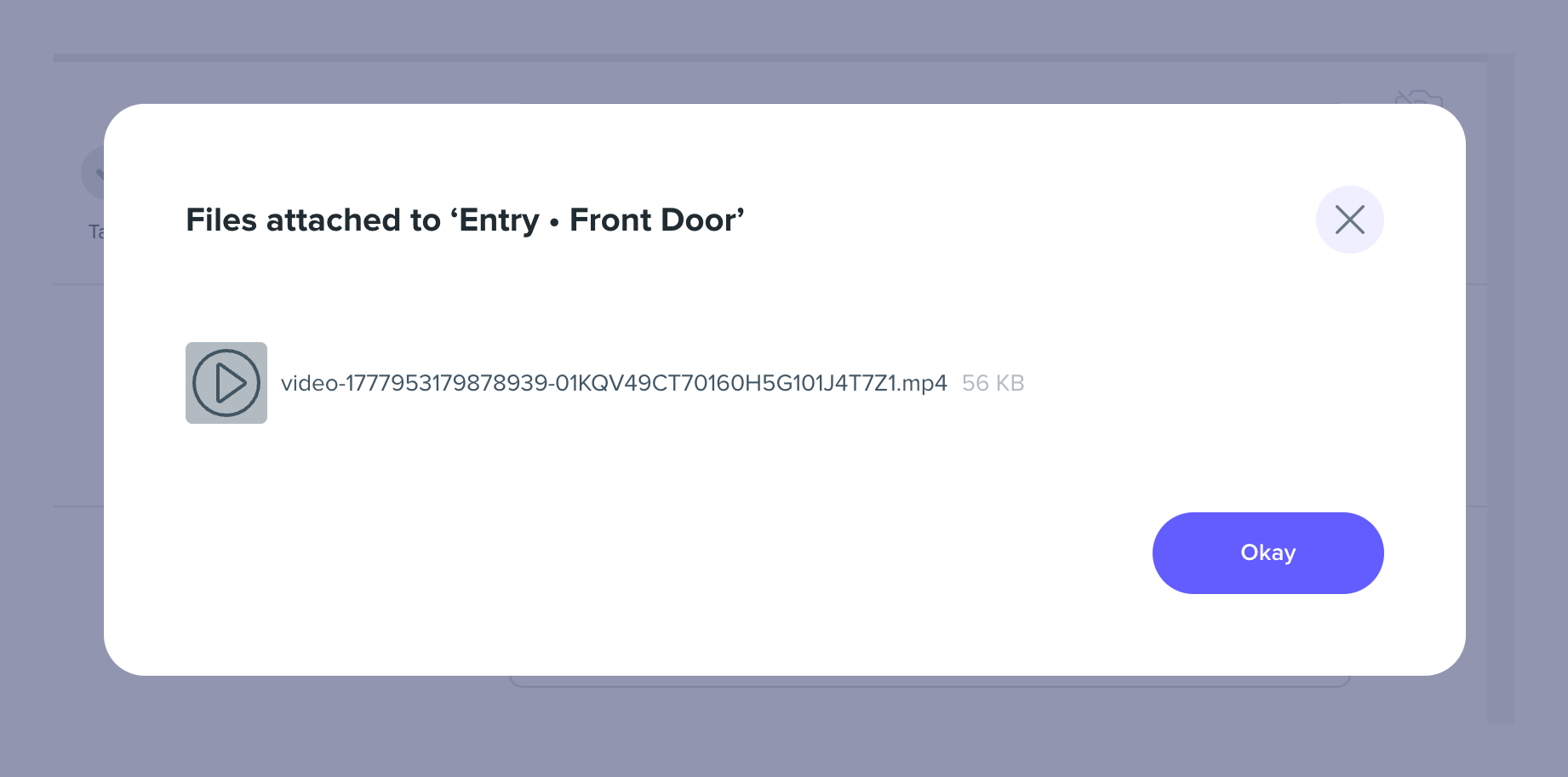
| HappyCo Manage (web) | Open the inspection item's or work order's attachments and click the video link. The video plays in a player on the page. |
| Inspection report PDFs | Each video appears as a link in the PDF report. Clicking it opens the video in a browser, where it plays in a browser-native player or downloads for native playback. |
Playback in HPMA and HappyCo Manage
Playback in HappyCo Manage on the web
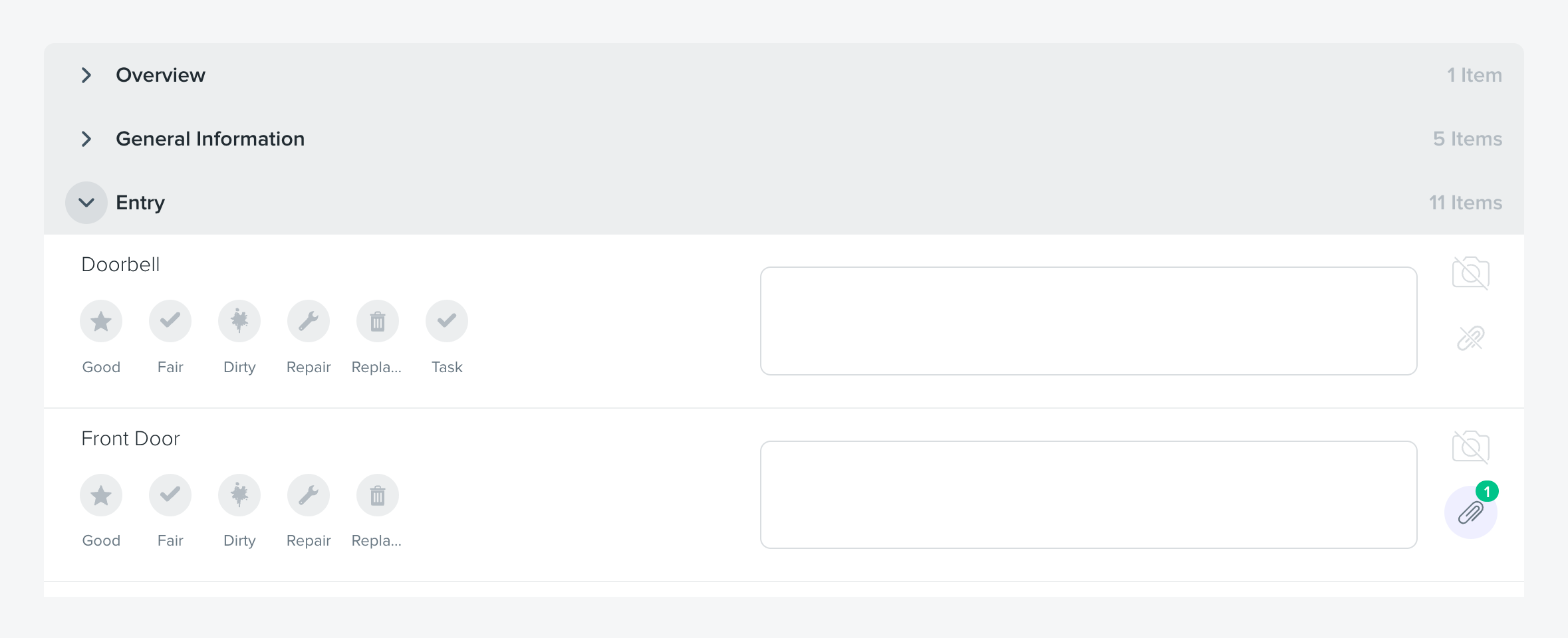
Video attachments in HappyCo Manage
Printed reports
If an inspection report is printed, the video link prints as text. The video itself is not part of the printed page.
If playback fails
If playback fails on mobile or in HappyCo Manage, check your connectivity and reopen the inspection.
Not yet supported
- Reordering video attachments
Frequently asked questions
How long can a single video be?
Up to one minute on both inspections and work orders. The cap keeps file sizes manageable and uploads reliable on site Wi-Fi. If you need more, record a second clip on the same item.
Why does my video file name change after I sync?
HappyCo renames video files on upload to give them unique IDs. Use the inspection or work-order context to locate the video, not the file name.
What if the recording stops before I'm done?
Recordings are capped at one minute. Record a second clip on the same item to continue.
Where can I watch the video back?
Three places: HPMA mobile (open the inspection or work order, open the gallery, tap the video), HappyCo Manage on the web (open the attachments and click the link), and inspection report PDFs (the report contains a link that opens the video in a browser when clicked). PDF report links are inspection-only today.
What happens to the video after I sync?
It uploads to HappyCo, then clears from your device storage. Playback continues to work from the cloud copy.
Can I move or reorder video attachments?
Not yet. Only adding and removing are available today. Reorder is planned.
Can I capture a still photo while recording a video?
On work orders, yes: tap the white button during recording to capture a still without stopping the video. This isn't yet available on inspections.
Are inspection video and work-order video controlled by the same toggle?
No. They're independent Release Updates toggles, so you can have one on without the other.
Does video recording work offline?
Yes. Recording works fully offline on both inspections and work orders. Videos sync when you reconnect, the same way photos do today.