
Use the Happy Property Maintenance App (HPMA) to view Make-Ready projects—also called turns—along with their associated tasks and inspections, so you can see what's assigned to you and track a unit's progress toward move-in from the field. To create or edit projects, use Manage.
🎬 Watch it in action: Watch: Add Work Orders to Projects
 Happy Property — HPMA (Happy Property Maintenance App) HPMA is the field mobile app technicians use on-site for inspections, work orders, and make-ready/turns. It is offline-capable.
 Requirements & permissions
To review projects, your user must be enabled with certain permissions. If you can't see projects, contact your Administrator for further review.
- Permissions can be set to show only your assigned work vs. everyone's work.
- Permissions can also be set to show or hide completed projects.
Who this is for
HPMA is the on-site app for maintenance technicians. Project setup and editing happen in Manage, the web app admins and managers use to configure the account and run day-to-day operations.
Viewing your assigned Make-Ready work
1 Open the My Work tab
Tap the My Work tab in the app navigation bar, so you land straight on the work assigned to you. The app opens to this screen by default.
2 Find the Projects section
Locate the Projects section, situated below your work orders and inspections. Make-Ready work items assigned to you appear within their parent project.
 Tip
Tip
If multiple work items in a single project are assigned to you, they appear as a stack.
3 Open a project
Tap the project to see all project details, including your specific work items.
Viewing all Make-Ready projects across the property
1 Open the Projects tab
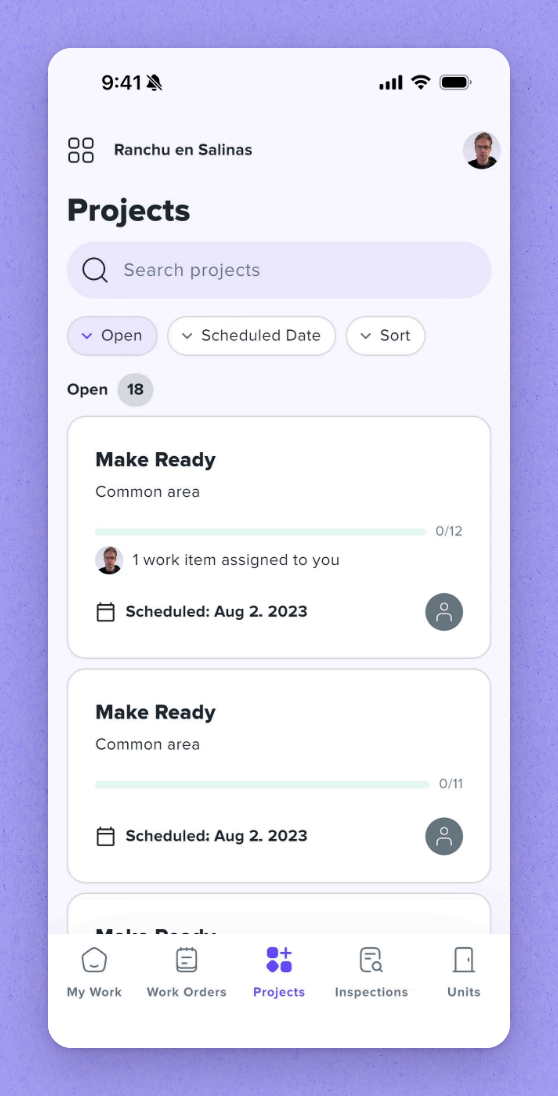
Tap the Projects tab in the app navigation bar to browse the full list of open Make-Ready projects across the property.
2 Review the project list
Each project displays the Location, Assignee, Move-in date (if available), and Project progress—so you can see at a glance which units need attention first.
3 Open a project
Tap any project from this list to view its associated work items.
Sorting, searching, and filtering the project list
By default, projects are sorted by move-in date. If no move-in date is available, they are sorted alphabetically.
- To reverse the sort order, tap Sorted by move-in.
- To find a specific project, tap Search.
- To narrow the list, tap Filter. You can filter by Assignee, Location, or status (Open or Complete).
- To reset your filters, tap Clear all in the filter sheet.
Navigating project details and tasks
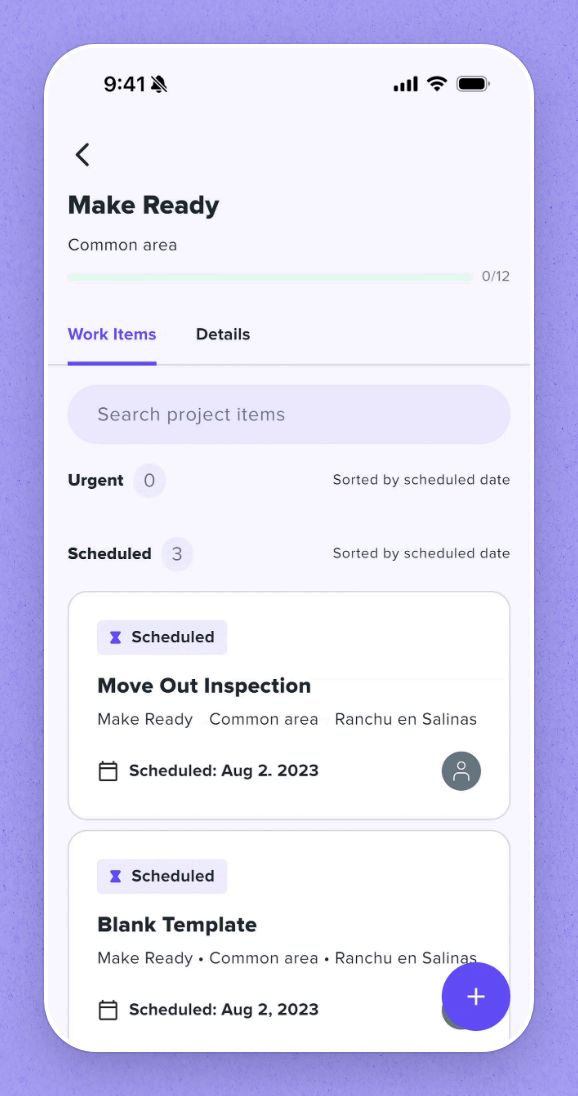
When you open a project, you can view its overall progress and interact with its items using the available tabs.
The Work Items tab
This is the default view when opening a project. It lists all work items associated with the project, grouped by scheduled and unscheduled status.
- To find a specific task within the project, tap Search.
- Tap a specific task to view its details, assign it, and complete it.
- Tap a specific inspection to view its details, assign it, and complete it.
The Details tab
Tap the Details tab to view the project's background information, including:
- Assignees
- Notes
- Unit details (Location, Floor plan, Occupancy, Move-out date, and Move-in date)
| Issue | Cause | Resolution |
|---|---|---|
| The Projects tab isn't visible. | Your user role, permissions, or account configuration may not include access to Projects in Happy Property / HPMA. | Confirm you are logged into the correct account and property. If the Projects tab is still missing, contact your administrator to verify that your role has Projects access enabled. |
| An assigned project isn't appearing in My Work. | The project may not be assigned to your user profile, may be associated with a different property, or may be hidden by the current filters. | Check that you are viewing the correct property and clear or adjust any filters in My Work. If the project still does not appear, ask your administrator to confirm the assignment. |
| Filters are not resetting. | Saved filter settings or the current app session may be preventing the project list from refreshing correctly. | Clear the filters manually, then sign out and back in. If the issue continues, contact your administrator for assistance. |
 Related articles
Screenshots
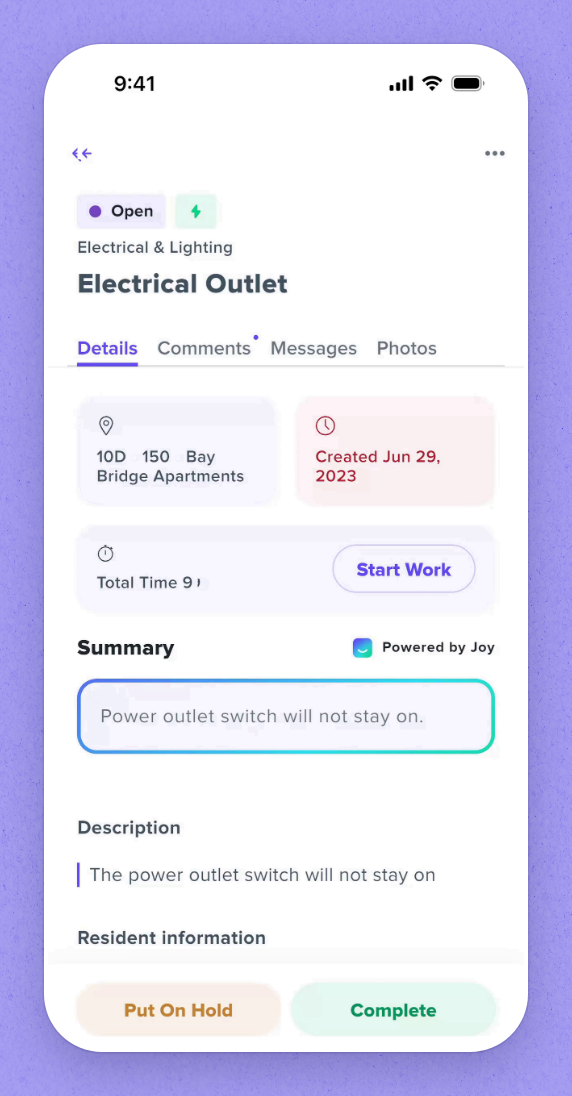
Create a New Work Order
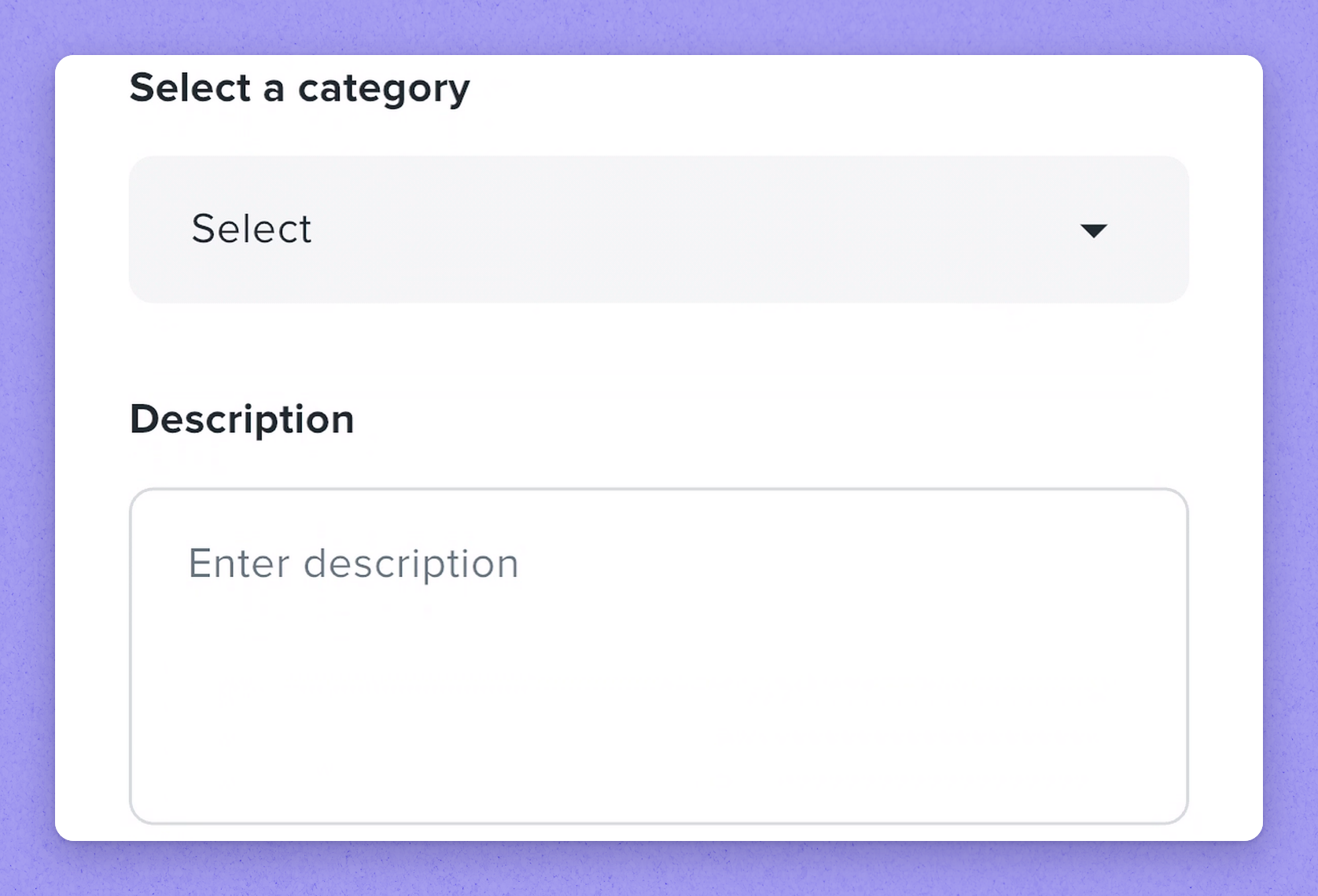
Pick a Stage and Category
Manage Make-Ready Projects On the Go
Open the new camera package
Get familiar with the camera screen