Track Inventory Across Your Portfolio


What’s covered

  1. Configure floor plan inventory in Settings
  2. Review the Missing Inventory page
  3. Find the capture work order in the app
  4. Capture serial plates on the phone
  5. Resolve units on Missing Inventory
  6. Review flagged and low-confidence captures
  7. Expanded model data and reliability

Track Missing Inventory and Trust Captures with Inventory Enhancements

happy-property

Inventory data is only useful when it's complete and accurate. These Inventory enhancements help on-site teams answer two questions: what's still missing at each unit, and can we trust what's been captured. You start by defining what a complete inventory means for each floor plan, then use the Missing Inventory page to drive capture work orders, review flagged captures, and rely on richer model data. New role permissions control who can configure floor plan inventory and who can view or manage the Missing Inventory page.

1 Configure floor plan inventory in Settings

Configure floor plan inventory in Settings

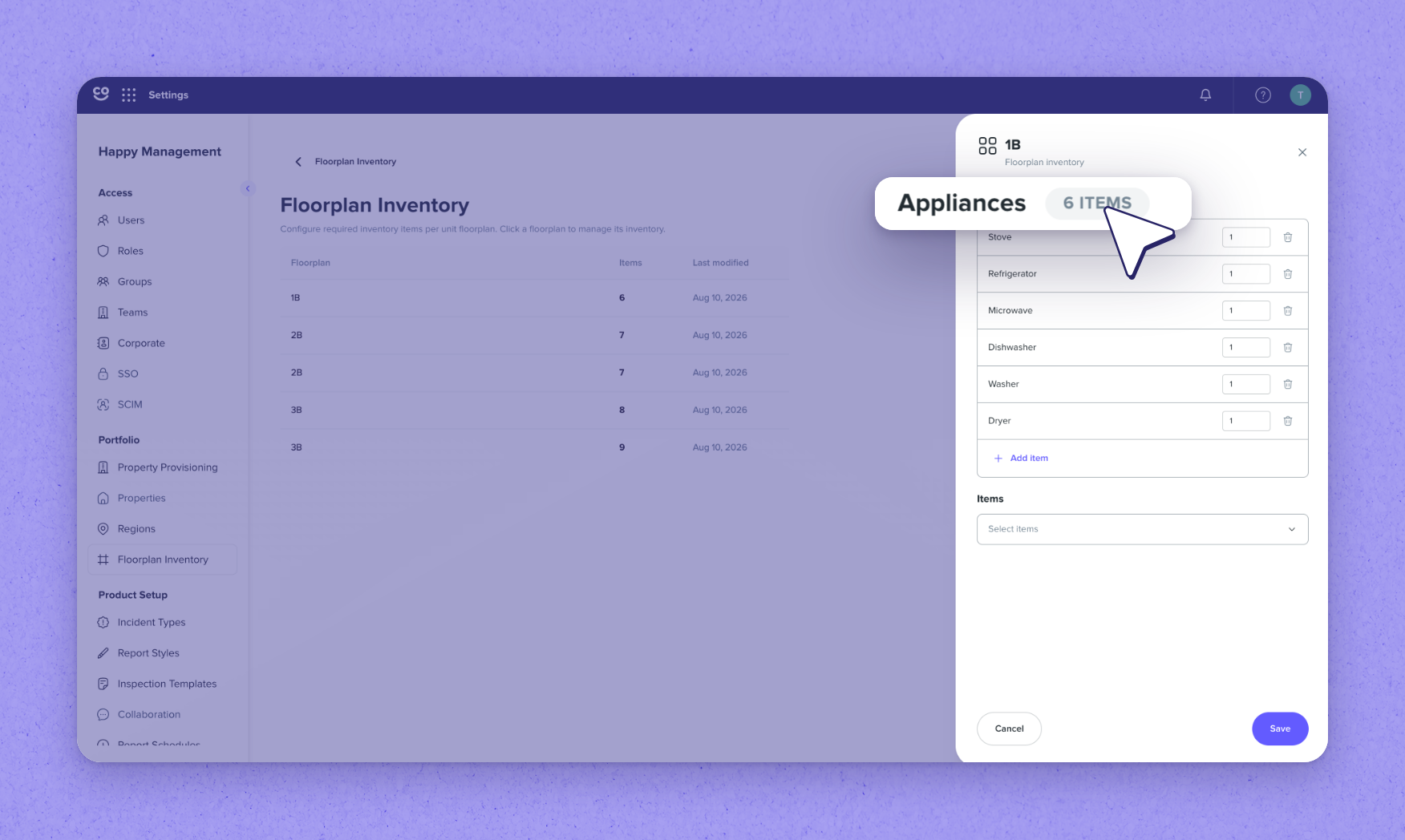
Open Settings to define what complete means for each floor plan. Choose a property, open a floor plan, and set the items that must be captured. You can add more items, or more than one of the same item (floor plan 1B, for example, requires six appliances). Once floor plans are configured, HappyCo can calculate how many items each unit is missing.
 

Tip · Technicians can still capture other items beyond these; the configured items are simply the priorities for a complete inventory.


2 Review the Missing Inventory page
Review the Missing Inventory page

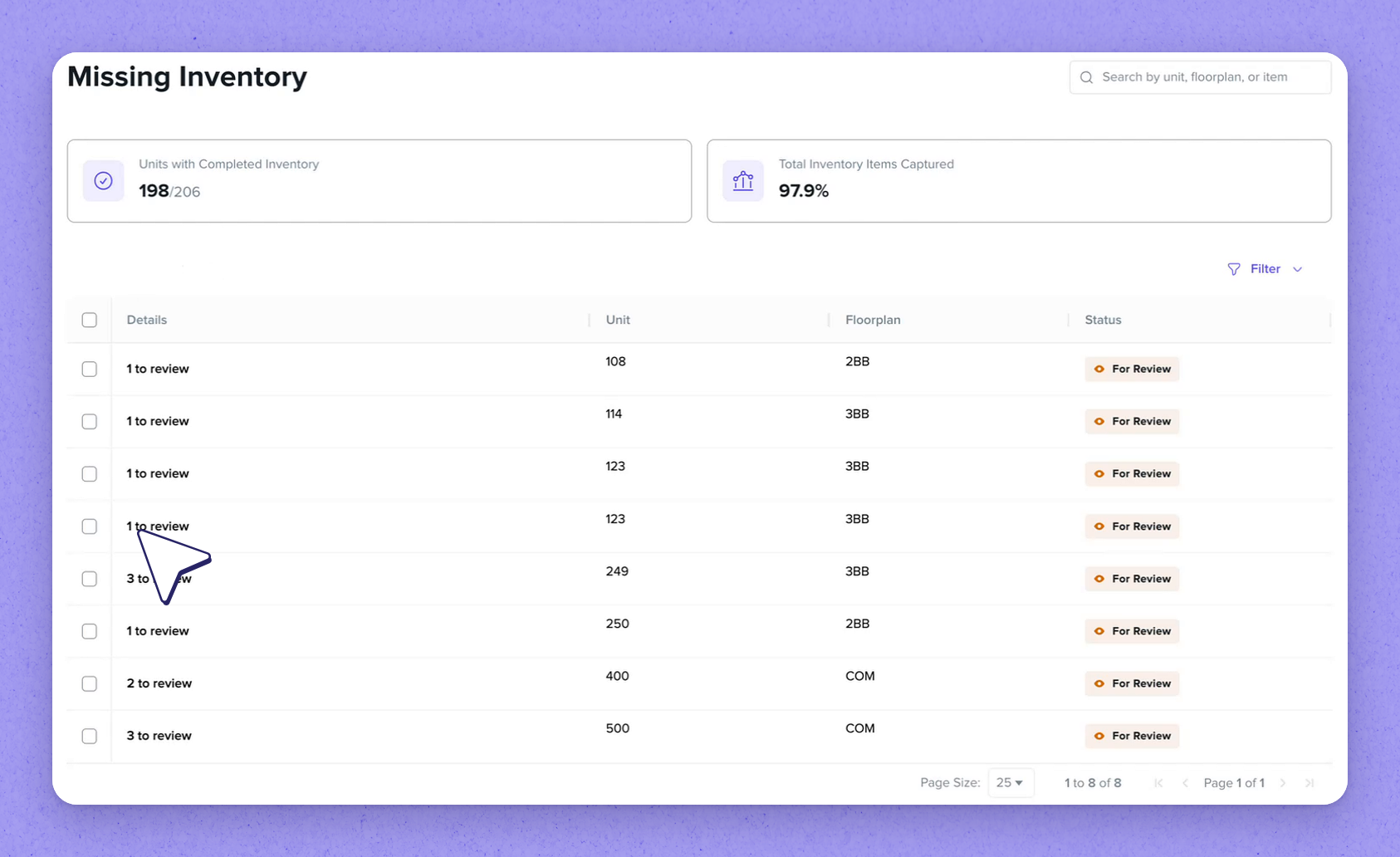
Open the new Missing Inventory page under Items in the Inventory menu. Two metrics show how many units have complete inventory and what share of items has been captured, and the table below lists the units still missing items. Select a unit to create a work order that captures everything it's missing (unit 249 needs its refrigerator, dishwasher and stove captured).
 

Tip · One click creates a single work order covering all the items a unit still needs.


3 Find the capture work order in the app
Find the capture work order in the app

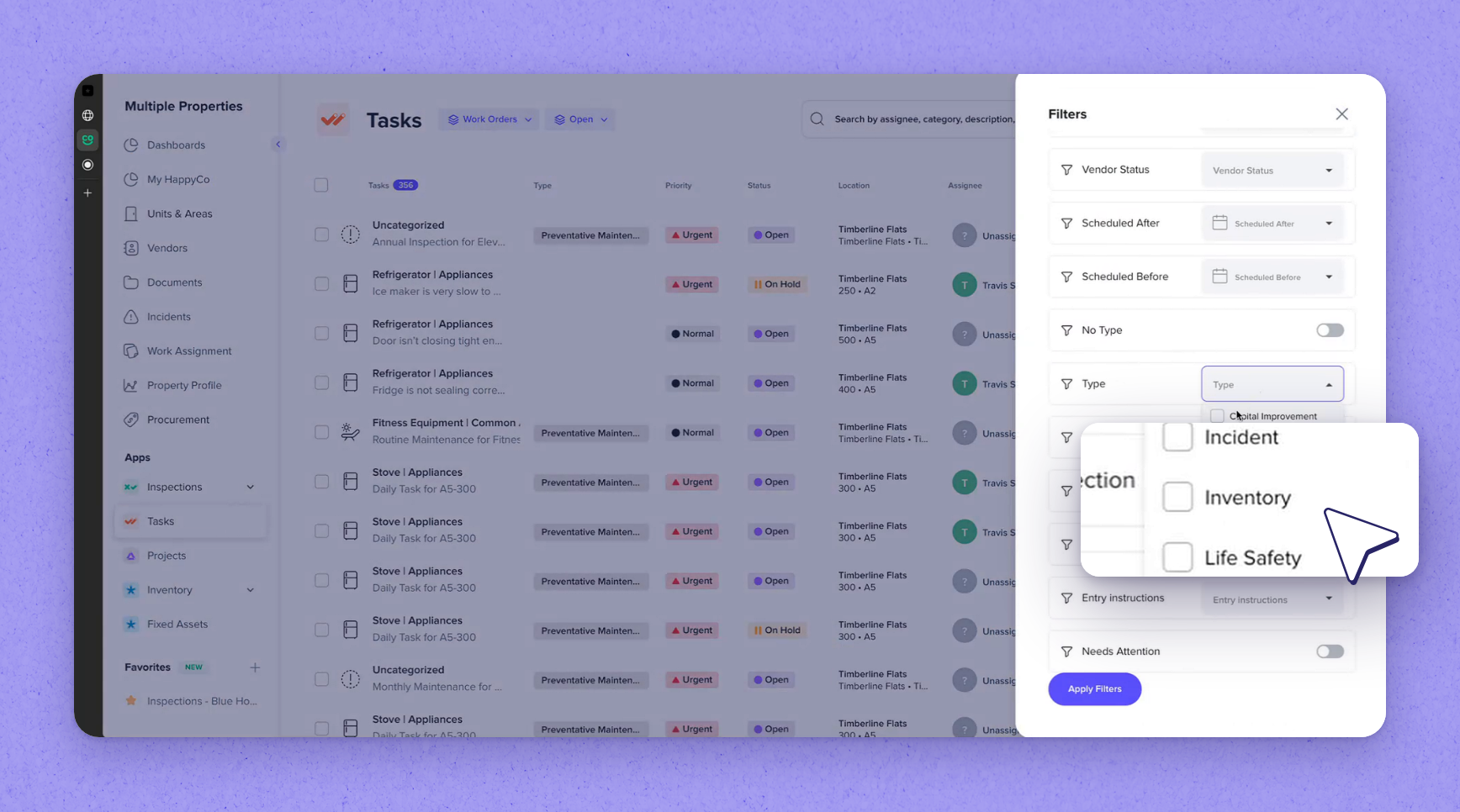
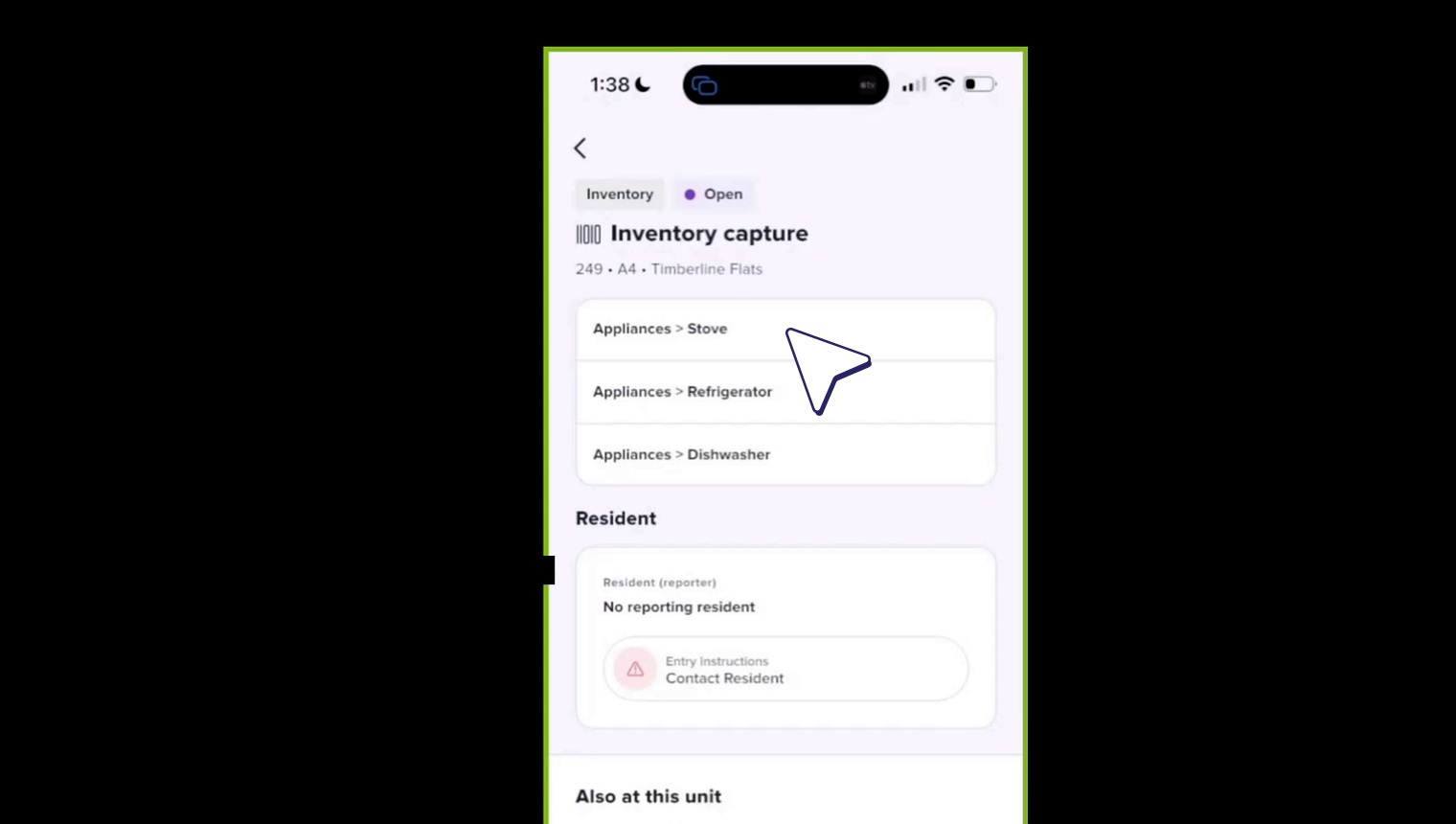
Open the maintenance app's task list, where the new work order appears. Filter by type Inventory to find the capture work order for the unit. It lists each required item, each with its own photo upload.
 

Tip · You can capture on the web, but serial plates are usually captured on a phone at the unit.


4 Capture serial plates on the phone
Capture serial plates on the phone

On the phone, open Work Orders, search for the unit and open the inventory capture work order. Each required item has its own camera button, and the camera checks brightness and clarity so the serial plate is readable before the shot. Review the preview and keep the photo to attach it to that item. If an item can't be captured, choose Cannot capture item and record why (for example, the dishwasher isn't at this location). Then tap Mark as Complete.
 

5 Resolve units on Missing Inventory

Resolve units on Missing Inventory

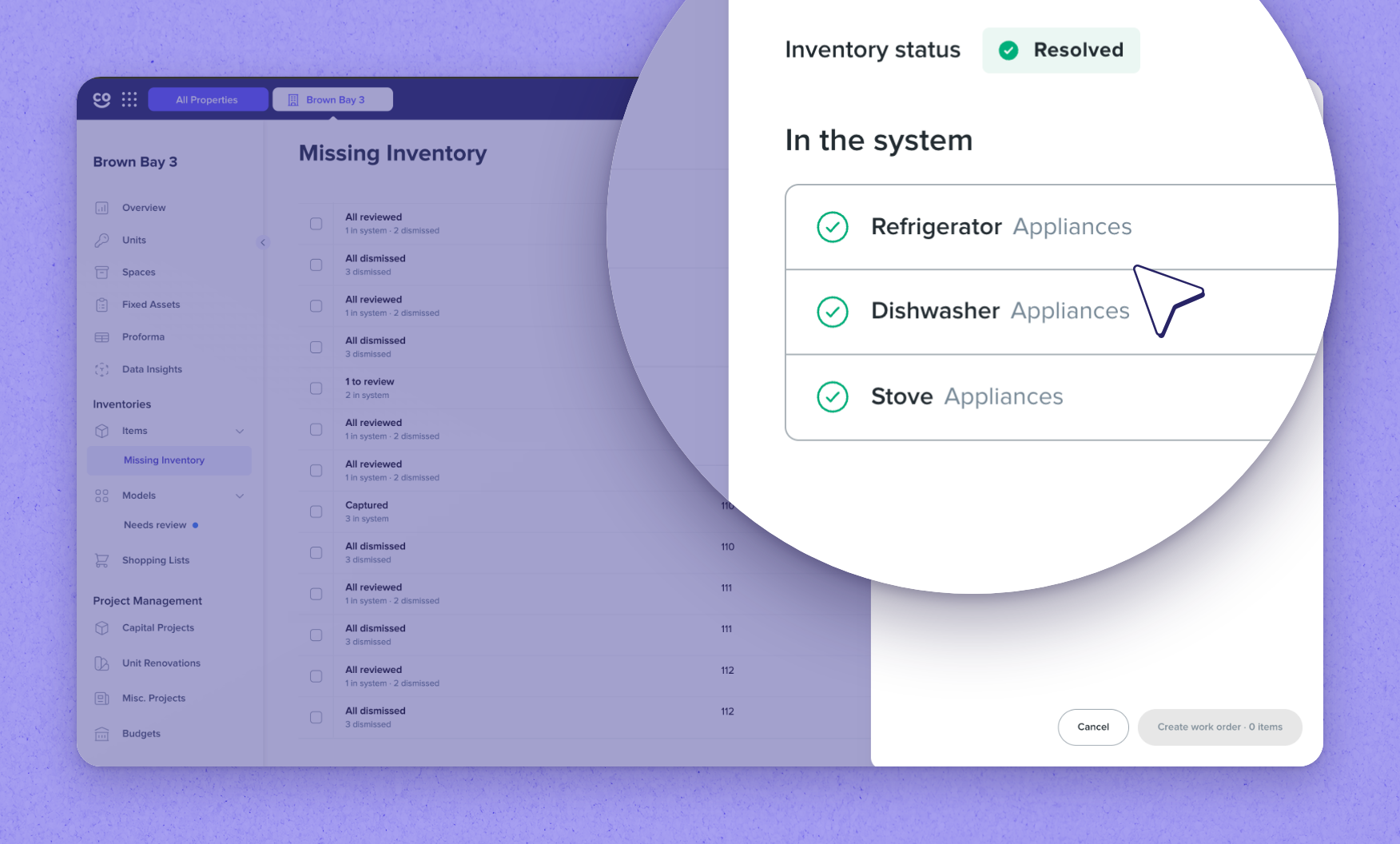
Return to the Missing Inventory page and refresh it. The captured items and the Items captured metric update (in the recording it rose from 97.9 to 99.3 percent), and any item that couldn't be captured returns uncaptured. For what's left you can view the technician's note, create another work order, or dismiss it with an optional reason.
 

Tip · Once every item is captured or dismissed, the unit is marked resolved.


6 Review flagged and low-confidence captures
Review flagged and low-confidence captures

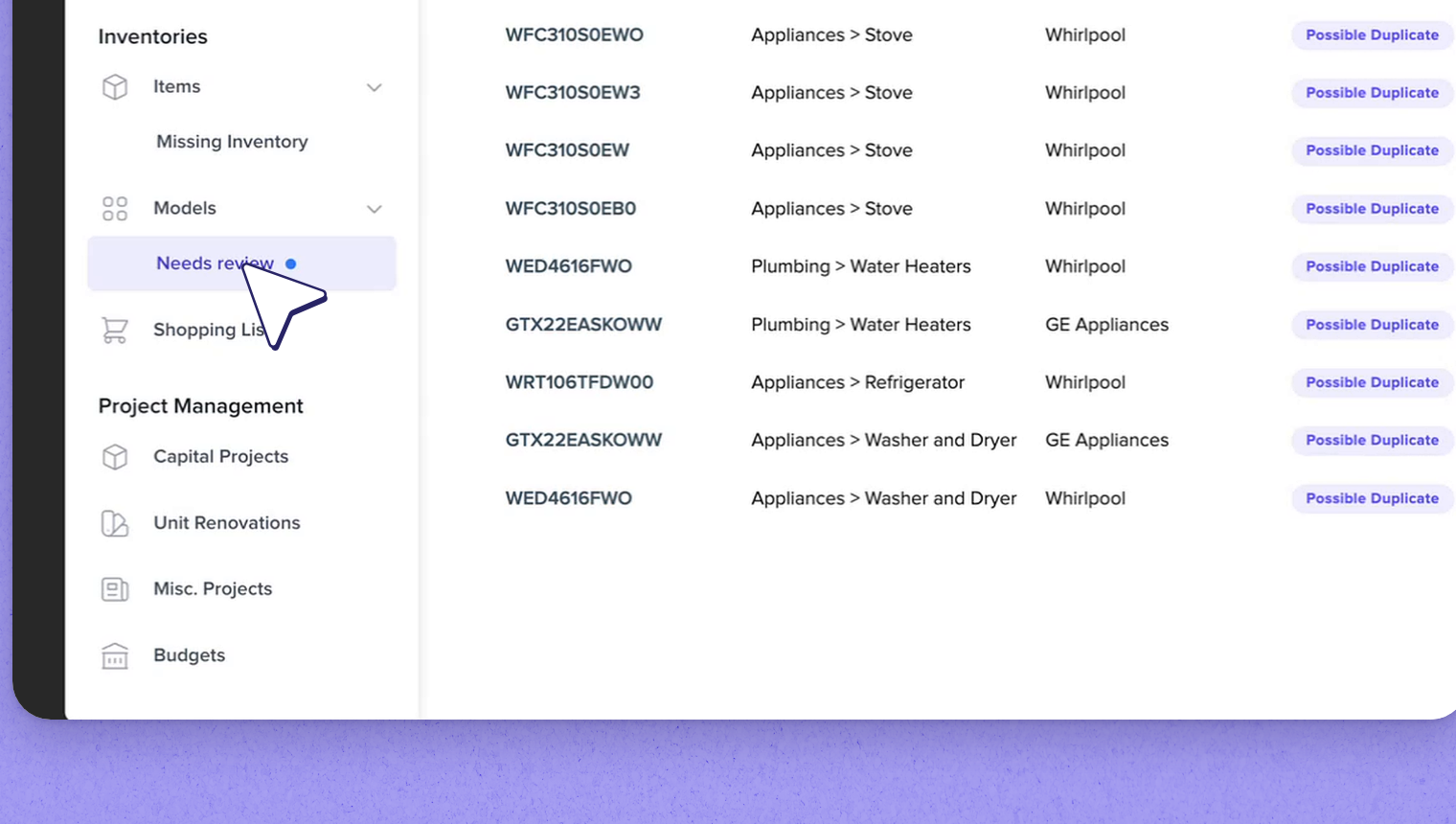
Needs review collects models flagged from capture, such as possible duplicates, so they can be compared, corrected and merged before they're approved into the system. It also surfaces low-confidence captures, where the system couldn't confidently read a model number or manufacturer.
 

7 Expanded model data and reliability
Expanded model data and reliability

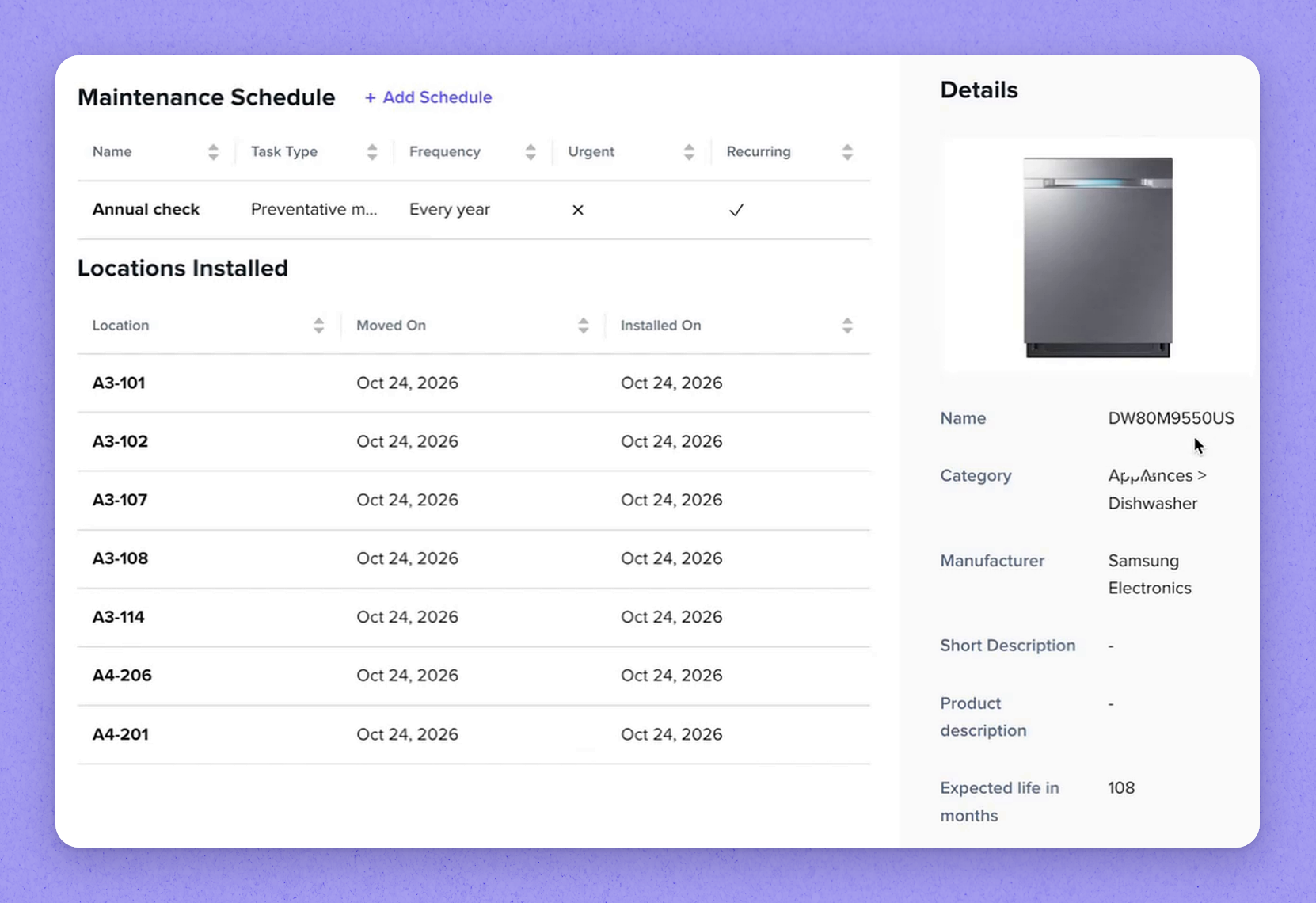
Reliability starts with better model data. HappyCo has expanded its database of inventory models and the information provided by default, which can be built from a single scanned image. For a model, HappyCo fills in details and attaches default files that items captured from that model inherit automatically. Each item also shows an estimated warranty end date, based on its manufacture date and the model's warranty.
 

Default model data HappyCo provides for an inventory model

Data What it provides
Stock image A default image of the model
Expected life Expected life in months
Warranty The manufacturer's warranty
Product dimensions The model's dimensions
Replacement parts Listed replacement parts for the model
Error codes Error codes with a troubleshooting protocol and recommended parts for each
Default files Energy guide, product specification, user manual and warranty, attached automatically to captured items
Estimated warranty end date Calculated per item from its manufacture date and the model's warranty


Frequently asked questions

What controls who can configure inventory or view the Missing Inventory page?

New role permissions. One permission controls who can configure floor plan inventory, and another controls who can view or manage the Missing Inventory page.

When is a unit marked resolved on the Missing Inventory page?

Once every item it was missing has been either captured or dismissed. You can dismiss an outstanding item with an optional reason.

What is Needs review for?

It collects models flagged from capture, such as possible duplicates, so they can be compared, corrected and merged before being approved. It also surfaces low-confidence captures, where the system couldn't confidently read a model number or manufacturer.

Where does the estimated warranty end date come from?

Each item's estimated warranty end date is based on its manufacture date and the model's warranty, which supports more accurate end-of-life reporting across your inventory.


See it in your properties

HappyCo brings inspections, maintenance and on-call operations into one connected platform.


Was this article helpful?
0 out of 0 found this helpful