
 happy-property
When your PMS updates a project's move-out date, the move-out update indicator flags it on your project board so your team notices in time to reschedule vendor work. This article shows how to spot the banner, review the change, and dismiss updates once you've accounted for them. Dismissing a change requires the Change Project Dates permission.
 In this article
 Spot the move-out update banner
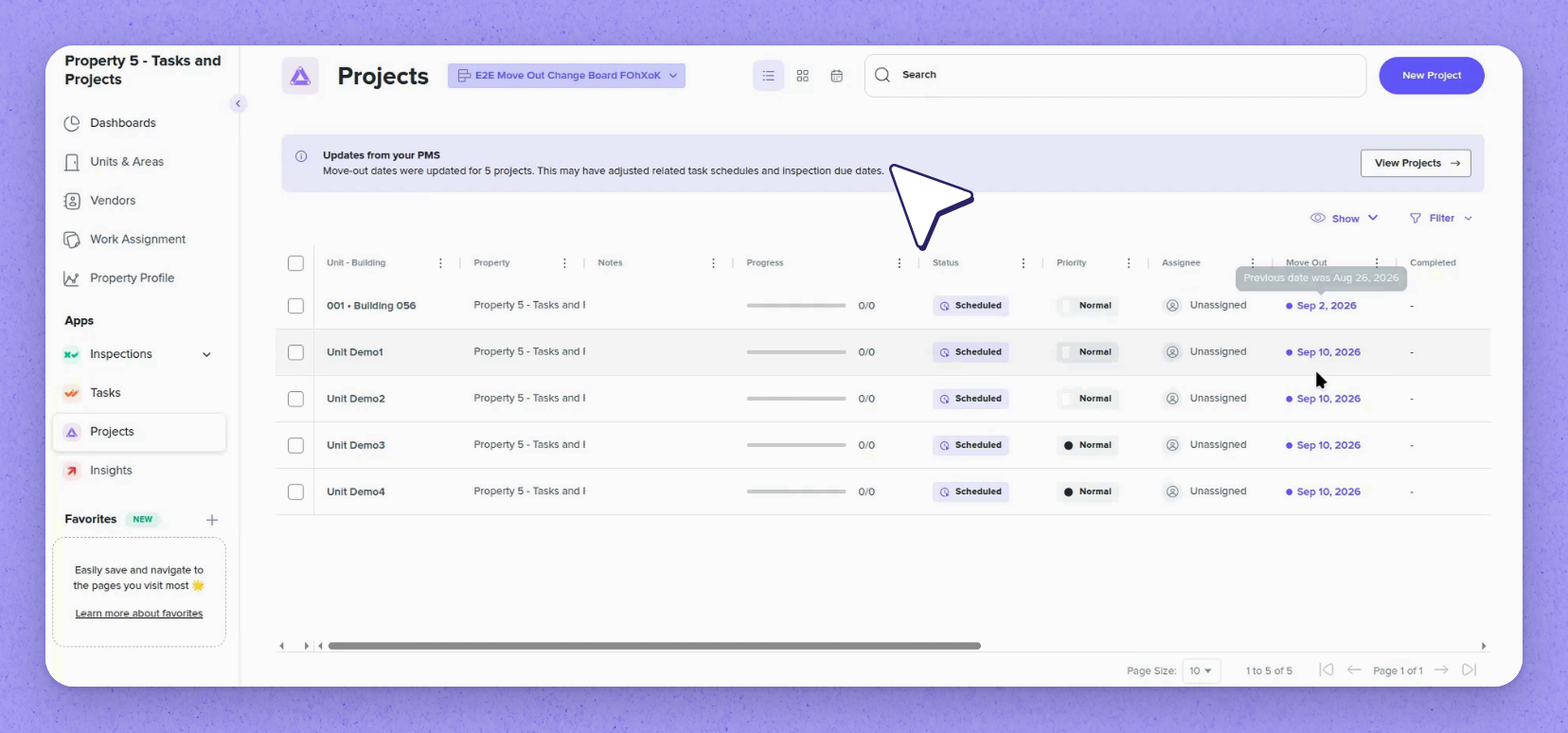
After a PMS update, a banner on the project board shows how many projects had their move-out date changed. In the Move Out column, updated dates are highlighted in blue.
Hover over a highlighted date to see the previous date (in the recording, a project moved from August 26 to September 2). Select View Projects to filter the board down to just the affected projects.
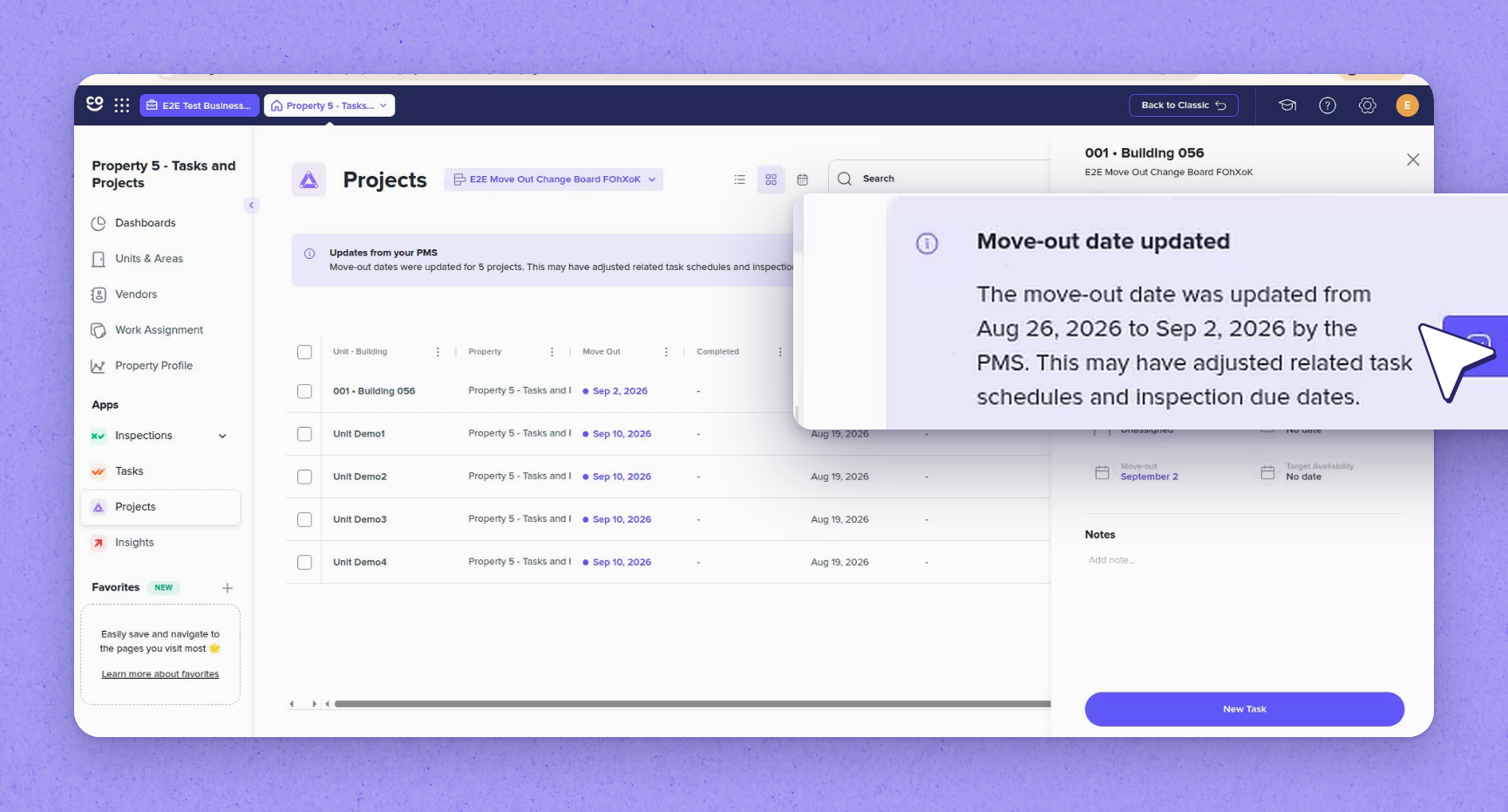
 View updates in grid and drawer
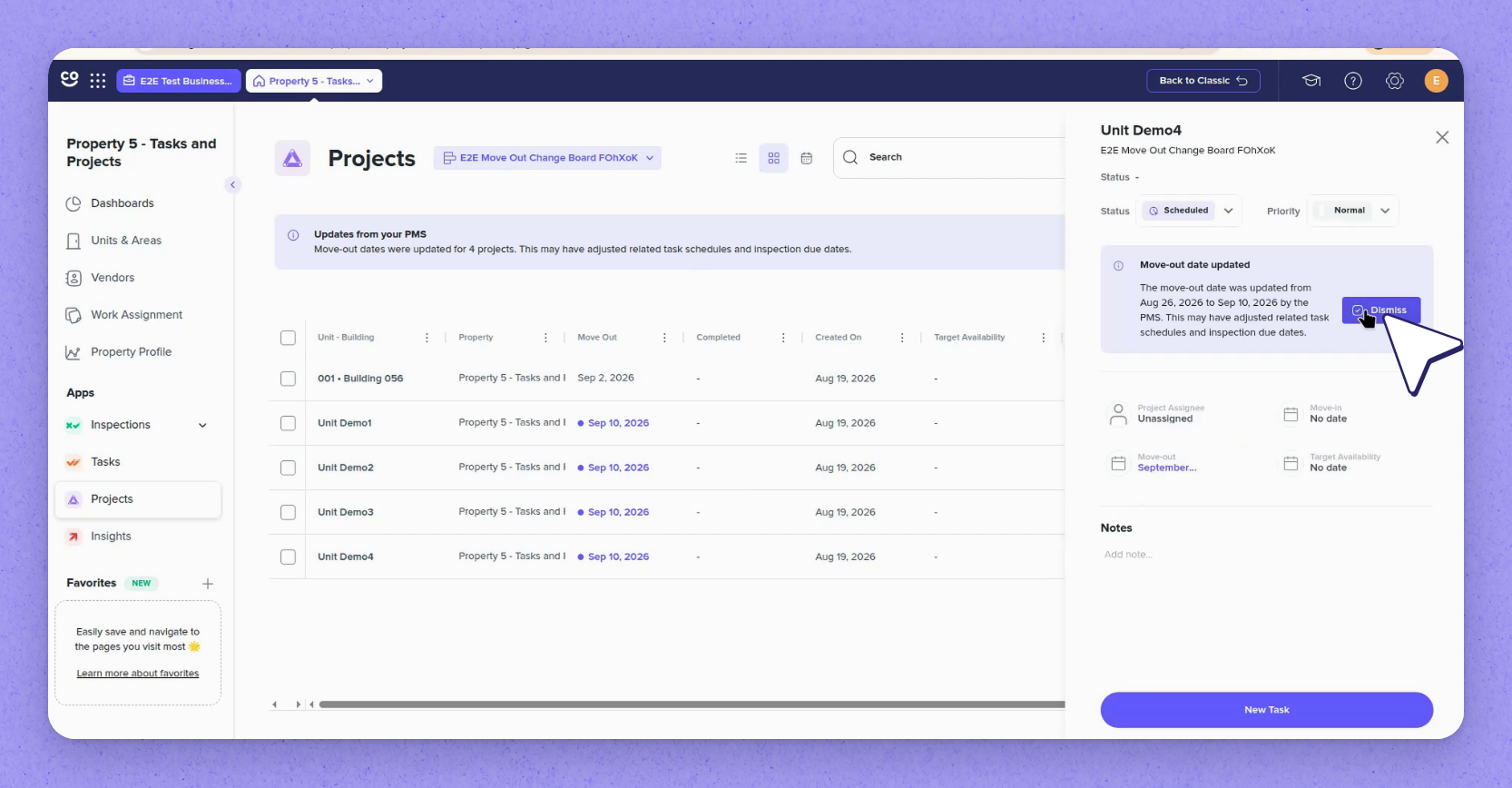
Switch to the grid view and the same highlights appear. Open a project to show the side drawer, which spells out the change. It notes that the PMS moved the move-out date (in the recording, from August 26 to September 2), which may have adjusted task schedules and inspection due dates.
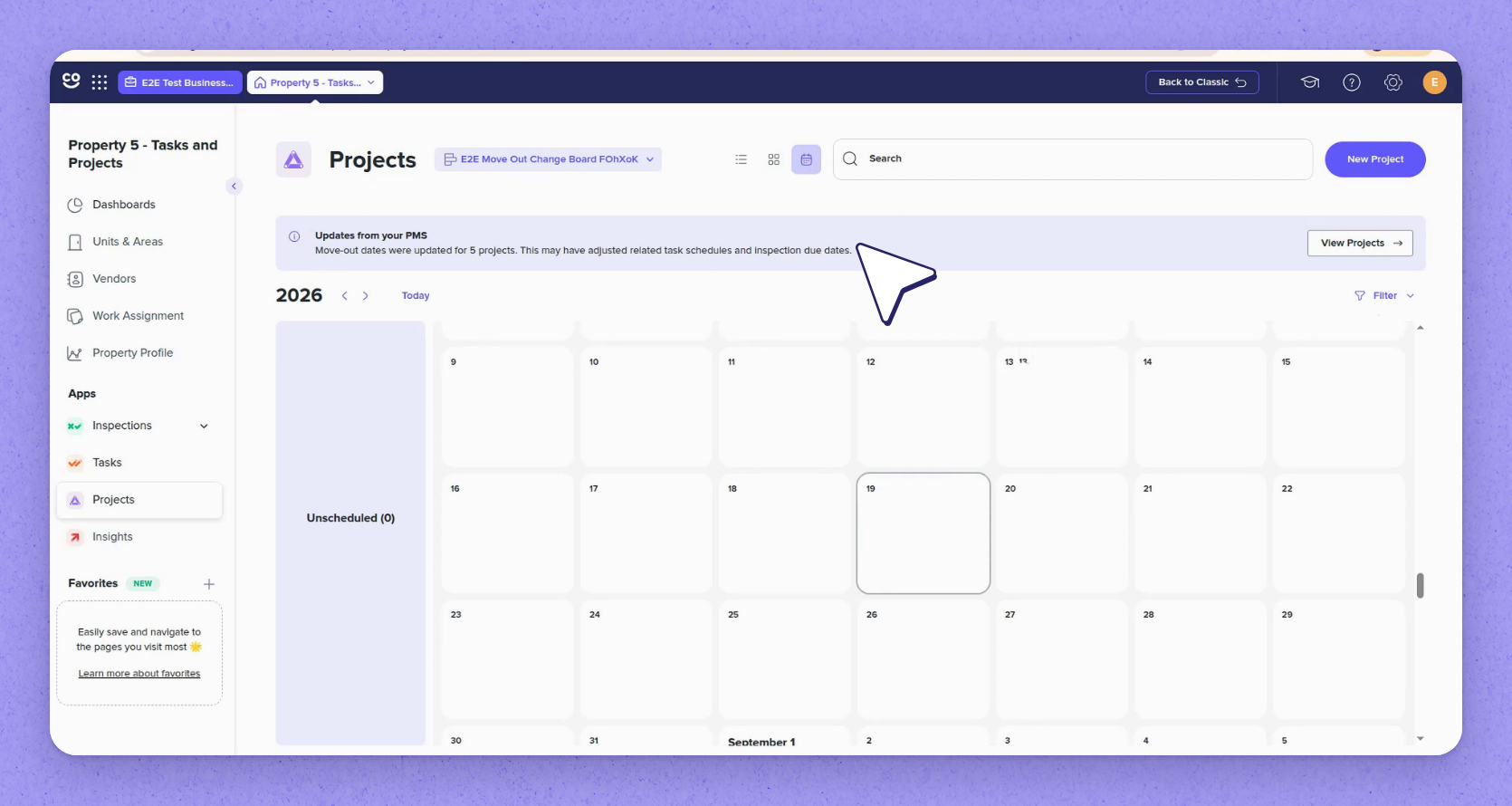
 See the banner in calendar view
The calendar view shows the banner too. The count of changed projects stays visible whichever view you use.
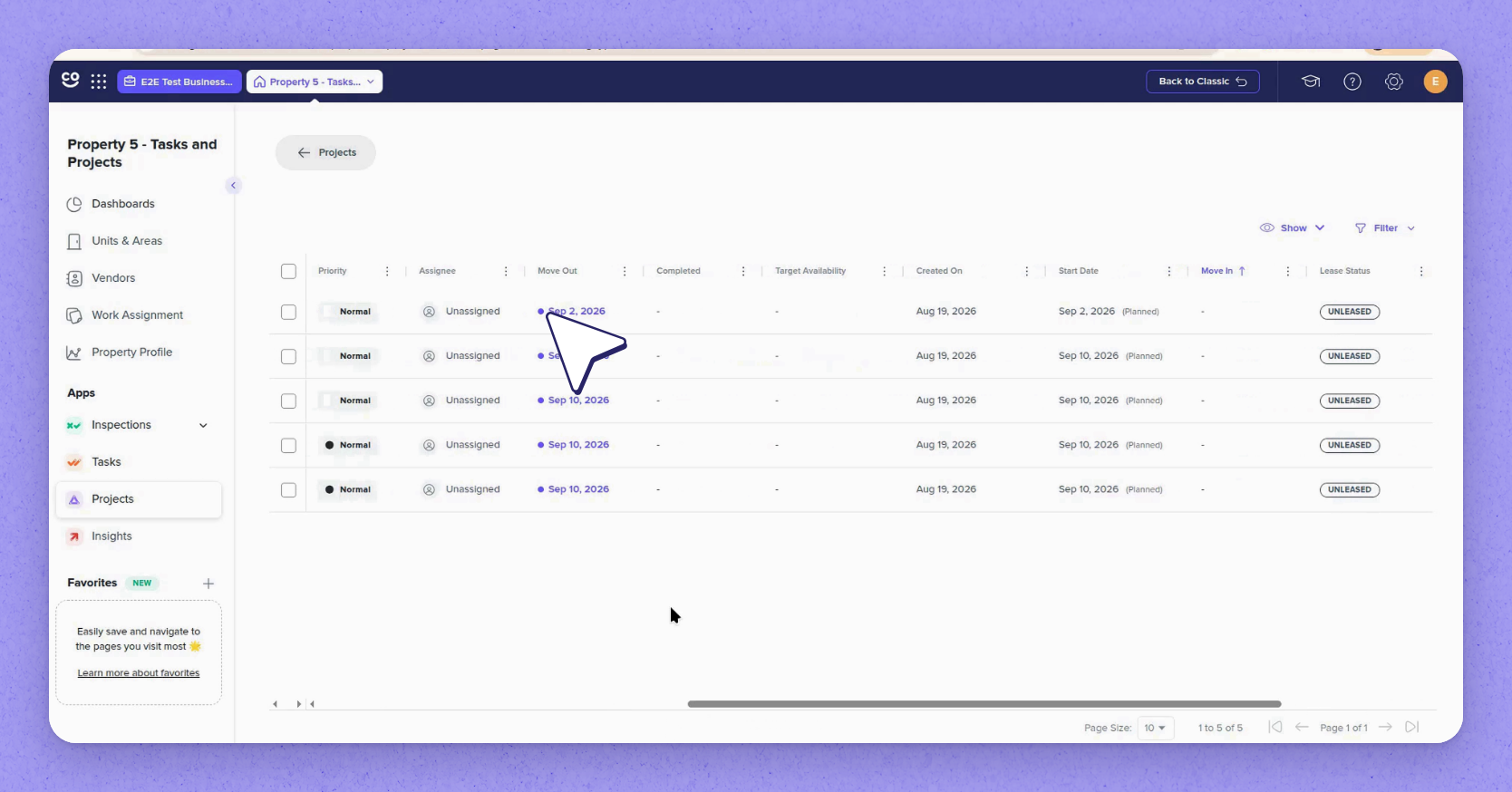
 Dismiss updates from the board
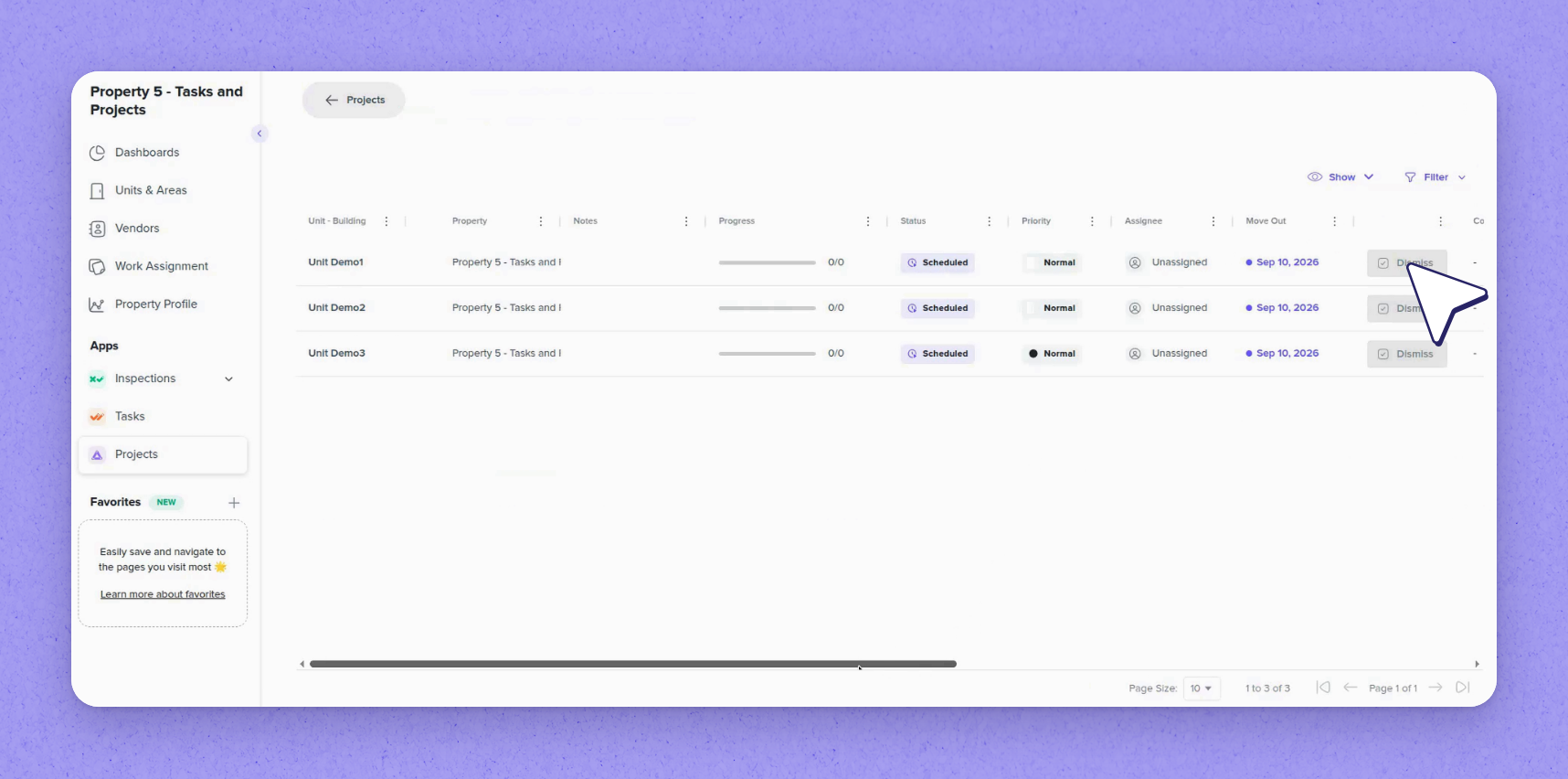
Once you've accounted for a change, you can dismiss it. In the filtered view, each affected project has its own Dismiss button.
Select Dismiss on a project and its button disappears, and its date is no longer highlighted. Back on the board, the banner count drops by one (in the recording, from five to four).
 Dismiss from the side drawer
You can also dismiss from the side drawer. Open the project, check the old and new dates, and select Dismiss. The warning is marked as resolved and the banner count drops (in the recording, to three).
 Shared dismissals and permissions
Dismissals are shared across users on the same board, so a different user signed in sees the same remaining updates. Dismissing requires the Change Project Dates permission. Without it, Dismiss is disabled in both the side drawer and the filtered view, while every update stays visible.
Frequently asked questions
Why is the Dismiss button disabled for me?
Dismissing a move-out update requires the Change Project Dates permission. Without it, Dismiss is disabled in both the side drawer and the filtered view, though you can still see every update.
If a teammate dismisses an update, will I still see it?
No. Dismissals are shared across users on the same board, so once an update is dismissed, everyone sees the same remaining count.
Where can I see the previous move-out date?
Hover over a highlighted date in the Move Out column to see the previous date, or open the project's side drawer, which spells out the change from the old date to the new one.
More Project Board Updates
Find more 2026 Project Board updates in this article!