
Overview
The Projects Calendar is an interactive scheduling and management tool designed to streamline project workflows. It supports multi-property scheduling, drag-and-drop actions, infinity scrolling, and robust filtering to help teams plan strategically and coordinate tasks efficiently.
Requirements
Feature Enablement
How the Projects Calendar is enabled depends on the release date:
- Before October 22, 2025 (Early Access): The feature must be enabled manually by an administrator.
- After October 22, 2025 (General Access): The feature is automatically enabled for all customers; no administrative action is required.
Key Concepts
Calendar Layout and Navigation
The Projects Calendar provides an expansive interface designed for long-term planning and ease of use:
- Month View: Displays up to an entire month at-a-glance to assist with strategic planning.
- Infinity Scrolling: Allows you to scroll continuously across months to easily schedule long-term items.
- Independent Unscheduled Column: The column containing unscheduled items scrolls independently from the main calendar grid, allowing you to browse unscheduled tasks while navigating different dates.
Item Tiles
Items on the calendar represent project work orders and project inspections. Each item is represented by a tile containing up to six key pieces of data:
- Status
- Category / Sub-category / Name
- Unit - Building
- Property
- Priority
- Assignee
Note: Item tile data cannot be updated directly on the tile itself, but can be modified using the side drawer. A seventh data point—the scheduled date (for work orders) or due date (for inspections)—is inferred based on the date cell where the tile is placed.
Date Cell Heights and the Item Overlay
- Dynamic Date Rows: Date rows automatically grow or shrink in height as items are added or removed.
- Maximum Height Limit: Date cells can display a maximum of six item tiles.
- Item Overlay: If a seventh item (or more) is scheduled on a single date, the additional items are hidden from the main view. An indicator showing the number of additional items and properties appears at the bottom of the cell. Clicking this indicator opens a scrollable overlay containing all scheduled items for that date.
Steps
Enabling the Projects Calendar (Early Access)
If you are accessing this feature prior to October 22, 2025, follow these steps to enable it:
- Navigate to the Admin Center.
- Scroll to the Release Updates section.
- Locate the feature titled New Projects Calendar.
- Toggle or select Enable.
Accessing the Calendar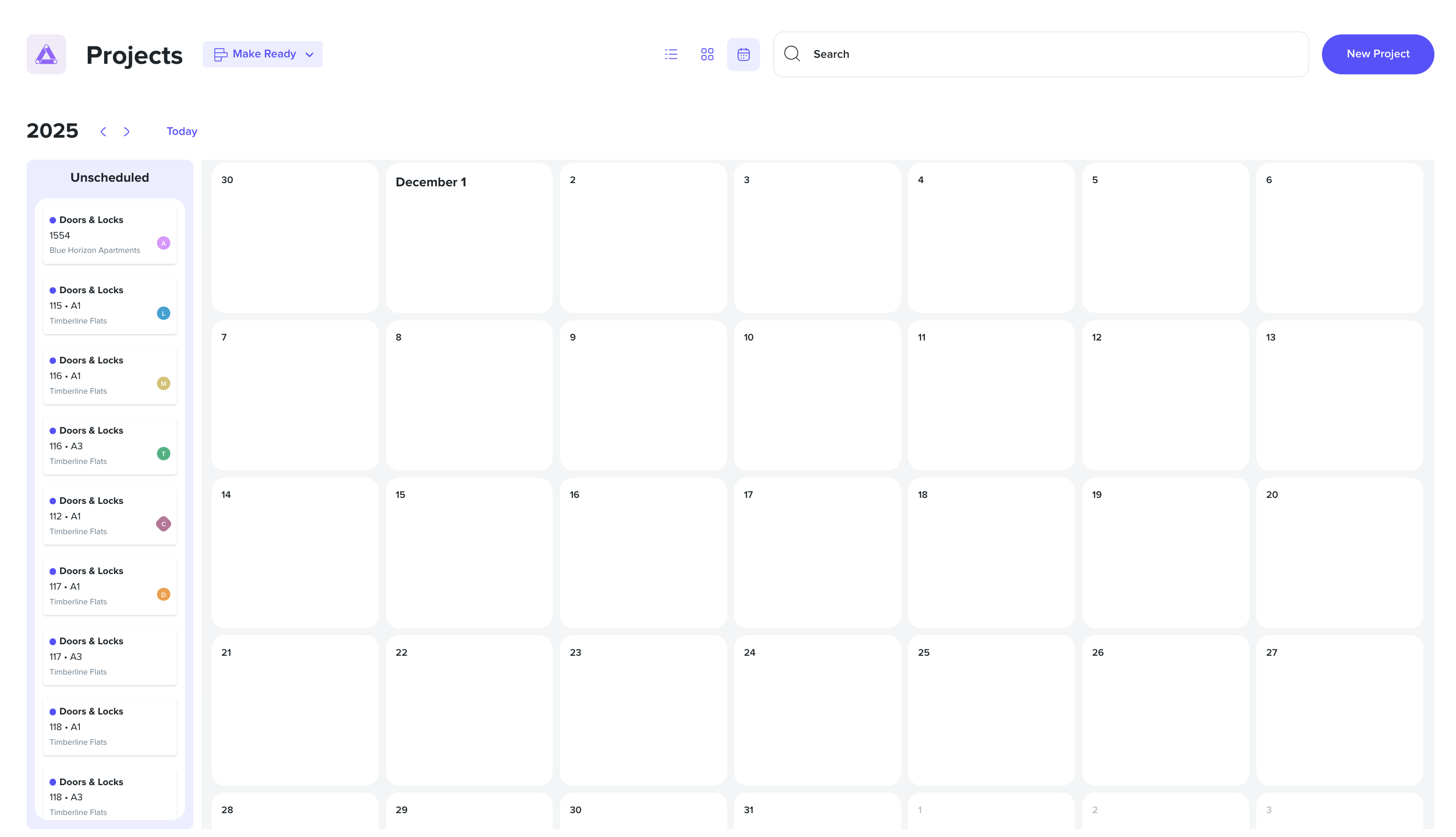
- Click the Projects navigation button within your HappyCo platform to open the calendar view.
Scheduling and Editing Items
Using Multi-Property Selection
- Open the property picker at the top of the calendar.
- Select all the properties you wish to view.
- The calendar will display both scheduled and unscheduled project Work Orders and Inspections across all selected properties.
Scheduling via Drag-and-Drop
To schedule or reschedule items:
- From Unscheduled to Calendar: Click and hold an item tile in the Unscheduled column, then drag and drop it onto the desired date cell.
- Rescheduling on the Grid: Click and hold any item tile on the calendar, then drag it to a new date cell to update its scheduled date (for work orders) or due date (for inspections).
- From the Overlay: Open the item overlay on a busy date, click and hold an item tile, and drag it out of the overlay onto any other date on the calendar.
Editing Item Details
To edit detailed fields on a work order or inspection:
- Click the item tile (located in the unscheduled column, a date cell, or within the item overlay).
- The editing side drawer will open.
- Make the necessary updates to the item. Any changes saved will reflect immediately on the Projects Calendar.
Filtering and Saving Views
You can refine your calendar view using several independent filters.
- Apply Filters:
- Project Assignee: Filter by a single assignee to show only their assigned tasks and inspections. Only one assignee can be selected at a time.
- Location: Select multiple units or properties. A number icon in the filter field indicates the total number of selected locations.
- Task Status: Select multiple task statuses. A number icon in the filter field indicates the total number of selected statuses.
- Inspection Status: Select multiple inspection statuses. This filter operates independently from the Task Status filter.
- Urgent: Filter tasks by priority using the Urgent field. Note: This filter only affects tasks, as inspections do not contain a Priority field.
- Category: Select multiple task categories to narrow down your view.
- Save or Persist Your View:
- Automatic Cache Saving: Your active filter selections are automatically saved to your browser cache. You can navigate away from the page and return to find your filters still applied.
- Favorites: Once your filters are configured, you can save the filtered view to your Favorites for quick access in the future.