
Reset a forgotten password from the HappyCo sign-in page, or change your name, email, phone number or password from your profile in Manage. Use this when you can't sign in, when your details are out of date, or when you've lost access to the email address on your account.
Resetting Your Password
 Open the sign-in page
Go to the HappyCo homepage and click Sign-in in the upper right corner.
 Choose Forgot Password
Click the Forgot Password? link on the sign-in page.
 Request the reset email
Enter your user email address and click Continue. This sends a password reset email to your account.
 Check your inbox
Open the password reset email.
 Tip
Allow a few minutes for the email to arrive. Check your junk or spam folders, and whitelist the @happyco.com domain if you find the email there.
 Enter a new password
Click the link in the email and enter a new password.
Tip
Passwords must be at least 8 characters long and mix uppercase letters, lowercase letters, numbers and special characters. A password generator tool, such as LastPass, helps create a strong one.
 Save the new password
Click Change my password.
 Log in
 using your new password.
Updating Your User Details in Manage
- Log into Manage
Log into Manage.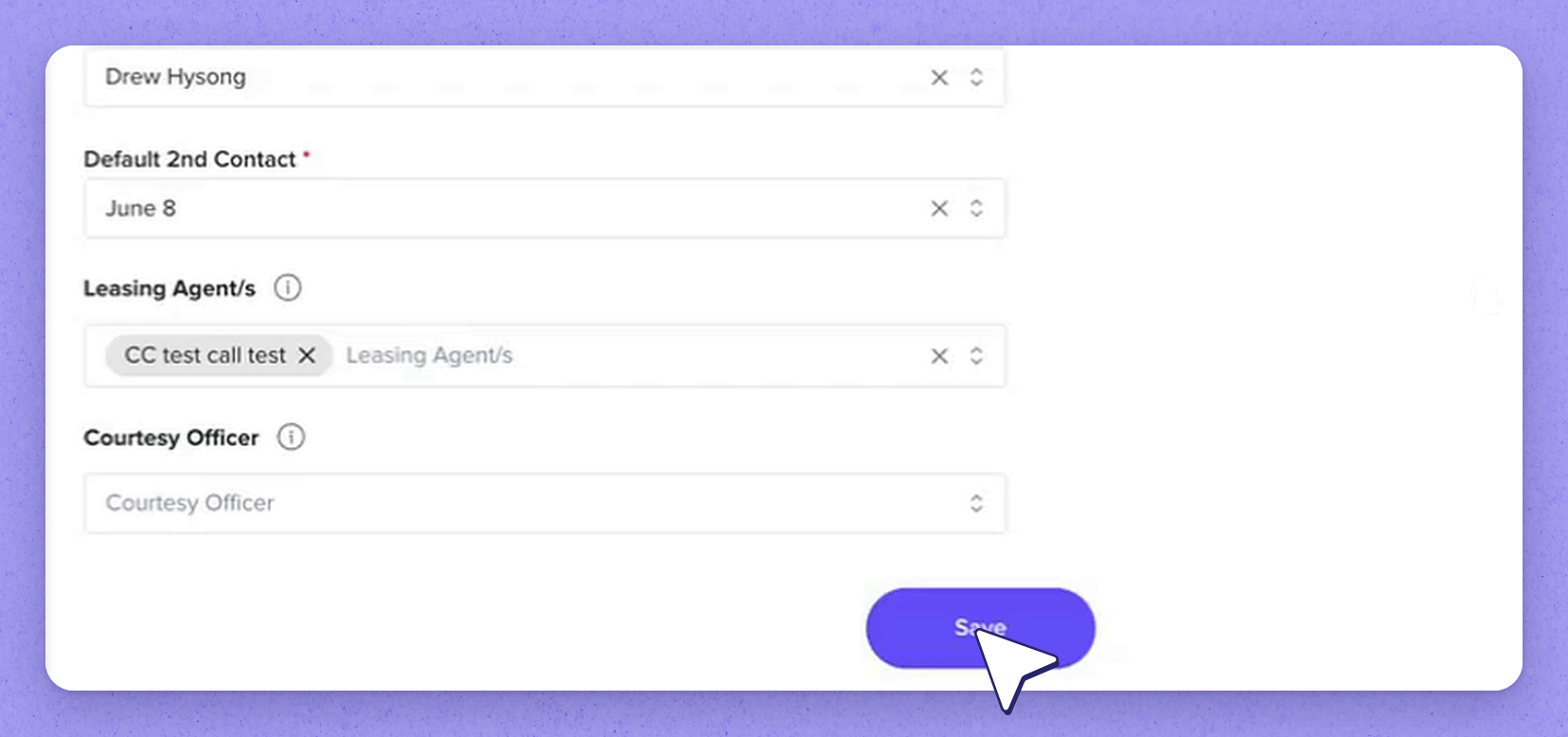
- Open your profile menu
Click your initial, shown in a circle in the upper right corner. - Select Edit Profile
Select Edit Profile. - Update your details
Change any of these fields:- Full name
- Short name
- Phone number
- Password
- Save your changes
Click Save in the lower right corner.
 Previously generated reports don't change
Changes to a user's profile do not affect previously generated reports that included Inspector Details.
Fixing an Outdated or Inaccessible Email Address
- Contact HappyCo support
If you can't access the HappyCo app because your email address is outdated, reach out to the HappyCo support team to update your credentials. - Verify your identity
Provide your current username and any relevant account information. - Log in with the correct email
Once support verifies your identity, they make sure you can log in with the correct email address.