
Your Technician Profile in the Happy Property Maintenance App (HPMA) is where you manage your profile photo, view your resident satisfaction rating and work order completion by category, add skills and certifications, and generate a personalized Technician Card. Keeping it current helps supervisors match the right work to the right technician — so you get work orders that fit your skill set.
🎬 Watch it in action: Watch: Sourcing Settings: Property DNA
🎬 Watch it in action: Watch: Add Work Orders to Projects
 Happy Property — HPMA (the Happy Property Maintenance App) HPMA is the field mobile app technicians use on-site. It is offline-capable and sits on top of your PMS.
 Who this is for
You must have the Maintenance Technician role to access Technician Profiles, and you should be using the latest version of HPMA.
Key concepts: Technician Card, skill scoring, and default avatar
A few terms appear throughout your profile:
- Technician Card — a digital card that celebrates your role as a maintenance technician. It prominently displays your photo, resident satisfaction rating, and top skills.
- Skill scoring and tiers — skills on your Technician Card are scored out of 100 based on a combination of completed work, years of experience, and certifications. The card also features tiers (Bronze, Silver, and Gold) that represent your resident satisfaction rating.
- Default avatar — if you choose not to upload a custom profile photo, a default avatar displaying your initials is used throughout HappyCo products.
Viewing your Technician Profile
1 Open HPMA
From your device's home screen, open the Happy Property app.
2 Open your account menu
On the My Work screen, tap the account icon in the top right corner.
3 View your profile
Tap View my profile.
Updating or removing your profile photo
1 Go to your profile
Navigate to your profile.
2 Open the photo editor
Tap the pencil icon beside your current photo or avatar.
3 Take a new photo
Tap Take Photo to open your camera. Take the picture and tap Use Photo to save it, or tap Retake Photo to try again.
 Tip
Tip
You can tap the checkmark button at any point to cancel and return to the profile screen.
4 Upload an existing photo
Tap Add Photo to open your device's photo album, then select the photo you want to use.
5 Remove your photo
Select the option to remove your photo. Your custom photo is deleted and replaced with the default initials avatar.
Adding skills and creating your Technician Card
1 Find the Technician Card section
Open your profile and locate the "Create your technician card" section below your name and photo.
2 Add skills
Tap Add skills.
3 Select your skills
On the selection screen, choose all applicable skills and tap Next, so your card reflects everything you can do.
4 Rate your proficiency
Rate your proficiency for each skill. You can also add your years of experience now, or leave it blank and add it later.
5 Finish
Tap Next to finish. You'll be taken back to your profile where you can view your added skills and your new Technician Card.
Open your card fast
Once created, you can view your Technician Card from your profile or by simply shaking your device anywhere in the app. The card stays up to date as you complete work and add more skills.
Editing skills and adding certifications
1 Open the skills editor
Open your profile and tap Add or edit skills.
2 Edit or add a skill
Tap an existing skill to edit it, or tap Add skills to introduce a new one.
3 Update skill details
While editing a skill, you can update your years of experience, change your proficiency rating, or add a certification.
4 Enter certification details
To add a certification, input the details listed below.
| Field | What to enter |
|---|---|
| Name of certification | The title of the certification |
| Issuer | The organization that issued it |
| Date completed | When you earned it |
| Date of expiry | When it expires |
| Certificate ID | The identifier on the certificate |
| Link to other skills | Associate the certification with related skills |
Frequently asked questions
Why should I add skills and certifications?
Adding skills and certifications lets your supervisors see your exact qualifications. This aids work assignment, ensuring you're matched to work orders that fit your specific skill set.
What happens if I do not have a custom profile photo?
If you haven't uploaded a photo, or if you remove your current one, a default avatar displaying your initials is automatically shown in place of a photo across all HappyCo products.
How is my Technician Card score calculated?
Your skills are scored out of a maximum of 100 points. The score is automatically calculated using a method that factors in your completed work, years of experience, and logged certifications.
Are the Technician Card and skills mandatory?
Starting in Q3 '24, skills and certifications from the Technician Card are an optional feature that can be managed in Settings.
Screenshots
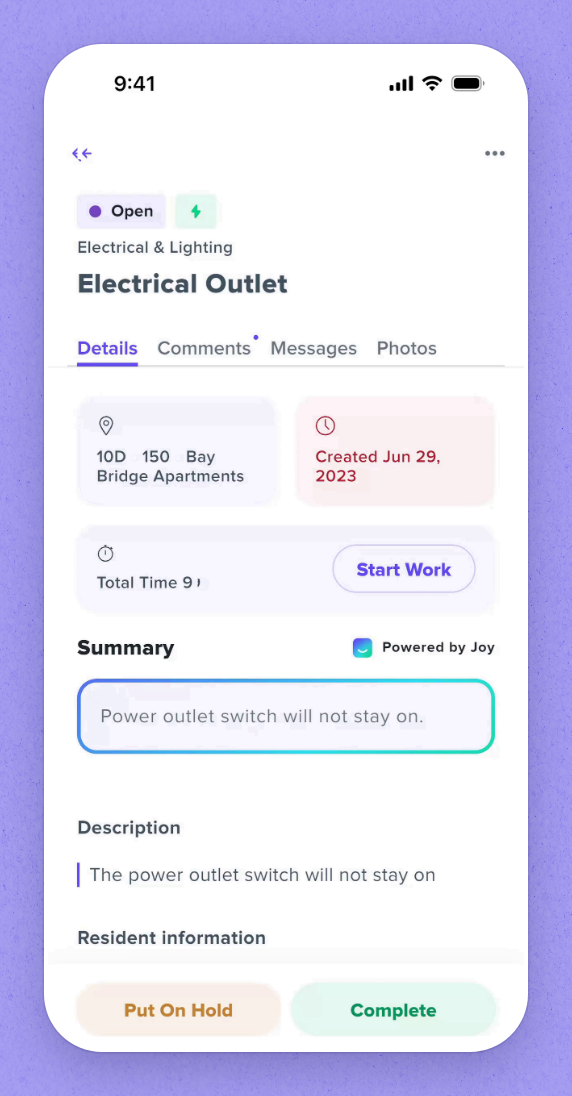
Open the new camera package
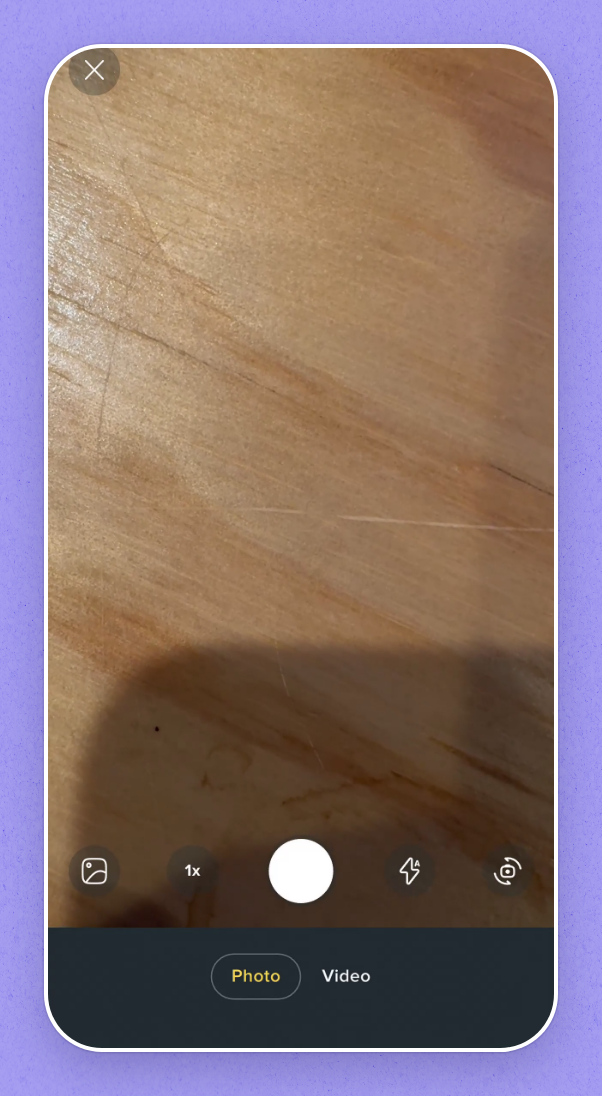
Get familiar with the camera screen
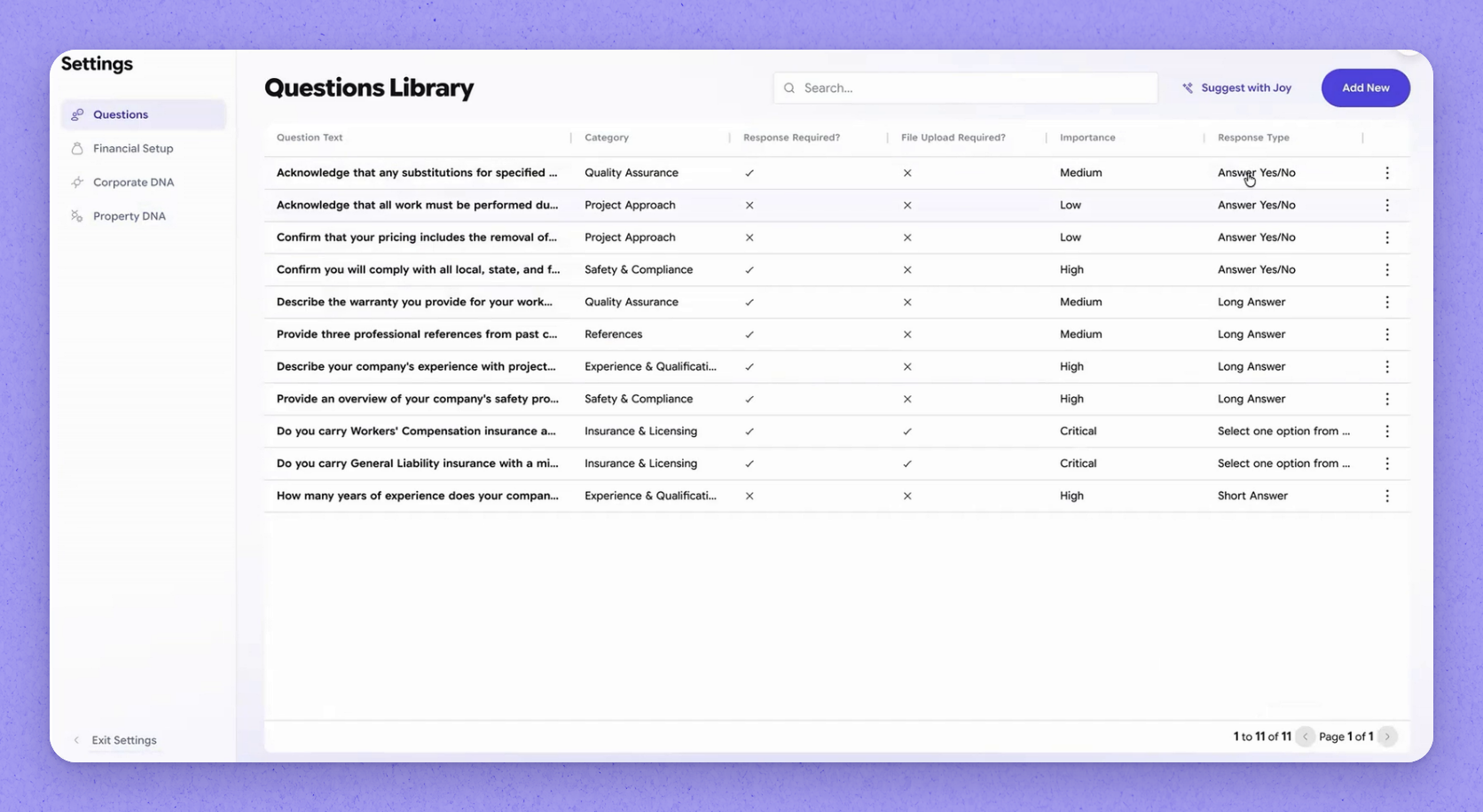
Configure the question library
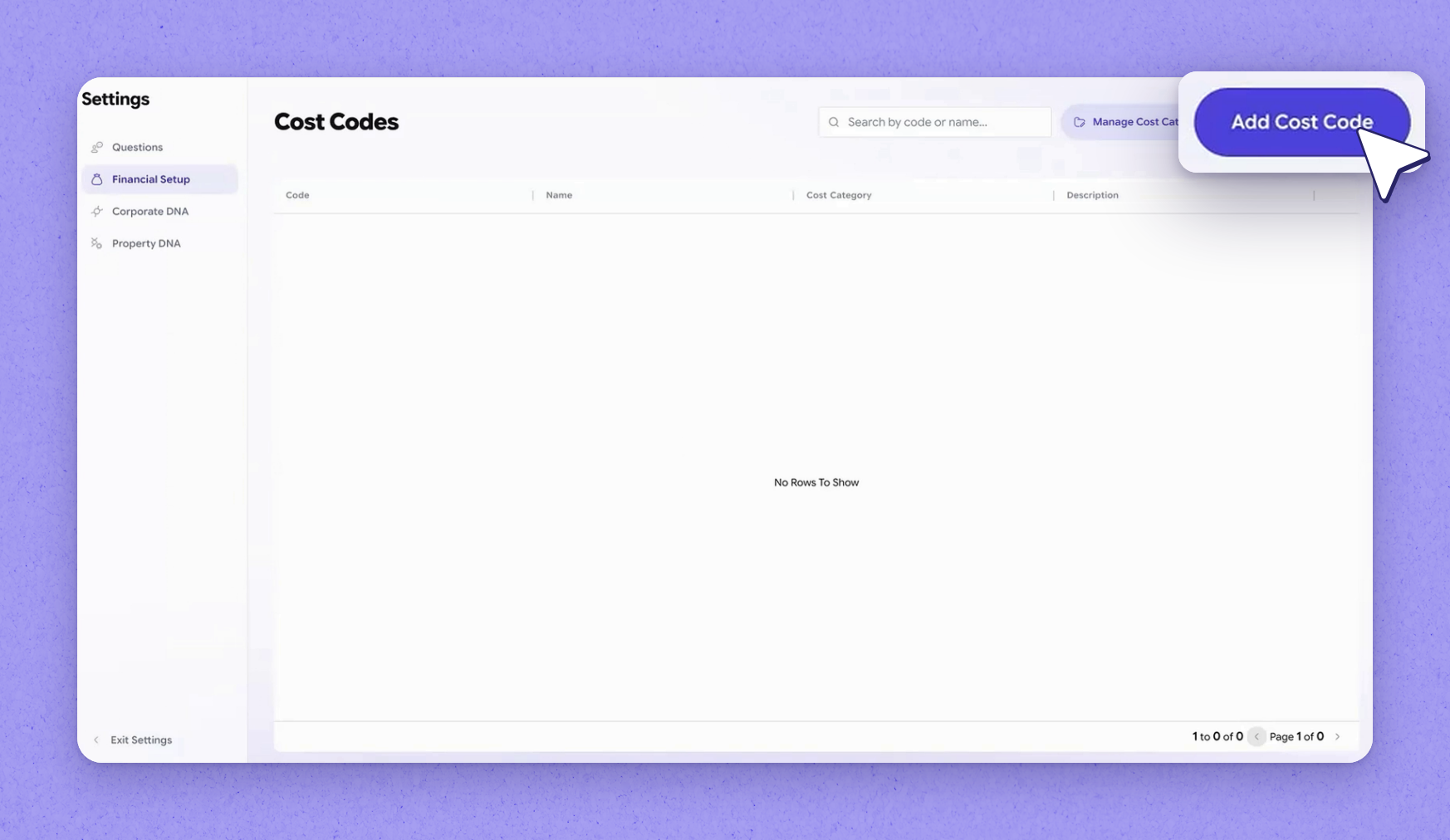
Set up cost codes