
 happy-property
Logbooks keep recurring compliance readings — like pool chemistry — as one continuous record, so when an inspector asks for a period of readings you can produce it from a single place instead of pulling many separate reports. Logbooks are powered by Property Features: set one up once on a feature and reuse it at every property that has that feature. This article covers configuring a logbook, completing it on site in HPMA (the Happy Property Maintenance App), and monitoring and reporting from the Logbooks dashboard.
 Set up logbooks on Property Features
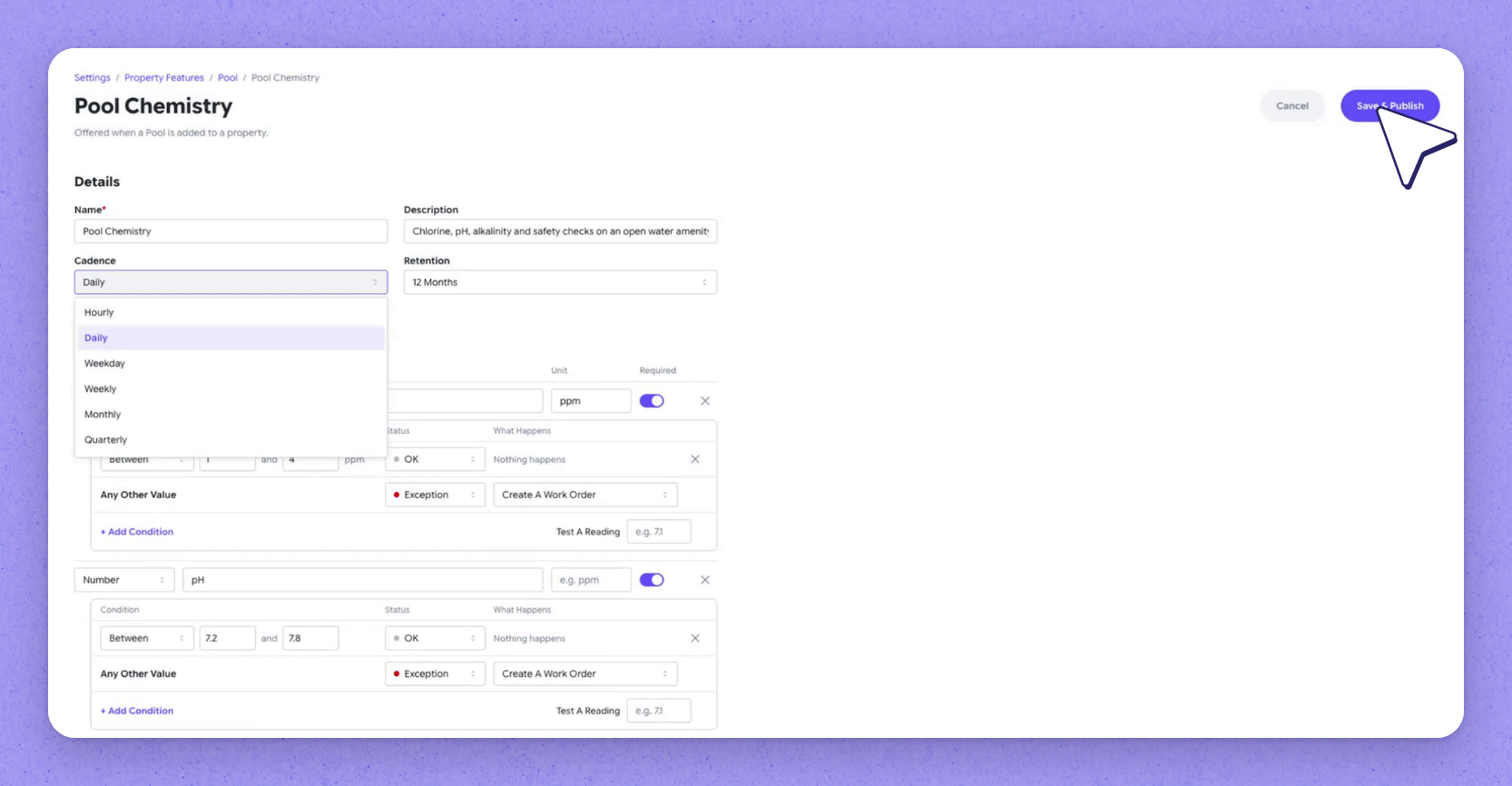
Set a logbook up once on a feature (for example, Pool) so it reuses at every property that has that feature. List exactly what gets checked, in order, and give each chemical reading an acceptable range; any value outside that range is flagged as an exception, which can be set to create a work order.
Choose where the logbook is offered and how it runs:
- Availability: every property with that feature, or only selected ones.
- Cadence: from hourly to quarterly.
- Visibility: how long entries stay visible — records always remain in the system.
 Tip
Tip
A logbook is offered wherever its feature is added, so adding a pool to a property brings its logbooks and rules along automatically.
 Complete logbooks on site in HPMA
Open My Work in HPMA, where logbooks sit alongside inspections labeled Log book. The pool safety check is a few taps — gate latched, water clear, safety equipment in place.
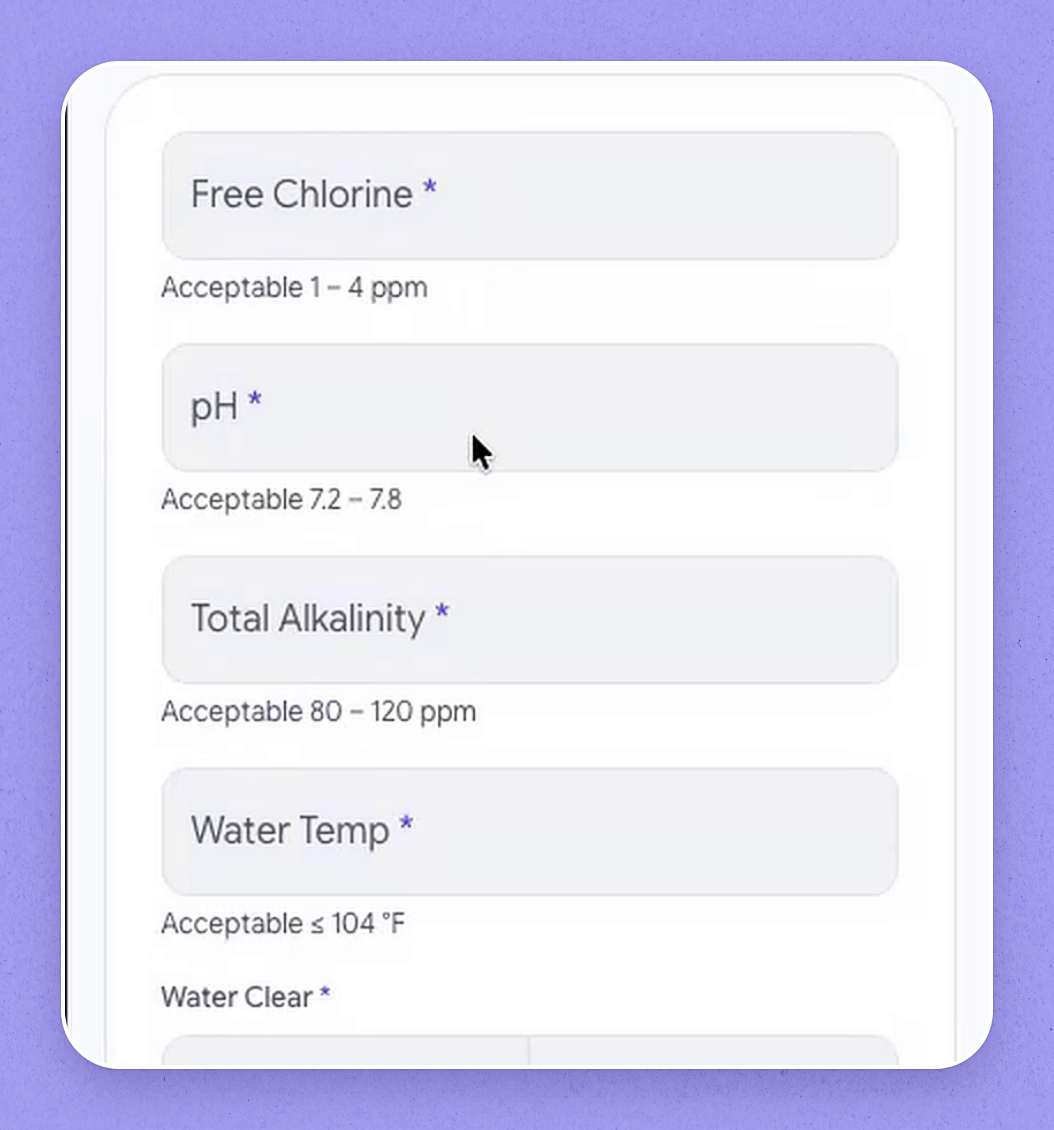
Open Pool Chemistry to see the same fields configured on desktop, each with its acceptable range shown; readings are checked against those ranges as you type.
Add the yes-or-no checks, a photo of the test result, and notes for any remediation, then submit. The entry is recorded and Pool Chemistry drops off the open list.
 Monitor and report from the Logbooks dashboard
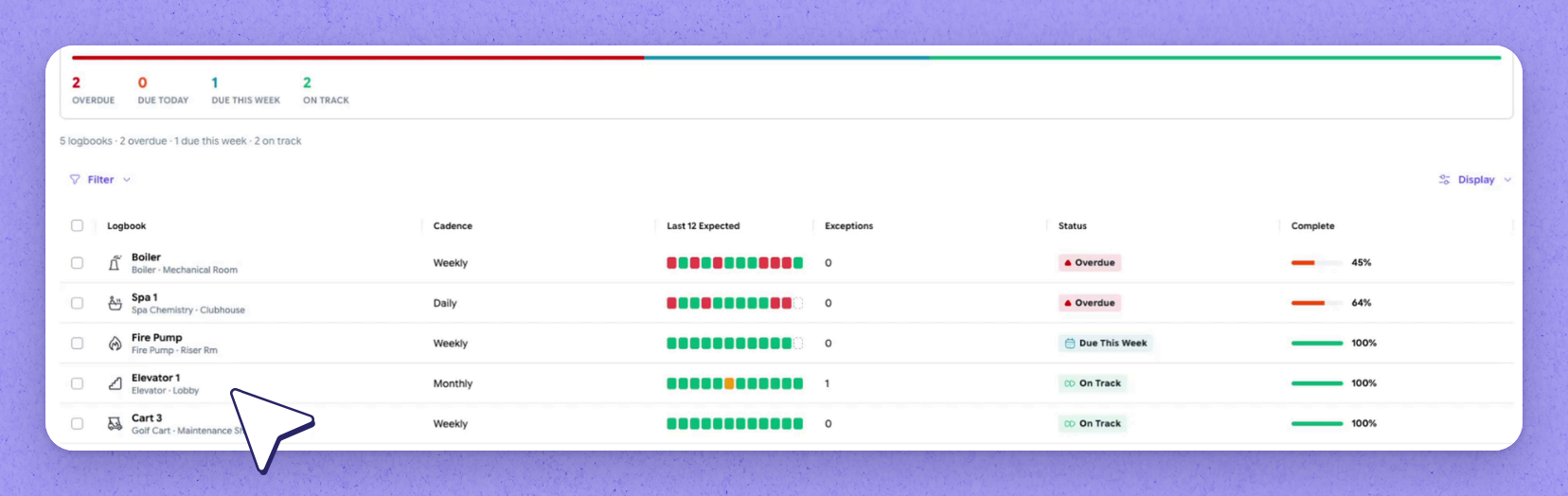
Open the Logbooks dashboard on desktop to see what's overdue, due today or this week, open exceptions, what's on track, and overall completeness.
Needs attention first ranks properties by what's overdue. Each row shows the last twelve expected entries — hover a square to see whether that period was logged.
Open a logbook for its timeline: one row per expected day, with each reading, who logged it, and any gap marked No Entry. You can log an entry here on desktop or in the field with HPMA, and pause a logbook when a feature is out of order so nobody is asked for readings that don't apply.
Tip
The configuration panel shows what's collected and how often, with ranges and out-of-range actions set up in Property Features.
| Item | What it is |
|---|---|
| Chemical readings | Numeric readings, each with an acceptable range; any other value is flagged as an exception. |
| Safety checks | Yes-or-no checks, such as gate latched, water clear, and safety equipment in place. |
| Test result photo | A photo of the test result. |
| Notes | A spot to record any remediation. |
Frequently asked questions
What happens to a reading that falls outside its acceptable range?
It's flagged as an exception. The out-of-range action is configured in Property Features — in the recording, the exception is set to create a work order.
Does the report change if I correct an entry later?
No. When you open Reports and produce a record for a period, it creates a fixed PDF snapshot ready to download. Entries corrected later never change that snapshot.
Do recipients need a HappyCo account to receive a report?
No. Issue Report emails the PDF to an inspector or your own team, and recipients don't need a HappyCo account. Copies can also be saved to Documents and attached to the property record.
What happens if a feature is temporarily out of service?
Pause the logbook so nobody is asked for readings that don't apply. For example, if the spa is out of order, pausing stops requests for its readings.