
This error appears when you try to save property sharing changes on an inspection template while the listed properties still have an active schedule built with the old version of inspection schedules. To clear it, delete those old schedules, then remove sharing and manage recurring inspections with the new version of Inspection Schedules.
What the error looks like
The error appears when you save your sharing settings through inspection schedules v2. It lists the properties that currently have an active inspection schedule set up using the old version of inspection schedules.
Fix the property sharing error on an inspection template
 Note the properties in the error message
Write down every property the error message lists. You need them in the next step.
 Select the listed properties
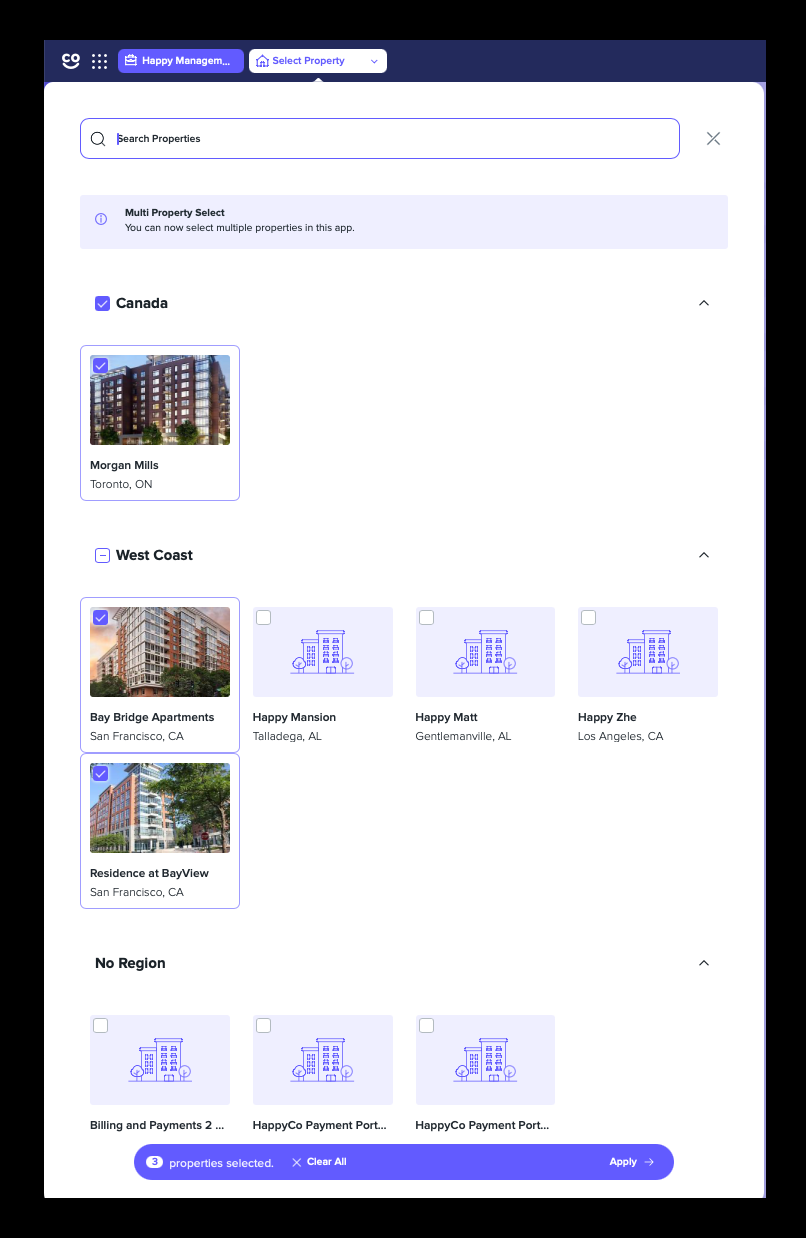
Go to the home dashboard, select Inspections from the left menu and select all the properties listed in the error message.
 Tip
Use the search bar to find properties quickly.
 Open Schedules
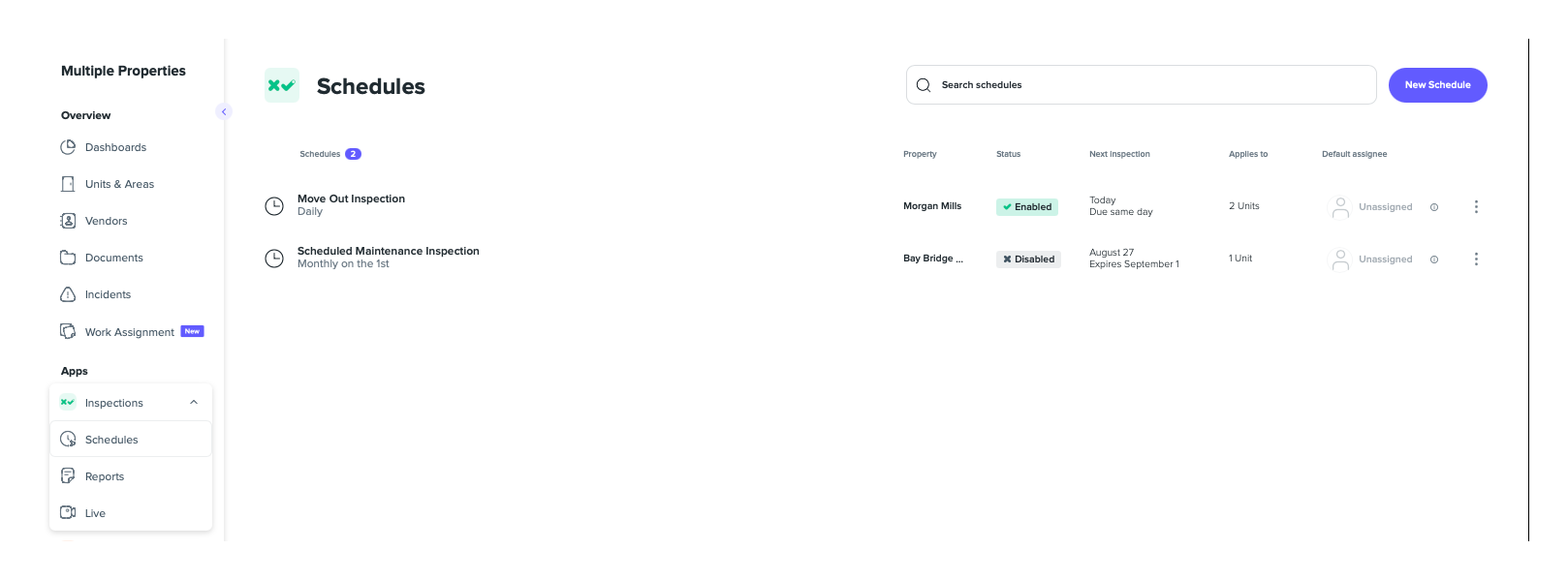
In the left menu, under the Inspections app, select Schedules. A list of all your inspection schedules appears.
 Delete the old schedule
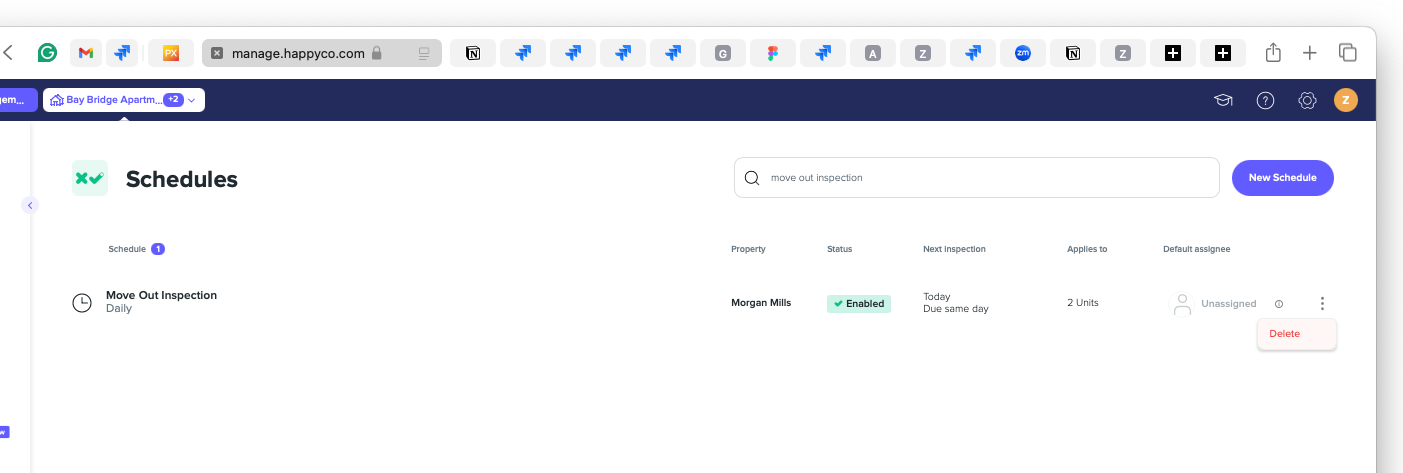
Search for the inspection template where the active schedule is. Select the overflow menu (three vertical dots on the right), then select Delete.
 Remove sharing from the template
Go back to the inspection template. You should now be able to remove sharing from those properties.
Tip
Use the new version of Inspection Schedules to manage your recurring inspections from now on.