
 HappyCo Property Management Application (HPMA) HPMA Release 2.20.0 onward
🎬 Watch it in action: Watch: Notification Center: How to Use It
Early Access from July 15, 2026. Live for all November 10th, 2026.
The Notification Center adds an in-app list of your work order notifications to HPMA, opened from a bell icon next to your avatar, with a red badge when something needs your attention.
Use it to see every notification in one place, jump to the work order it relates to, and keep your list tidy with read, unread and dismiss actions.
 In this article
- Turn on the Notification Center before November 10th, 2026 (Admin Center)
- Turn off Notifications on Mobile (Admin Center)
- Find your notifications in HPMA
- Open a notification in HPMA
- Mark notifications read, unread or dismissed in HPMA
- Bulk actions: mark all read, mark all unread, dismiss all
- Notification settings (HappyCo Manage)
- Frequently asked questions
 In-app only: push notifications are unchanged
Notifications are in-app only. Your push notifications arrive exactly as they did before.
Think of this as a running record inside the app, so a notification is always there when you come back to it. At this stage, notifications cover work orders.
Turn on the Notification Center before November 10th, 2026 (Admin Center)
 Open Admin Center → Release Updates
Go to Admin Center > Release Updates.
 Enable Happy Property Notification Center
. The Notification Center becomes available for your users.
 Tip
Once enabled, the feature is available to your team on next HPMA sync.
Turn off Notifications on Mobile (Admin Center)
-
Return to Admin Centre → Release Updates
Return to Admin Centre > Release Updates. -
Switch off Notifications on Mobile
Find Notifications on Mobile and switch it off.
Find your notifications in HPMA
Look for the bell icon next to your avatar
A bell icon appears next to your avatar. When you have a notification, a red badge appears on the bell.
Tap the bell
Your notifications list opens. It shows all of your notifications, plus a separate list for unread notifications only.
Tip
Unread notifications show on a white background with a purple dot over the icon.
Open a notification in HPMA
-
Tap a notification
HPMA goes straight to the work order it relates to. TipOpening a notification this way marks it as read.
| Task type | Screen that opens |
|---|---|
| Regular work order (no purpose) | The work order's main screen |
| Compliance record | The compliance record screen |
| Inventory capture | The work order's main screen. Tap Start to begin capturing. |
Same screen as your work list
Tapping a notification opens the same screen you'd get by tapping the task in your work list. This works the same from the notification list, a push notification, or a banner that appears while the app is open.
Tapping Back returns you to your notifications, or to the home screen if you came from a push.
Mark notifications read, unread or dismissed in HPMA
-
Slide a notification card from left to right
The card's actions appear. -
Choose an action
Choose Mark as read or unread to keep track of what you've already actioned, or Dismiss to remove the notification. TipDismissing deletes the notification from your device.
Bulk actions: mark all read, mark all unread, dismiss all
-
Tap the overflow (three-dot) menu
Tap the overflow (three-dot) menu in the header of the notifications screen. -
Pick a bulk action
Choose Mark all as read, Mark all as unread or Dismiss all.
Notification settings (HappyCo Manage)
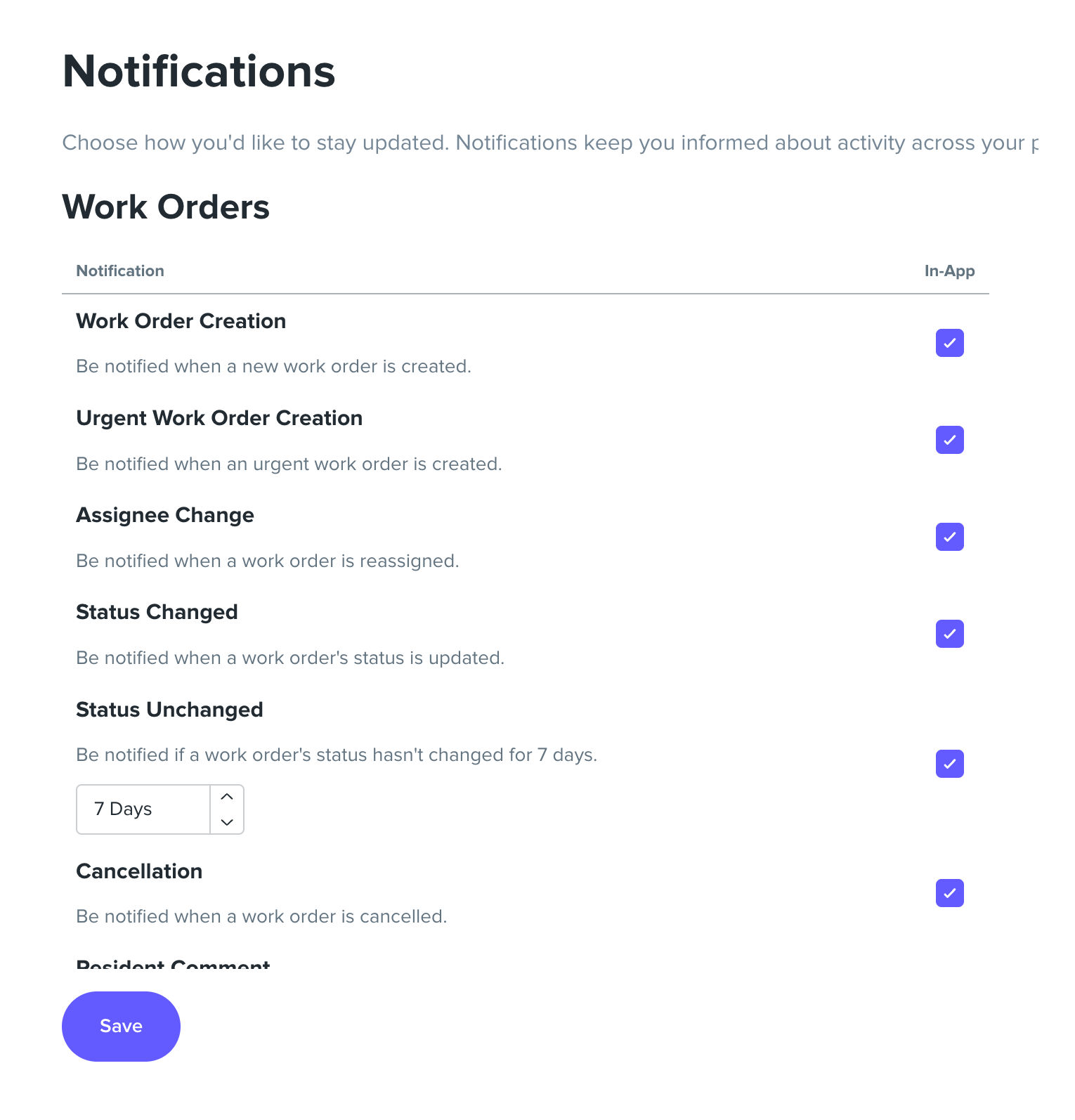
Manage your notification settings in HappyCo Manage. Go to your Profile > Edit Profile and ensure the notifications you are looking for are checked.
Frequently asked questions
Are these push notifications?
No. These are in-app notifications. Your push notifications continue to arrive as they did before. The notifications centre is a record inside the app, so you never miss one.
What do notifications cover?
Work orders, at this stage.
What happens when I dismiss a notification?
It's deleted from your device. To clear several at once, use Dismiss all from the overflow menu.
How do I mark something as unread again?
Slide the notification card from left to right and choose Mark as unread, or use Mark all as unread from the overflow menu.
Where do I change my notification settings?
In HappyCo Manage. See the Notification Center (Happy Property Desktop) help article.