
Tasks is a centralized list for managing maintenance work (work orders), and Make Ready Projects groups the tasks for a unit's turn into Stages on a board. Use them to keep your task list in sync with your work order systems, property management system (PMS) and HappyCo Inspections.
 In this article
Where to find Tasks and Make Ready Projects
Tasks and Make Ready Projects are available in Manage on the web and in the mobile app.
- Mobile: the Happy Property: Maintenance mobile app.
- Web: log in to Manage and select a property.
- In Manage, open Tasks or Projects from the sidebar, under Apps.
Creating a task in Manage
-
Open Tasks
In Manage, open Tasks from the sidebar, under Apps. -
Start a new task
Select New Task.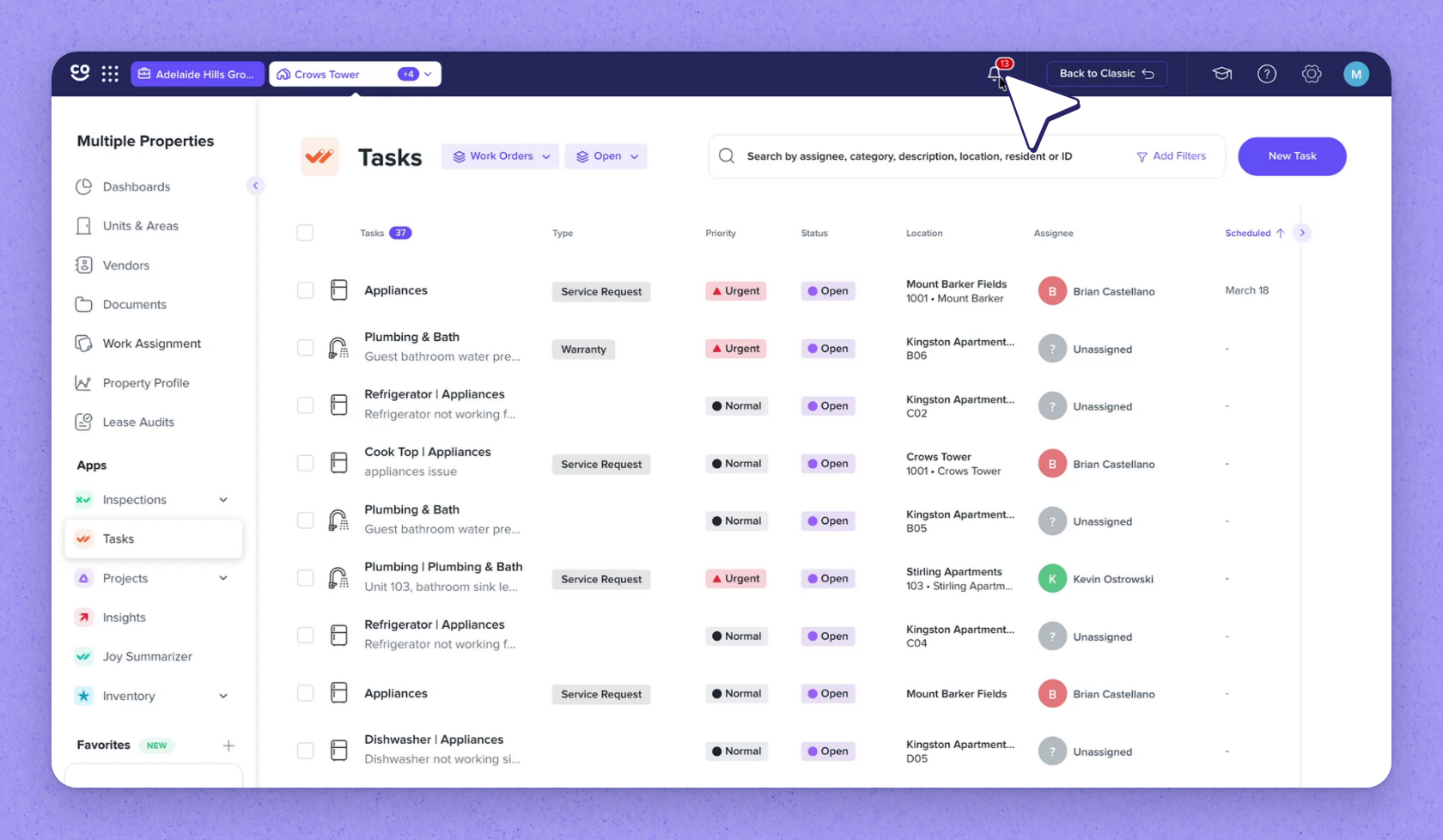
-
Choose the task type
Pick a type in the Select Type field. -
Set the category and scheduled date
Choose a Category and set the Scheduled date. -
Create the task
Select Create Task.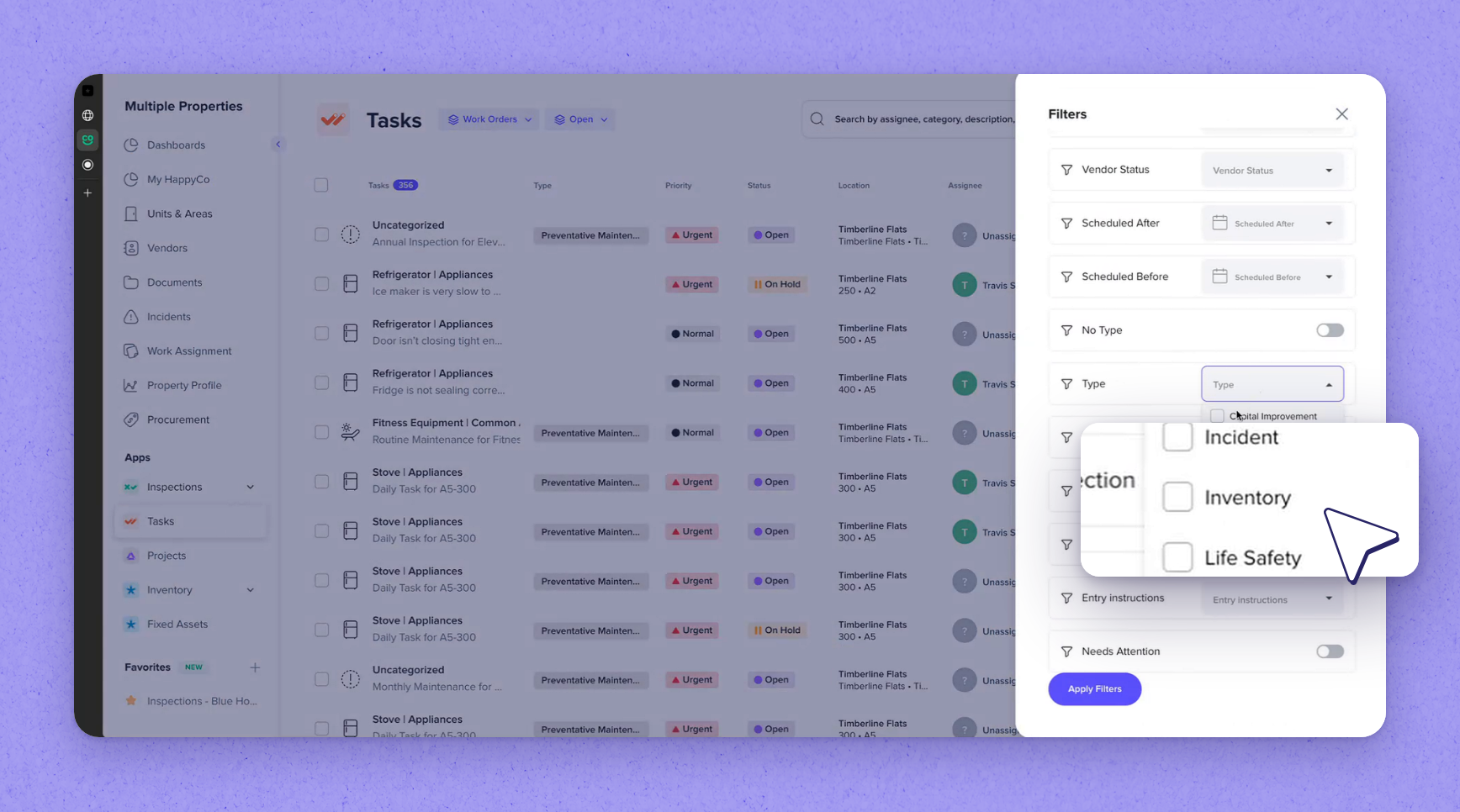
Filtering the Tasks list
The Tasks list filters include:
- Status
- Assignee
- Category
- Resident
- Type
- Vendor Status
How Tasks sync with work orders, your PMS and inspections
Tasks integrates bidirectionally with these systems.
- Work order integration: a work order created in your system automatically generates a Task in the Happy Property Maintenance app.
- Multiple work order systems: import all tasks into one list.
- PMS sync: creating a Task automatically generates a linked work order in your selected property management system.
- PMS updates: changes made to the Task sync back to the work order.
- Inspection integration: create Tasks from any type of inspection.
- After an inspection is completed: items marked as a Task are added to your task list with their inspection photos and notes.
Make Ready Projects board and project dates
Make Ready Projects are groups of tasks for a unit's turn process, organized and completed in Stages. Stages progress as tasks are completed.
- Start date
- Due date
- Move-in date
- Move-out date
Creating a Make Ready project board
-
Open Project Boards in settings
Go to Project Boards in settings. -
Start a new board
Select New Project Board. -
Name the board
Enter a Board Name. -
Choose the board type
In Board Type, choose Make Ready or Custom. -
Set the project due days
Enter the Project Due (Days). -
Create the board
Select Create Project Board.
Adding stages to a project board
-
Add a stage
On the board, select Add Stage. -
Name the stage
Enter a Stage Name. -
Set the stage due days
Enter the Stage Due (Days). -
Link categories
Choose any Linked Categories for the stage.
 Every board needs a stage
Board requires minimum of 1 stage.
Watch: The Make Ready Projects Board →Watch: Work Orders On the Web →